







Question: 1. Create a multiple window application as shown in the picture below: New Windows Example - OX First Window The First Pane Second Window
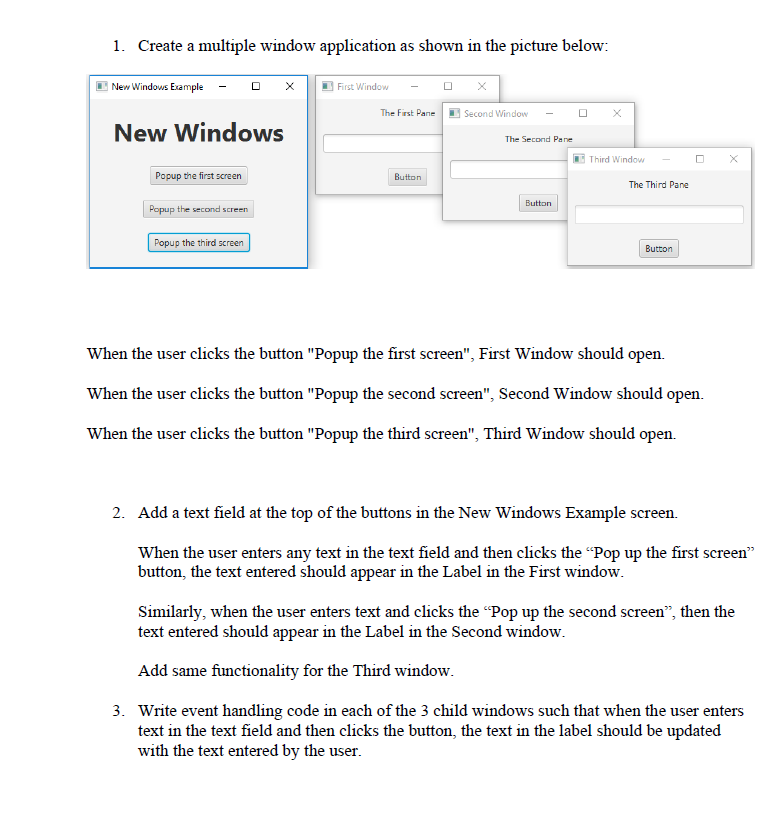
1. Create a multiple window application as shown in the picture below: New Windows Example - OX First Window The First Pane Second Window New Windows Popup the first screen Button Popup the second screen Popup the third screen The Second Pane Third Window Button The Third Pane Button When the user clicks the button "Popup the first screen", First Window should open. When the user clicks the button "Popup the second screen", Second Window should open. When the user clicks the button "Popup the third screen", Third Window should open. 2. Add a text field at the top of the buttons in the New Windows Example screen. When the user enters any text in the text field and then clicks the "Pop up the first screen" button, the text entered should appear in the Label in the First window. Similarly, when the user enters text and clicks the "Pop up the second screen", then the text entered should appear in the Label in the Second window. Add same functionality for the Third window. 3. Write event handling code in each of the 3 child windows such that when the user enters text in the text field and then clicks the button, the text in the label should be updated with the text entered by the user.
Step by Step Solution
There are 3 Steps involved in it
To achieve the functionality described you can create a multiple window application using Java Swing Below is a sample code implementation for the spe... View full answer

Get step-by-step solutions from verified subject matter experts
 Study Help