







Question: 1. Create a Professional report using Microsoft Word. Your report should include the following: a. Cover page i. Name, date, course number and name, and
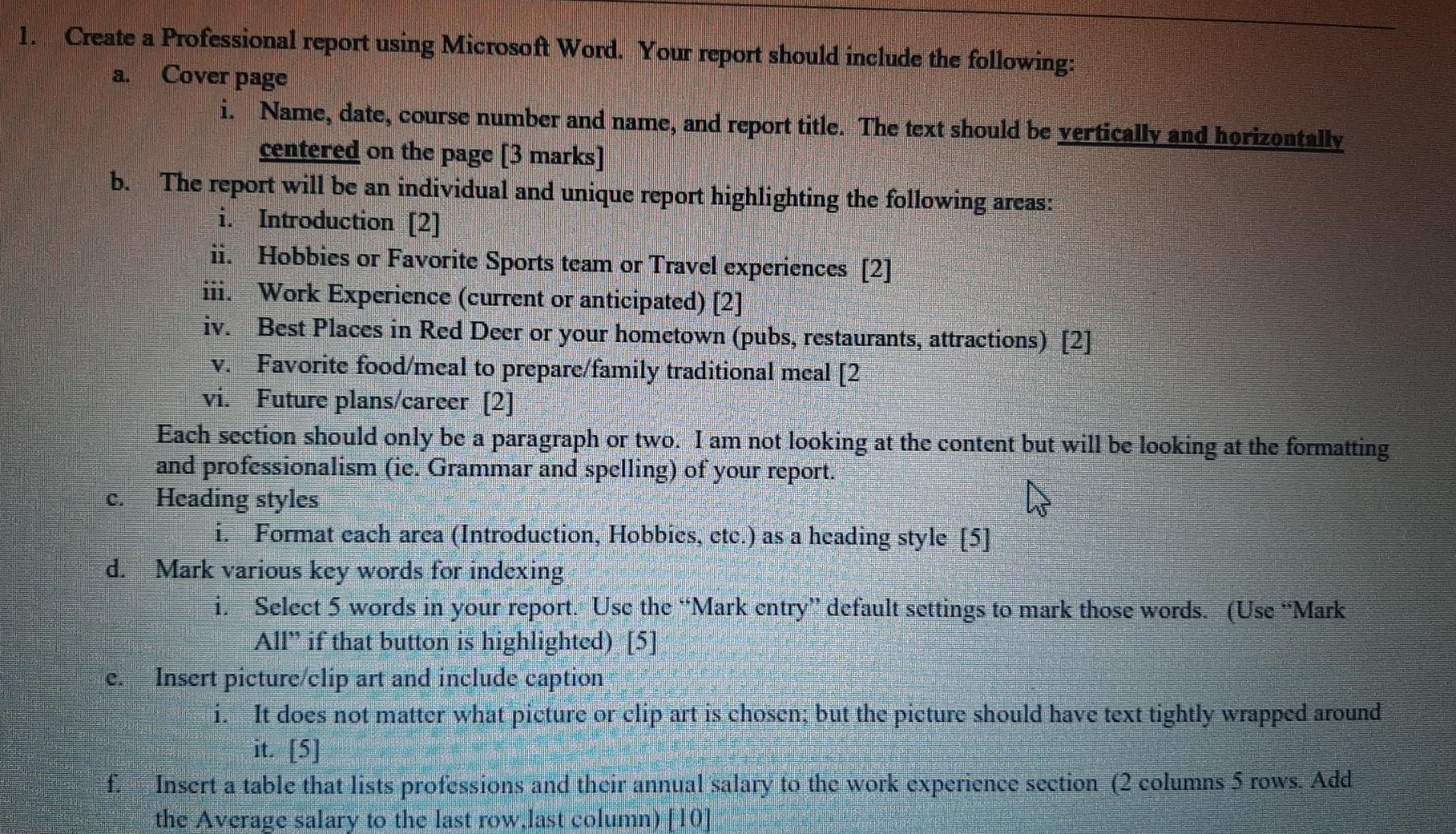
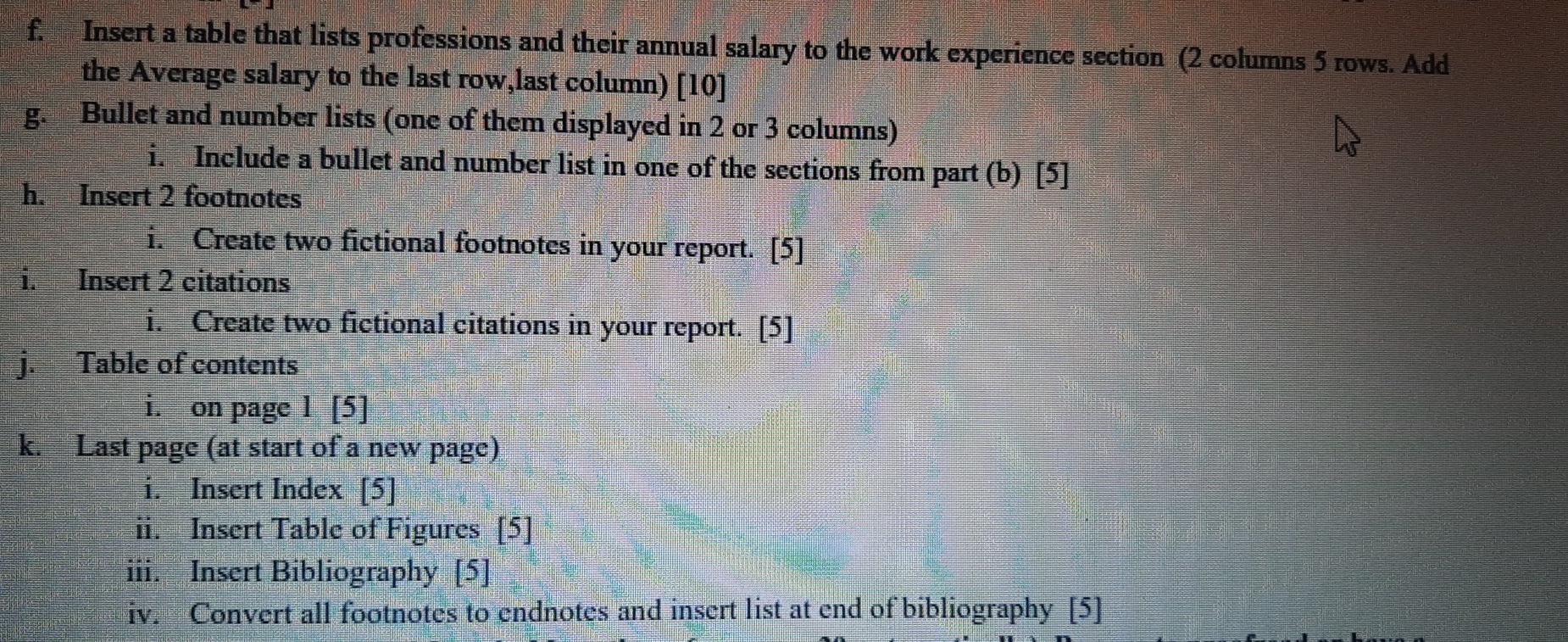
1. Create a Professional report using Microsoft Word. Your report should include the following: a. Cover page i. Name, date, course number and name, and report title. The text should be vertically and horizontally centered on the page [3 marks] b. The report will be an individual and unique report highlighting the following areas: i. Introduction [2] ii. Hobbies or Favorite Sports team or Travel experiences [2] iii. Work Experience (current or anticipated) [2] iv. Best Places in Red Deer or your hometown (pubs, restaurants, attractions) [2] Favorite food/meal to prepare/family traditional meal [2 vi. Future plans/career [2] Each section should only be a paragraph or two. I am not looking at the content but will be looking at the formatting and professionalism (ic. Grammar and spelling) of your report. W Heading styles i. Format each arca (Introduction, Hobbies, etc.) as a heading style [5] d. Mark various key words for indexing i. Select 5 words in your report. Use the Mark entry" default settings to mark those words. (Use "Mark All" if that button is highlighted) [5] Insert picture/clip art and include caption i. It does not matter what picture or clip art is chosen; but the picture should have text tightly wrapped around it. [5] f. Insert a table that lists professions and their annual salary to the work experience section (2 columns 5 rows. Add the Average salary to the last row.last column) [10] C. f Insert a table that lists professions and their annual salary to the work experience section (2 columns 5 rows. Add the Average salary to the last row,last column) [10] Bullet and number lists (one of them displayed in 2 or 3 columns) i. Include a bullet and number list in one of the sections from part (b) [5] h. Insert 2 footnotes i. Create two fictional footnotes in your report. [5] Insert 2 citations i. Create two fictional citations in your report. [5] Table of contents on page 1 [5] k. Last page (at start of a new page) i. Insert Index [5] Insert Table of Figures [5] ini. Insert Bibliography [5] Convert all footnotes to endnotes and insert list at end of bibliography [5] iv
Step by Step Solution
There are 3 Steps involved in it
1 Expert Approved Answer
Step: 1 Unlock

Question Has Been Solved by an Expert!
Get step-by-step solutions from verified subject matter experts
Step: 2 Unlock
Step: 3 Unlock
 Study Help