







Question: 1. Create an ordered list. In your editor, open the file HTM_H-3.html f save it as index.html, then repeat to save the file HTM_H_4.html as
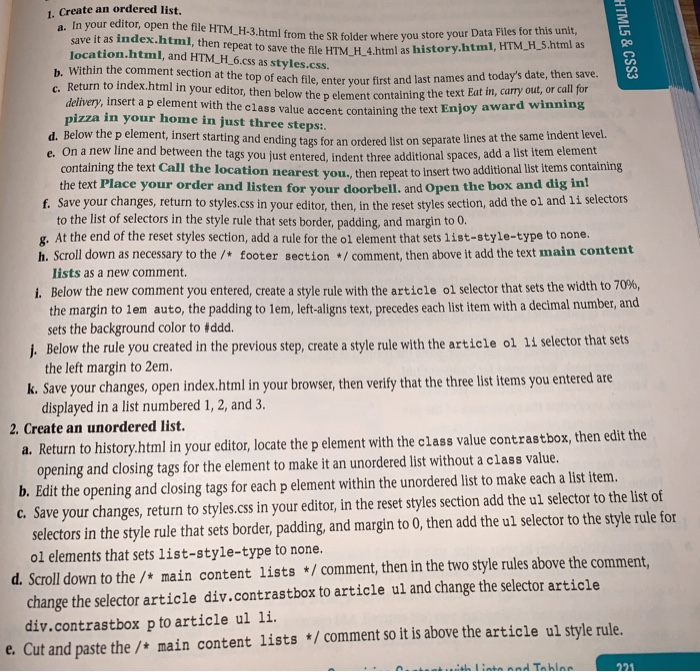
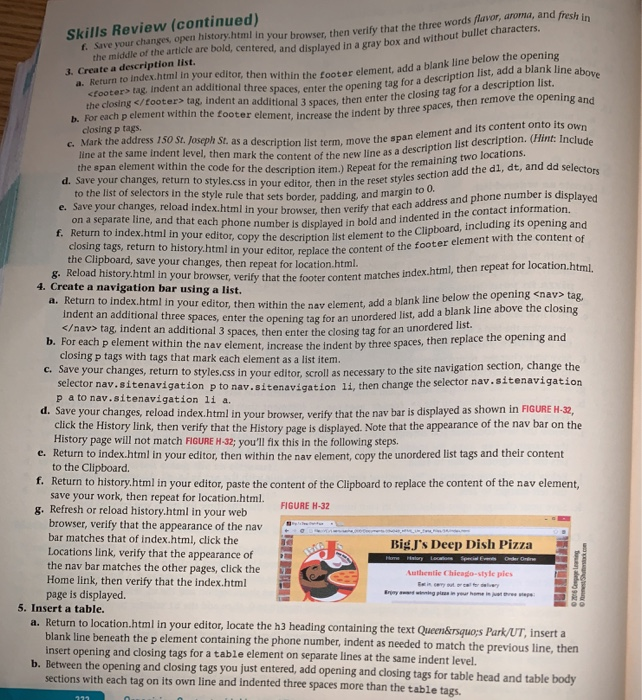
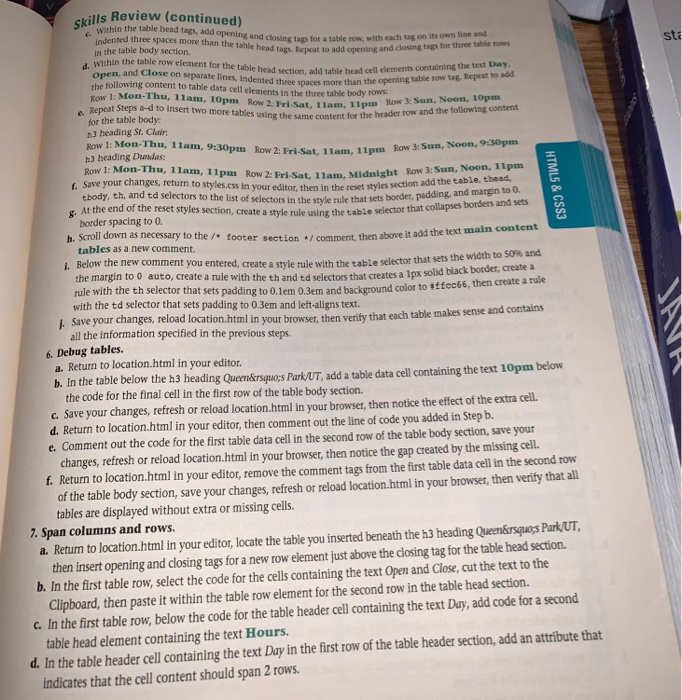
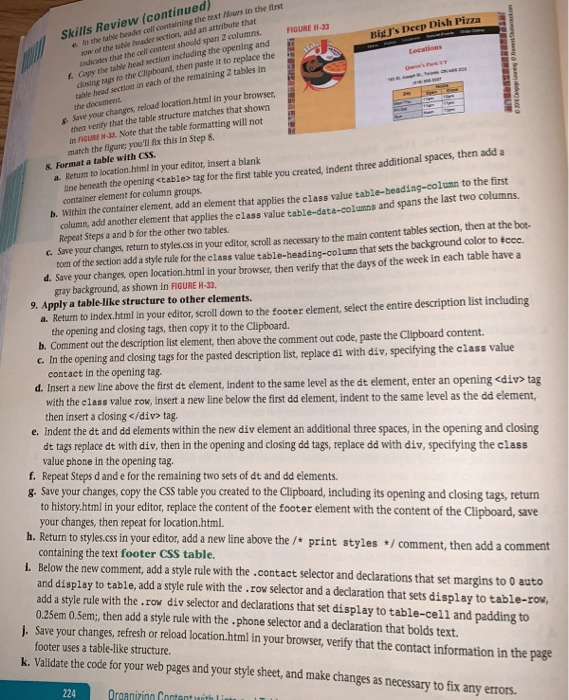
1. Create an ordered list. In your editor, open the file HTM_H-3.html f save it as index.html, then repeat to save the file HTM_H_4.html as h rom the SR folder where you store your Data Files for this unit, istory.html, HTM_H_5.html as location.html, and HTM_H.6.css as styles.css b. Within the comment section at the top of c. Return to index.html in your editor, then below the p element containing the each file, enter your first and last names and today's date, then save. text Eat in, carry out, or call for Enjoy award winn delivery, insert a p element with the class value accent containing the text ing pizza in your home in d. Below the p element, insert starting and ending tags for an ordered list on sepa e. On a new line and b just three steps: etween the tags you j ust entered, indent three additional spaces, add a list item element containing the text Call the location nearest you., then repeat to insert two additional list items containing the text Place your order and listen for your doorbell. and Open the box and dig in! f. Save your changes, return to styles.css in your editor, then, in the reset styles section, add the ol and 1i selectors to the list of selectors in the style rule that sets border, padding, and margin to o g. At the end of the reset styles section, add a rule for the ol element that sets list-style-type to non h. Scroll down as necessary to the/+ footer section / comment, then above it add the text main content lists as a new comment i. Below the new comment you entered, create a style rule with the article 01 selector that sets the width to 70%, the margin to 1em auto, the padding to lem, left-aligns text, precedes each list item with a decimal number, ancd sets the background color to #ddd j. Below the rule you created in the previous step, create a style rule with the article ol 11 selector that sets the left margin to 2em k. Save your changes, open index.html in your browser, then verify that the three list items you entered are displayed in a list numbered 1, 2, and 3 2. Create an unordered list. a. Return to history.html in your editor, locate the p element with the class value contrastbox, then edit the opening and closing tags for the element to make it an unordered list without a class value b. Edit the opening and closing tags for each p element within the unordered list to make each a list item c. Save your changes, return to styles.css in your editor, in the reset styles section add the ul selector to the list of selectors in the style rule that sets border, padding, and margin to 0, then add the ul selector to the style rule for ol elements that sets list-style-type to none. . Scroll down to the /* main content lists /comment, then in the two style rules above the comment, change the selector article div.contrastbox to article ul and change the selector article div.contrastbox p to article ul li e. Cut and paste the/+ main content lists / comment so it is above the article ul style rule 1. Create an ordered list. In your editor, open the file HTM_H-3.html f save it as index.html, then repeat to save the file HTM_H_4.html as h rom the SR folder where you store your Data Files for this unit, istory.html, HTM_H_5.html as location.html, and HTM_H.6.css as styles.css b. Within the comment section at the top of c. Return to index.html in your editor, then below the p element containing the each file, enter your first and last names and today's date, then save. text Eat in, carry out, or call for Enjoy award winn delivery, insert a p element with the class value accent containing the text ing pizza in your home in d. Below the p element, insert starting and ending tags for an ordered list on sepa e. On a new line and b just three steps: etween the tags you j ust entered, indent three additional spaces, add a list item element containing the text Call the location nearest you., then repeat to insert two additional list items containing the text Place your order and listen for your doorbell. and Open the box and dig in! f. Save your changes, return to styles.css in your editor, then, in the reset styles section, add the ol and 1i selectors to the list of selectors in the style rule that sets border, padding, and margin to o g. At the end of the reset styles section, add a rule for the ol element that sets list-style-type to non h. Scroll down as necessary to the/+ footer section / comment, then above it add the text main content lists as a new comment i. Below the new comment you entered, create a style rule with the article 01 selector that sets the width to 70%, the margin to 1em auto, the padding to lem, left-aligns text, precedes each list item with a decimal number, ancd sets the background color to #ddd j. Below the rule you created in the previous step, create a style rule with the article ol 11 selector that sets the left margin to 2em k. Save your changes, open index.html in your browser, then verify that the three list items you entered are displayed in a list numbered 1, 2, and 3 2. Create an unordered list. a. Return to history.html in your editor, locate the p element with the class value contrastbox, then edit the opening and closing tags for the element to make it an unordered list without a class value b. Edit the opening and closing tags for each p element within the unordered list to make each a list item c. Save your changes, return to styles.css in your editor, in the reset styles section add the ul selector to the list of selectors in the style rule that sets border, padding, and margin to 0, then add the ul selector to the style rule for ol elements that sets list-style-type to none. . Scroll down to the /* main content lists /comment, then in the two style rules above the comment, change the selector article div.contrastbox to article ul and change the selector article div.contrastbox p to article ul li e. Cut and paste the/+ main content lists / comment so it is above the article ul style rule
Step by Step Solution
There are 3 Steps involved in it

Get step-by-step solutions from verified subject matter experts
 Study Help