







Question: 1. Go to the project02-01.html file in your code editor and in the head section add a script element to load the project02-01.js file. Include
1. Go to the project02-01.html file in your code editor and in the head section add a script element to load the project02-01.js file. Include the defer attribute to defer loading the external script file until the entire page is loaded. Study the contents of the HTML file and then save your changes.
2. Go to the project02-01.js file in your code editor. Create a function named FahrenheitToCelsius() containing a single parameter named degree. Insert a statement that returns the value of degree minus 32 and then divided by 1.8.
3. Create a function named CelsiusToFahrenheit() containing a single parameter named degree. Insert a statement that returns the value of degree multiplied by 1.8 plus 32.
4. Add an onchange event handler to the element with the id cValue. Attach an anonymous function to the event handler and within the anonymous function do the following:
A. Declare a variable named cDegree equal to the value of the element with the id cValue.
B. Set the value of the element with the id fValue to the value returned by the CelsiusToFarenheit() function using cDegree as the parameter value.
5. Add an onchange event handler to the element with the id fValue. Attach an anonymous function to the event handler and within the anonymous function do the following:
A. Declare a variable named fDegree equal to the value of the element with the id fValue.
B. Set the value of the element with the id cValue to the value returned by the FarenheitToCelsius() function using fDegree as the parameter value.
6. Save your changes to the file.
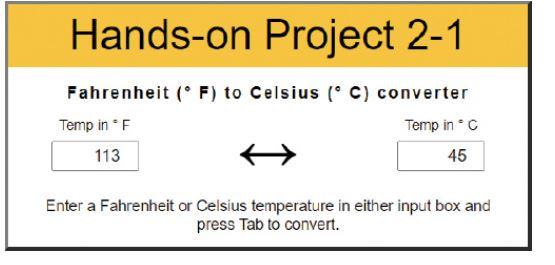
7. Open project02-01.html in your web browser. Verify that when you enter 45 in the Temp in box and press Tab a value of 113 appears in the Temp in box. Verify that when you enter 59 in the Temp in box and press Tab a value of 15 appears in the Temp in box.
It's supposed to look like this:
Step by Step Solution
There are 3 Steps involved in it

Get step-by-step solutions from verified subject matter experts
 Study Help