


Question: 1. in the Recurring Transactions area, use the three recurring transactions to post the transactions up to ]une 30, 2026. You will be using the
1. in the Recurring Transactions area, use the1. in the Recurring Transactions area, use the
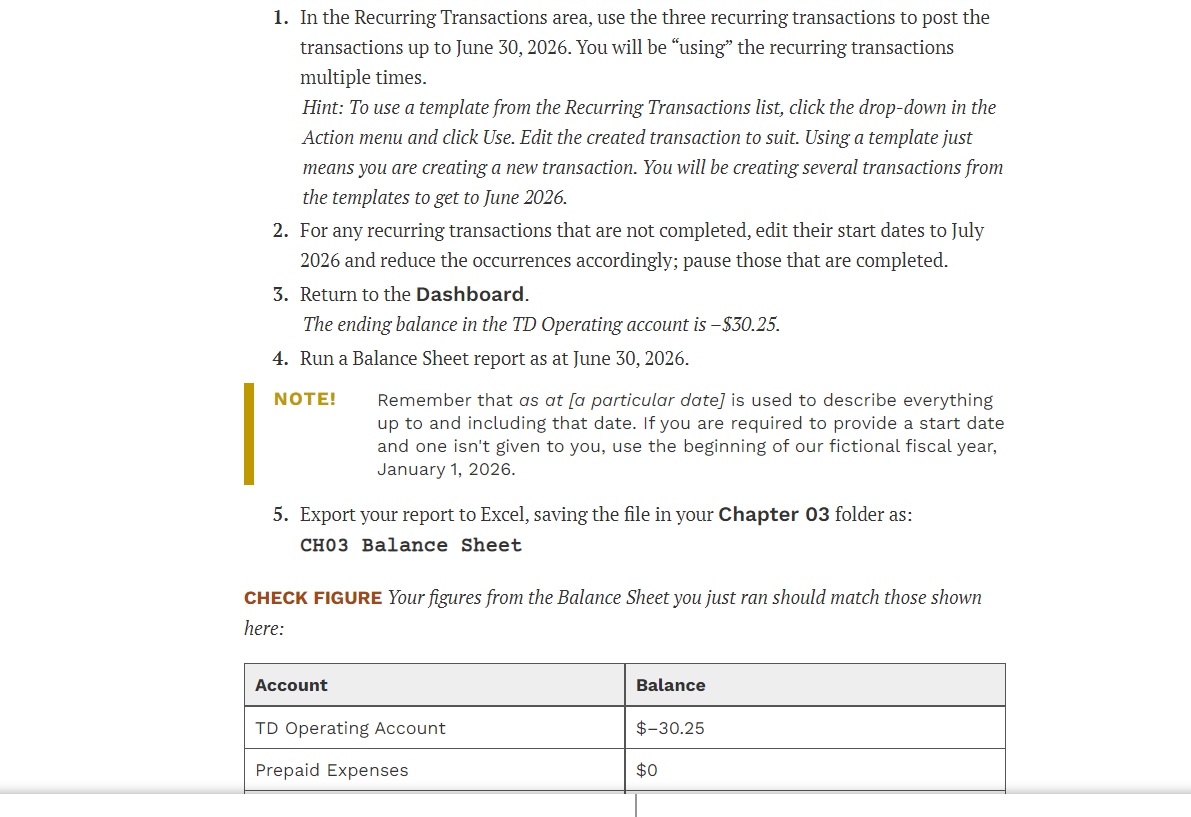
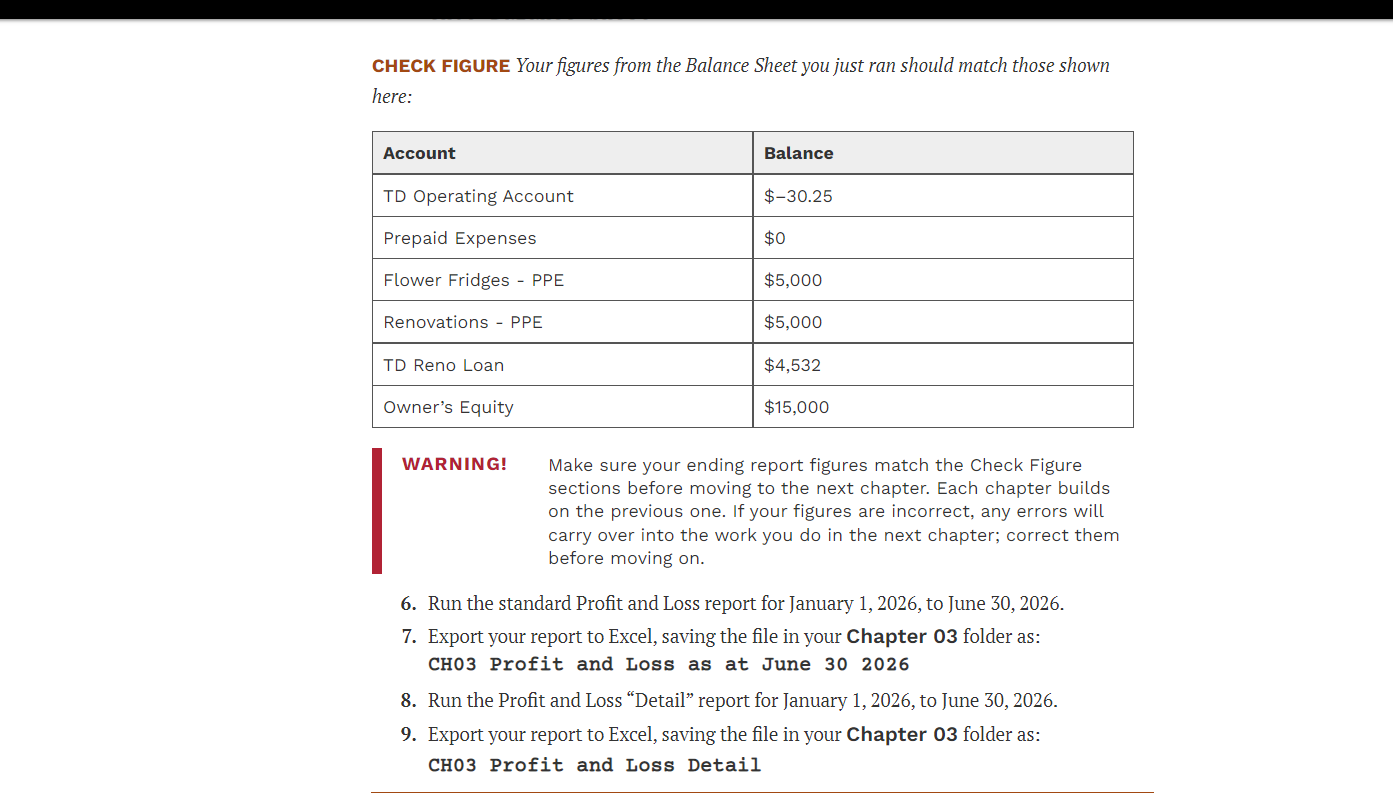
1. in the Recurring Transactions area, use the three recurring transactions to post the transactions up to ]une 30, 2026. You will be \"using\" the recurring transactions multiple times. Hint: To use a template from the Recurring Transactions list, click the dropdown in the Action menu and click Use. Edit the created transaction to suit. Using a template just means you are creating a new transaction. You will be creating several transactions from the templates to get to June 2026. 2. For any recurring transactions that are not completed, edit their start dates to July 2026 and reduce the occurrences accordingly; pause those that are completed. 3. Return to the Dashboard. The ending balance in the TD Operating account is $30.25. 4. Run a Balance Sheet report as at lune 30, 2026. NOTE! Remember that as at [a particular date] is used to describe everything up to and including that date. Ifyou are required to provide a start date and one isn't given to you, use the beginning of our fictional fiscalyear, January 1, 2026. 5. Export your report to Excel, saving the le in your Chapter 03 folder as: CHOB Balance Sheet CHECK FIGURE Your gures from the Balance Sheet you just ran should match those shown here: Account Balance TD Operating Account $30.25 Prepaid Expenses $0 CHECK FIGURE Your figures from the Balance Sheet you just ran should match those shown here: Account Balance TD Operating Account $-30.25 Prepaid Expenses $0 Flower Fridges - PPE $5,000 Renovations - PPE $5,000 TD Reno Loan $4,532 Owner's Equity $15,000 WARNING! Make sure your ending report figures match the Check Figure sections before moving to the next chapter. Each chapter builds on the previous one. If your figures are incorrect, any errors will carry over into the work you do in the next chapter; correct them before moving on. 6. Run the standard Profit and Loss report for January 1, 2026, to June 30, 2026. 7. Export your report to Excel, saving the file in your Chapter 03 folder as: CH03 Profit and Loss as at June 30 2026 8. Run the Profit and Loss "Detail" report for January 1, 2026, to June 30, 2026. 9. Export your report to Excel, saving the file in your Chapter 03 folder as: CH03 Profit and Loss Detail

Step by Step Solution

There are 3 Steps involved in it

1 Expert Approved Answer
Step: 1 Unlock blur-text-image

Question Has Been Solved by an Expert!

Get step-by-step solutions from verified subject matter experts

Step: 2 Unlock
Step: 3 Unlock

Students Have Also Explored These Related Accounting Questions!