







Question: 1- Insert a any text, article or write a cover letter with title. 2- For the title, change the font size to 48 pt, and
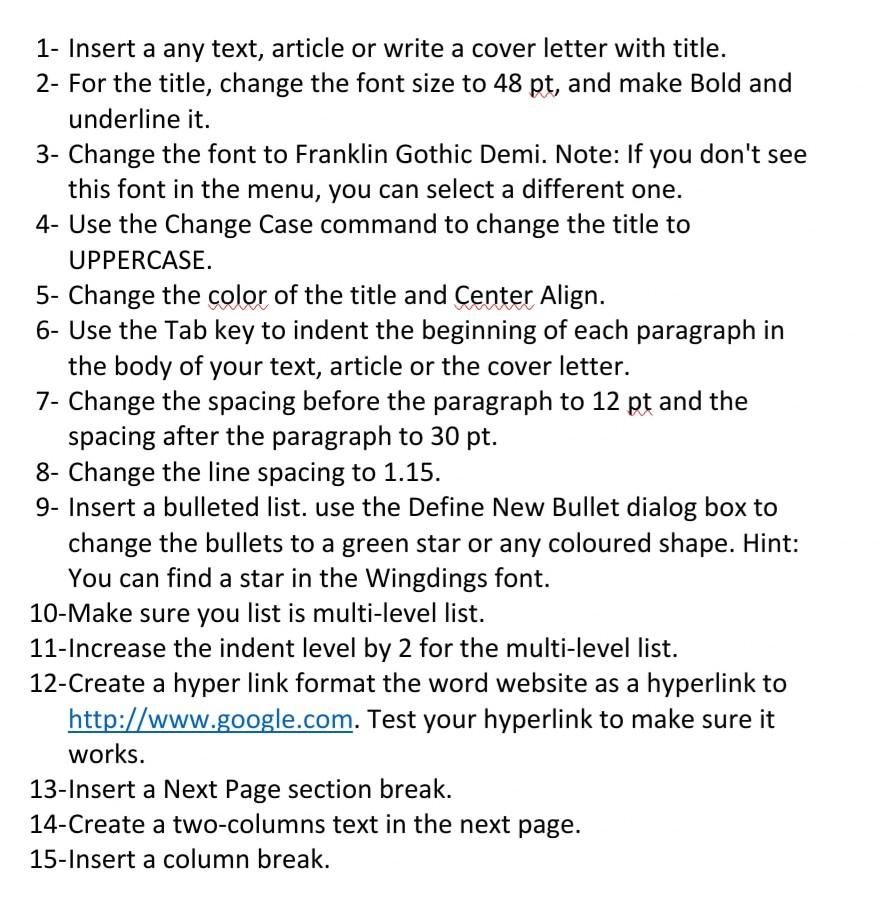
1- Insert a any text, article or write a cover letter with title. 2- For the title, change the font size to 48 pt, and make Bold and underline it. 3- Change the font to Franklin Gothic Demi. Note: If you don't see this font in the menu, you can select a different one. 4- Use the Change Case command to change the title to UPPERCASE. 5- Change the color of the title and Center Align. 6- Use the Tab key to indent the beginning of each paragraph in the body of your text, article or the cover letter. 7- Change the spacing before the paragraph to 12 pt and the spacing after the paragraph to 30 pt. 8- Change the line spacing to 1.15. 9- Insert a bulleted list. use the Define New Bullet dialog box to change the bullets to a green star or any coloured shape. Hint: You can find a star in the Wingdings font. 10-Make sure you list is multi-level list. 11-Increase the indent level by 2 for the multi-level list. 12-Create a hyper link format the word website as a hyperlink to http://www.google.com. Test your hyperlink to make sure it works. 13-Insert a Next Page section break. 14-Create a two-columns text in the next page. 15-Insert a column break. 1- Insert a any text, article or write a cover letter with title. 2- For the title, change the font size to 48 pt, and make Bold and underline it. 3- Change the font to Franklin Gothic Demi. Note: If you don't see this font in the menu, you can select a different one. 4- Use the Change Case command to change the title to UPPERCASE. 5- Change the color of the title and Center Align. 6- Use the Tab key to indent the beginning of each paragraph in the body of your text, article or the cover letter. 7- Change the spacing before the paragraph to 12 pt and the spacing after the paragraph to 30 pt. 8- Change the line spacing to 1.15. 9- Insert a bulleted list. use the Define New Bullet dialog box to change the bullets to a green star or any coloured shape. Hint: You can find a star in the Wingdings font. 10-Make sure you list is multi-level list. 11-Increase the indent level by 2 for the multi-level list. 12-Create a hyper link format the word website as a hyperlink to http://www.google.com. Test your hyperlink to make sure it works. 13-Insert a Next Page section break. 14-Create a two-columns text in the next page. 15-Insert a column break
Step by Step Solution
There are 3 Steps involved in it

Get step-by-step solutions from verified subject matter experts
 Study Help