







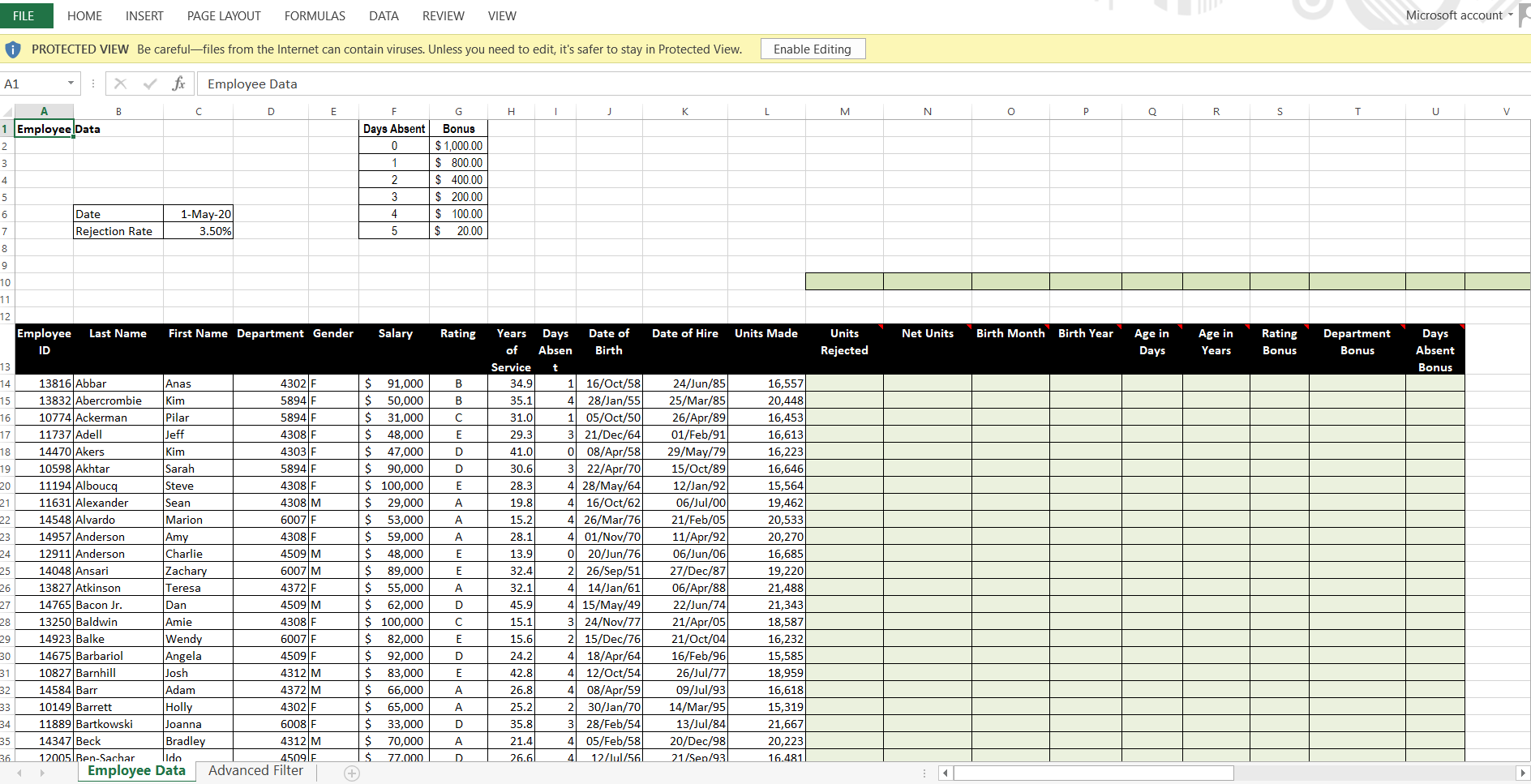
Question: 1 . Name cell C 7 as Rejection _ Rate. 2 . In M 1 4 : Create a formula to calculate the Units Rejected
Name cell C as RejectionRate.
In M: Create a formula to calculate the Units Rejected multiply Units Made by the Rejection Rate in C Copy the function down for the employees. In M: Use the appropriate function to calculate the average Units Rejected. Format as comma style, decimals
In N: Use the appropriate formula to calculate the Net Units. Copy the function down for the employees. In N: Use the appropriate function to calculate the Total Net Units. Format as comma style, decimals
What if is the Rejection Rate in C is changed to Enter the new Net Units value when the Rejection Rate is changed to below.
What if the goal is to have a total Net Units of Use Goal Seek to determine what change in the Rejection Rate in C would achieve this goal. Enter the new Rejection Rate value to achieve the total Net Units of below. Format as percent style, decimals
In O: Use the appropriate function to extract the month from the Date of Birth. Copy the function down for all the employees. In O: Use the appropriate function to calculate how many employees were born in the month of January?
In P: Use the appropriate function to extract the year from the Date of Birth. Copy the function down for all the employees. In P: Use the appropriate function to calculate how many employees were born after
In Q: Use the appropriate function, along with the Date in C and the Date of Birth to calculate the Age in Days. Copy the function down for all the employees. In Q: Use the appropriate function to calculate the average Age in Days. Format as comma style, decimal.
In R: Use the appropriate formula to calculate the employees Age in years. Hint: divide the Age in Days by Copy the function down for all the employees. In R: Use the appropriate function to calculate how many employees are younger than years?
In S: Use the appropriate function to answer the question: If the Rating is A enter otherwise enter Copy the function down for the employees. In S: Use the appropriate function to calculate the Total Rating Bonus. Format as comma style, decimals
In T: Use the appropriate function to answer the question: If the Department is enter if the Department is enter if the Department is enter otherwise enter Copy the function down for the employees. In T: Use the appropriate function to calculate the Total Department Bonus. Format as comma style, decimals
In U: Based on the Days Absent use the VLOOKUP function, along with the VLOOKUP table, to enter the bonus for the employee. Copy the function down for the other employees. In U: Use the appropriate function to calculate the Total Days Absent Bonus.Format as comma style, decimals
In V: Use the appropriate function to calculate the Total Units Made by employees from Department who were born before January and have an A Rating?Format as comma style, decimals
In W: Use the appropriate function to calculate the average Salary for female employees from Department who have an of E Rating?Format as comma style, decimal.
In X: Use the appropriate function to calculate how many employees have a Salary of less than $ and are from Department and have a D Rating?Format as comma style, decimal.
In Y: Use the MATCH function to return the Row # in which can be found in the range of Units Made values? Enter the row # below.
In Z: Use the INDEX function and the Row number from the MATCH function to return the First Name of the employee who had Units Made. Enter the name below.
In AA: Use the Subtotal function only to calculate the average Units Made. Format as comma style, decimal.
Filter the table to show female employees from Departments and with A or B Rating. What is the new average Units Made in AA Enter that value in AB and below. Format as comma style, decimals
Click on the Advanced Filter worksheet. Use the Advanced Filter to filter the table to show how many employees are from Departments and have an A Rating OR have a Salary of $ or more and Years of Service of more than years. Copy the filter to another location. Enter the number below.
Step by Step Solution
There are 3 Steps involved in it
1 Expert Approved Answer
Step: 1 Unlock

Question Has Been Solved by an Expert!
Get step-by-step solutions from verified subject matter experts
Step: 2 Unlock
Step: 3 Unlock
 Study Help