







Question: 1) On the DataInputs worksheet, paste the named ranges starting in cells I31:J31 . If you are a Mac user, skip this item. 2) On
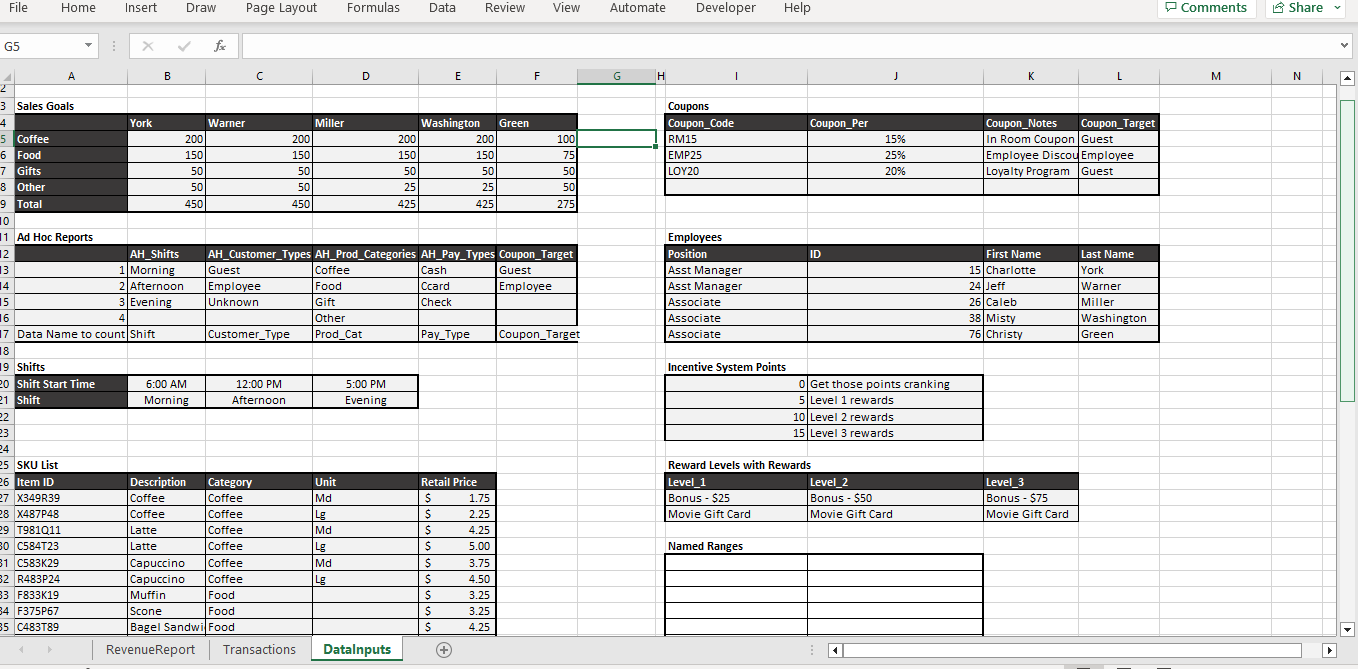
1) On the DataInputs worksheet, paste the named ranges starting in cells I31:J31. If you are a Mac user, skip this item.
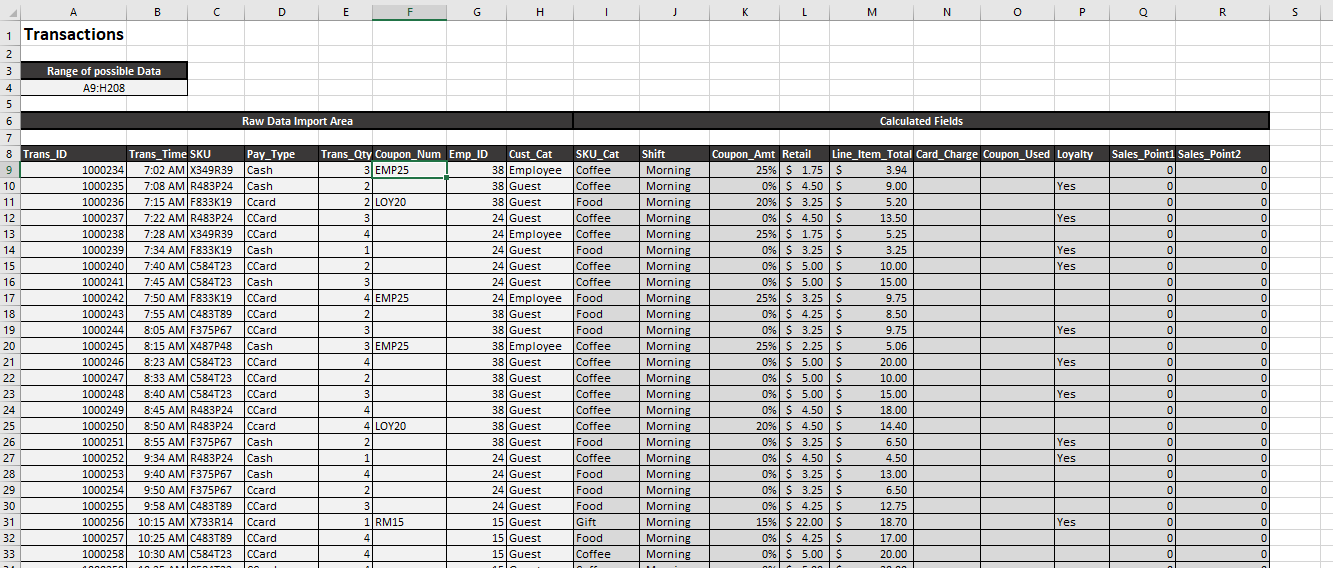
2) On the Transactions worksheet, create an IF function in cell O9 to determine whether a customer used a coupon in the Coupon_Used column showing the value of Coupon if a coupon was used (Coupon_Amt > 0) and displaying as empty if a coupon was not used (Coupon_Amt = 0). Copy the formula down to cell O208.
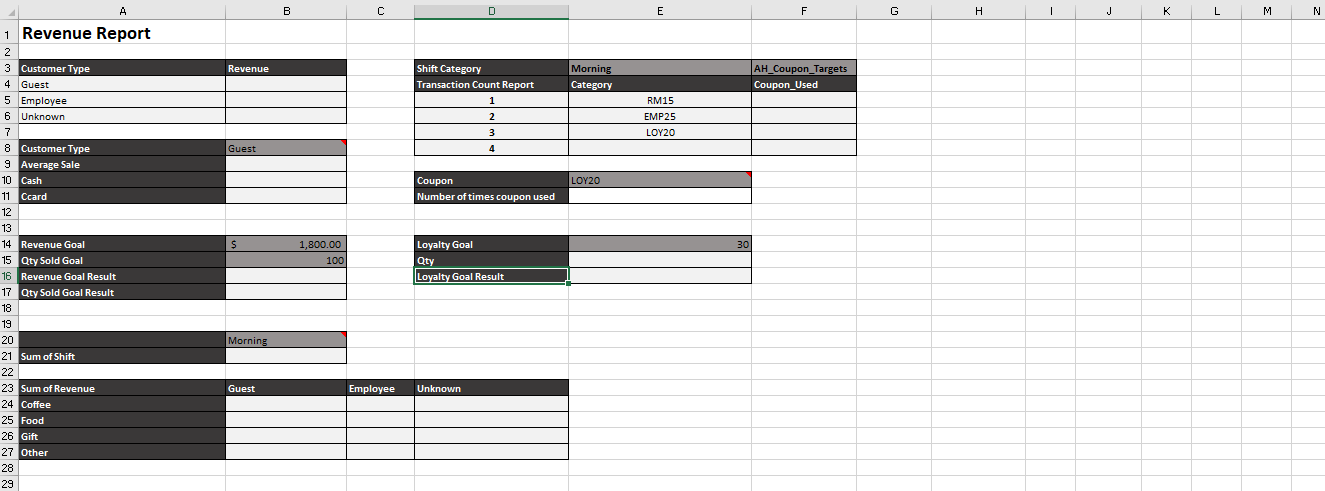
3) On the RevenueReport worksheet, create an IF function in cell B16 to determine if the Revenue goal (B14) has been met using the Line_Item_Total named range. Note that this goal involves the sum of the related named range (Line_Item_Total).
4) On the RevenueReport worksheet, create an IF statement in cell B17 to determine if the Qty Sold goal (B15) has been met using the Trans_Qty named range. Note that this goal involves the sum of the related named ranges (Trans_Qty).
5) On the RevenueReport worksheet, add a COUNTIF function in cell E11 to count the number of times the coupon listed in E10 was used in the Coupon_Num range on the Transactions worksheet.
6) On the RevenueReport worksheet, add a COUNTIF function in cell E15 to count the number of Loyalty program members (Yes) using the Loyalty named range. In cell E16, create formula to indicate if the loyalty goal (E14) has been met by the quantity (E15). The cell should display Goal Met if the goal has been met or Under Goal if not met.
7) On the RevenueReport worksheet, add a COUNTIFS function in cell F5 to count the number of coupons used by each category in the morning (E3) shift. You need to use the Shift and Coupon_Num ranges. Copy/paste the formula to F6:F7.
8) On the RevenueReport worksheet, add an AVERAGEIF function in cell B9 to determine the average sale for the customer listed in cell B8. You should use the Cust_Cat and Line_Item_Total ranges in the formula.
9) On the RevenueReport worksheet, add an AVERAGEIFS function in cell B10 to determine the average sale for the customer listed in cell B8 by pay type. Extend the formula in B10 to B11 using the same customer type and the payment type in A11.
10) On the RevenueReport worksheet, add a SUMIF function in cell B21 to sum the total amount of sales for the shift in cell B20. Use the Shift and Line_Item_Total ranges in the formula.
11) On the RevenueReport worksheet, add a SUMIF function in cell B4 to sum the total amount of revenue per customer type. Use the Cust_Cat and Line_Item_Total ranges in the formula. Copy/paste the formula to B5:B6.
12) On the RevenueReport worksheet, add a formula with the SUMIFS function in cell B24 to sum the total amount of sales per SKU (A24) and per customer type (B23). Use the Cust_Cat, SKU_Cat, and Line_Item_Total ranges in the formula. Extend the formula to C24:D24 and then to B25:D27.
=
Step by Step Solution
There are 3 Steps involved in it

Get step-by-step solutions from verified subject matter experts
 Study Help