Question: 1. Open Excel and enter your first name, middle initial, and last name as the user name in the Excel Options dialog box, if necessary.
1. Open Excel and enter your first name, middle initial, and last name as the user name in the Excel Options dialog box, if necessary. Add the Compare and Merge Workbooks and Track Changes (Legacy) commands to the Quick Access Toolbar, if necessary. Download and open exploring_e11_grader_a1_WeddingBudget.xlsx. Save it as exploring_e11_grader_a1_WeddingBudget_LastFirst.
Please provide visual aids/screenshots to solve for steps 1-12. Thank you!
Instructions:
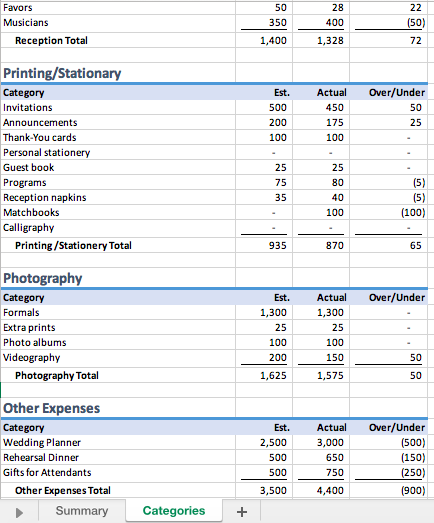
exploring_e11_grader_a1_Karin File:
exploring_e11_grader_a1_WeddingBudget_LastFirst File:
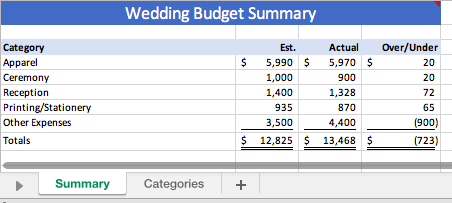
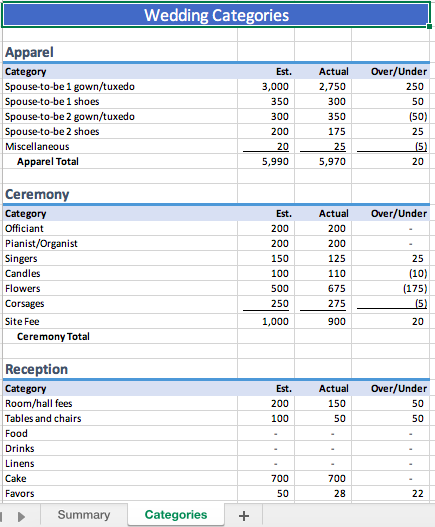
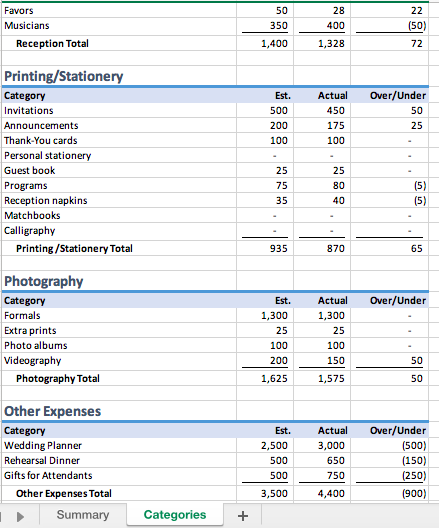
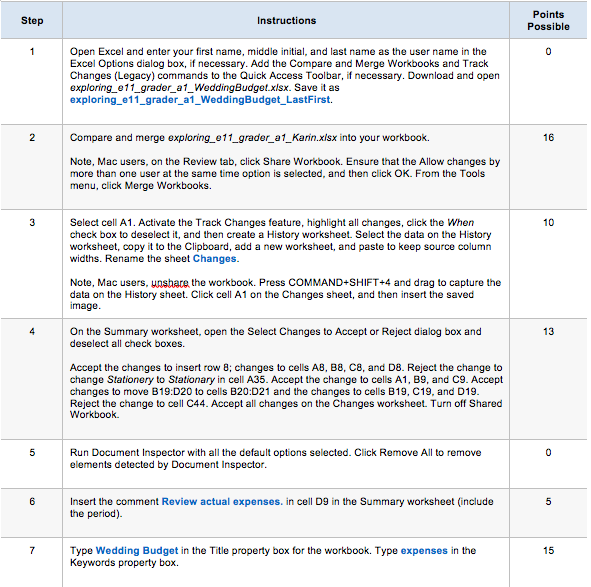
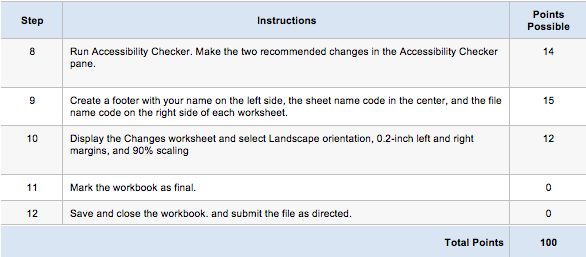
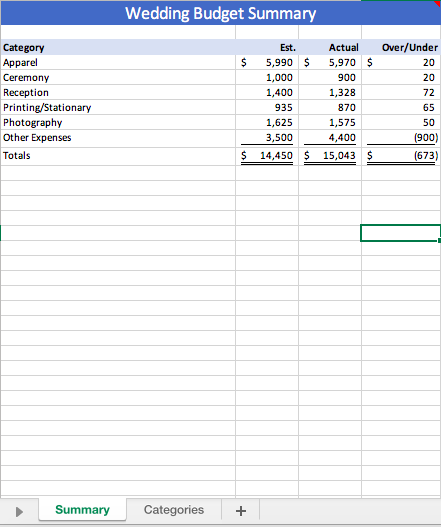
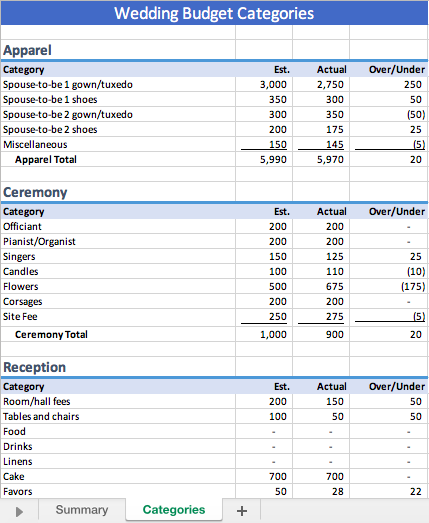
Step Instructions Points Possible Open Excel and enter your first name, middle initial, and last name as the user name in the Excel Options dialog box, if necessary. Add the Compare and Merge Workbooks and Track Changes (Legacy) commands to the Quick Access Toolbar, if necessary. Download and open exploring_e11_grader_a1_WeddingBudget.xlsx. Save it as exploring_e11_grader_a1_WeddingBudget_LastFirst. Compare and merge exploring_e11_grader_a1_Karin.xlsx into your workbook. 16 Note, Mac users, on the Review tab, click Share Workbook. Ensure that the Allow changes by more than one user at the same time option is selected, and then click OK. From the Tools menu, click Merge Workbooks. Select cell A1. Activate the Track Changes feature, highlight all changes, click the When check box to deselect it, and then create a History worksheet. Select the data on the History worksheet, copy it to the Clipboard, add a new worksheet, and paste to keep source column widths. Rename the sheet Changes. Note, Mac users, unshare the workbook. Press COMMAND+SHIFT+4 and drag to capture the data on the History sheet. Click cell A1 on the Changes sheet, and then insert the saved image. On the Summary worksheet, open the Select Changes to Accept or Reject dialog box and deselect all check boxes. Accept the changes to insert row 8; changes to cells AB, B8, C8, and D8. Reject the change to change Stationery to Stationary in cell A35. Accept the change to cells A1, B9, and C9. Accept changes to move B19:D20 to cells B20:D21 and the changes to cells B19, C19, and D19. Reject the change to cell 044. Accept all changes on the Changes worksheet. Turn off Shared Workbook. Run Document Inspector with all the default options selected. Click Remove All to remove elements detected by Document Inspector. Insert the comment Review actual expenses. in cell D9 in the Summary worksheet (include the period). Type Wedding Budget in the Title property box for the workbook. Type expenses in the Keywords property box. Step Instructions Points Possible 14 Run Accessibility Checker. Make the two recommended changes in the Accessibility Checker pane. Create a footer with your name on the left side, the sheet name code in the center, and the file name code on the right side of each worksheet 15 10 Display the Changes worksheet and select Landscape orientation, 0.2-inch left and right margins, and 90% scaling Mark the workbook as final. 12 Save and close the workbook. and submit the file as directed. Total Points 100 Wedding Budget Summary Over/Under $ $ $ 72 Category Apparel Ceremony Reception Printing/Stationary Photography Other Expenses Totals Est. 5,990 1,000 1,400 935 1,625 3,500 14,450 Actual 5,970 900 1,328 870 1,575 4,400 15,043 65 50 (900) (673) $ $ $ Summary Categories + Wedding Budget Categories Est. 3,000 350 Over/Under 250 Apparel Category Spouse-to-be 1 gown/tuxedo Spouse-to-be 1 shoes Spouse-to-be 2 gown/tuxedo Spouse-to-be 2 shoes Miscellaneous Apparel Total Actual 2.750 300 350 300 (50) 175 200 150 15) 145 5,970 5,990 20 Over/Under Est. 200 200 25 Ceremony Category Officiant Pianist/Organist Singers Candles Flowers Corsages Site Fee Ceremony Total 150 100 500 Actual 200 200 125 110 675 200 275 900 (10) (175) 200 250 1,000 (5) 20 Over/Under Est. 200 100 Actual 150 50 50 50 Reception Category Room/hall fees Tables and chairs Food Drinks Linens Cake Favors Summary 700 28 50 Categories Favors Musicians Reception Total 50 350 1,400 28 400 1,328 (50) 72 Over/Under Est. 500 200 Actual 450 175 100 Printing/Stationary Category Invitations Announcements Thank-You cards Personal stationery Guest book Programs Reception napkins Matchbooks Calligraphy Printing/Stationery Total 40 15) 100 (100) 870 65 Est. Over/Under Actual 1,300 1,300 Photography Category Formals Extra prints Photo albums Videography Photography Total 25 100 200 100 150 1,625 1,575 Other Expenses Category Wedding Planner Rehearsal Dinner Gifts for Attendants Other Expenses Total Summary Est. 2,500 500 Actual 3,000 650 750 4,400 Over/Under (500) (150) (250) 1900) 500 3,500 Categories + Wedding Budget Summary Over/Under $ $ 20 Category Apparel Ceremony Reception Printing/Stationery Other Expenses Totals Est. 5,990 1,000 1,400 935 3,500 12,825 Actual 5,970 $ 900 1,328 870 4,400 13,468 65 (900) (723) $ $ Summary Categories Wedding Categories Apparel Category Spouse-to-be 1 gown/tuxedo Spouse-to-be 1 shoes Spouse-to-be 2 gown/tuxedo Spouse-to-be 2 shoes Miscellaneous Apparel Total Est. 3,000 350 300 200 Actual 2,750 300 Over/Under 250 50 (50) 25 15) 350 175 5,990 5,970 20 Over/Under Ceremony Category Officiant Pianist/Organist Singers Candles Flowers Corsages Site Fee Ceremony Total Est. 200 200 150 100 500 Actual 200 200 125 110 675 275 900 25 (10) (175) 15) 250 1,000 Over/Under Est. 200 100 Actual 150 50 Reception Category Room/hall fees Tables and chairs Food Drinks Linens Cake Favors Summary 700 50 700 28 Categories Favors Musicians Reception Total 28 400 (50) 350 1,400 1,328 Est. Over/Under 500 200 100 Actual 450 175 100 Printing/Stationery Category Invitations Announcements Thank You cards Personal stationery Guest book Programs Reception napkins Matchbooks Calligraphy Printing Stationery Total 25 80 40 935 870 Over/Under Est. 1,300 Actual 1,300 Photography Category Formals Extra prints Photo albums Videography Photography Total 25 25 100 100 200 150 1,625 1,575 50 Other Expenses Category Wedding Planner Rehearsal Dinner Gifts for Attendants Other Expenses Total Est. 2,500 500 500 3,500 Actual 3,000 650 750 4,400 Over/Under (500) (150) (250) (900) Summary Categories Step Instructions Points Possible Open Excel and enter your first name, middle initial, and last name as the user name in the Excel Options dialog box, if necessary. Add the Compare and Merge Workbooks and Track Changes (Legacy) commands to the Quick Access Toolbar, if necessary. Download and open exploring_e11_grader_a1_WeddingBudget.xlsx. Save it as exploring_e11_grader_a1_WeddingBudget_LastFirst. Compare and merge exploring_e11_grader_a1_Karin.xlsx into your workbook. 16 Note, Mac users, on the Review tab, click Share Workbook. Ensure that the Allow changes by more than one user at the same time option is selected, and then click OK. From the Tools menu, click Merge Workbooks. Select cell A1. Activate the Track Changes feature, highlight all changes, click the When check box to deselect it, and then create a History worksheet. Select the data on the History worksheet, copy it to the Clipboard, add a new worksheet, and paste to keep source column widths. Rename the sheet Changes. Note, Mac users, unshare the workbook. Press COMMAND+SHIFT+4 and drag to capture the data on the History sheet. Click cell A1 on the Changes sheet, and then insert the saved image. On the Summary worksheet, open the Select Changes to Accept or Reject dialog box and deselect all check boxes. Accept the changes to insert row 8; changes to cells AB, B8, C8, and D8. Reject the change to change Stationery to Stationary in cell A35. Accept the change to cells A1, B9, and C9. Accept changes to move B19:D20 to cells B20:D21 and the changes to cells B19, C19, and D19. Reject the change to cell 044. Accept all changes on the Changes worksheet. Turn off Shared Workbook. Run Document Inspector with all the default options selected. Click Remove All to remove elements detected by Document Inspector. Insert the comment Review actual expenses. in cell D9 in the Summary worksheet (include the period). Type Wedding Budget in the Title property box for the workbook. Type expenses in the Keywords property box. Step Instructions Points Possible 14 Run Accessibility Checker. Make the two recommended changes in the Accessibility Checker pane. Create a footer with your name on the left side, the sheet name code in the center, and the file name code on the right side of each worksheet 15 10 Display the Changes worksheet and select Landscape orientation, 0.2-inch left and right margins, and 90% scaling Mark the workbook as final. 12 Save and close the workbook. and submit the file as directed. Total Points 100 Wedding Budget Summary Over/Under $ $ $ 72 Category Apparel Ceremony Reception Printing/Stationary Photography Other Expenses Totals Est. 5,990 1,000 1,400 935 1,625 3,500 14,450 Actual 5,970 900 1,328 870 1,575 4,400 15,043 65 50 (900) (673) $ $ $ Summary Categories + Wedding Budget Categories Est. 3,000 350 Over/Under 250 Apparel Category Spouse-to-be 1 gown/tuxedo Spouse-to-be 1 shoes Spouse-to-be 2 gown/tuxedo Spouse-to-be 2 shoes Miscellaneous Apparel Total Actual 2.750 300 350 300 (50) 175 200 150 15) 145 5,970 5,990 20 Over/Under Est. 200 200 25 Ceremony Category Officiant Pianist/Organist Singers Candles Flowers Corsages Site Fee Ceremony Total 150 100 500 Actual 200 200 125 110 675 200 275 900 (10) (175) 200 250 1,000 (5) 20 Over/Under Est. 200 100 Actual 150 50 50 50 Reception Category Room/hall fees Tables and chairs Food Drinks Linens Cake Favors Summary 700 28 50 Categories Favors Musicians Reception Total 50 350 1,400 28 400 1,328 (50) 72 Over/Under Est. 500 200 Actual 450 175 100 Printing/Stationary Category Invitations Announcements Thank-You cards Personal stationery Guest book Programs Reception napkins Matchbooks Calligraphy Printing/Stationery Total 40 15) 100 (100) 870 65 Est. Over/Under Actual 1,300 1,300 Photography Category Formals Extra prints Photo albums Videography Photography Total 25 100 200 100 150 1,625 1,575 Other Expenses Category Wedding Planner Rehearsal Dinner Gifts for Attendants Other Expenses Total Summary Est. 2,500 500 Actual 3,000 650 750 4,400 Over/Under (500) (150) (250) 1900) 500 3,500 Categories + Wedding Budget Summary Over/Under $ $ 20 Category Apparel Ceremony Reception Printing/Stationery Other Expenses Totals Est. 5,990 1,000 1,400 935 3,500 12,825 Actual 5,970 $ 900 1,328 870 4,400 13,468 65 (900) (723) $ $ Summary Categories Wedding Categories Apparel Category Spouse-to-be 1 gown/tuxedo Spouse-to-be 1 shoes Spouse-to-be 2 gown/tuxedo Spouse-to-be 2 shoes Miscellaneous Apparel Total Est. 3,000 350 300 200 Actual 2,750 300 Over/Under 250 50 (50) 25 15) 350 175 5,990 5,970 20 Over/Under Ceremony Category Officiant Pianist/Organist Singers Candles Flowers Corsages Site Fee Ceremony Total Est. 200 200 150 100 500 Actual 200 200 125 110 675 275 900 25 (10) (175) 15) 250 1,000 Over/Under Est. 200 100 Actual 150 50 Reception Category Room/hall fees Tables and chairs Food Drinks Linens Cake Favors Summary 700 50 700 28 Categories Favors Musicians Reception Total 28 400 (50) 350 1,400 1,328 Est. Over/Under 500 200 100 Actual 450 175 100 Printing/Stationery Category Invitations Announcements Thank You cards Personal stationery Guest book Programs Reception napkins Matchbooks Calligraphy Printing Stationery Total 25 80 40 935 870 Over/Under Est. 1,300 Actual 1,300 Photography Category Formals Extra prints Photo albums Videography Photography Total 25 25 100 100 200 150 1,625 1,575 50 Other Expenses Category Wedding Planner Rehearsal Dinner Gifts for Attendants Other Expenses Total Est. 2,500 500 500 3,500 Actual 3,000 650 750 4,400 Over/Under (500) (150) (250) (900) Summary Categories









 Study Help