







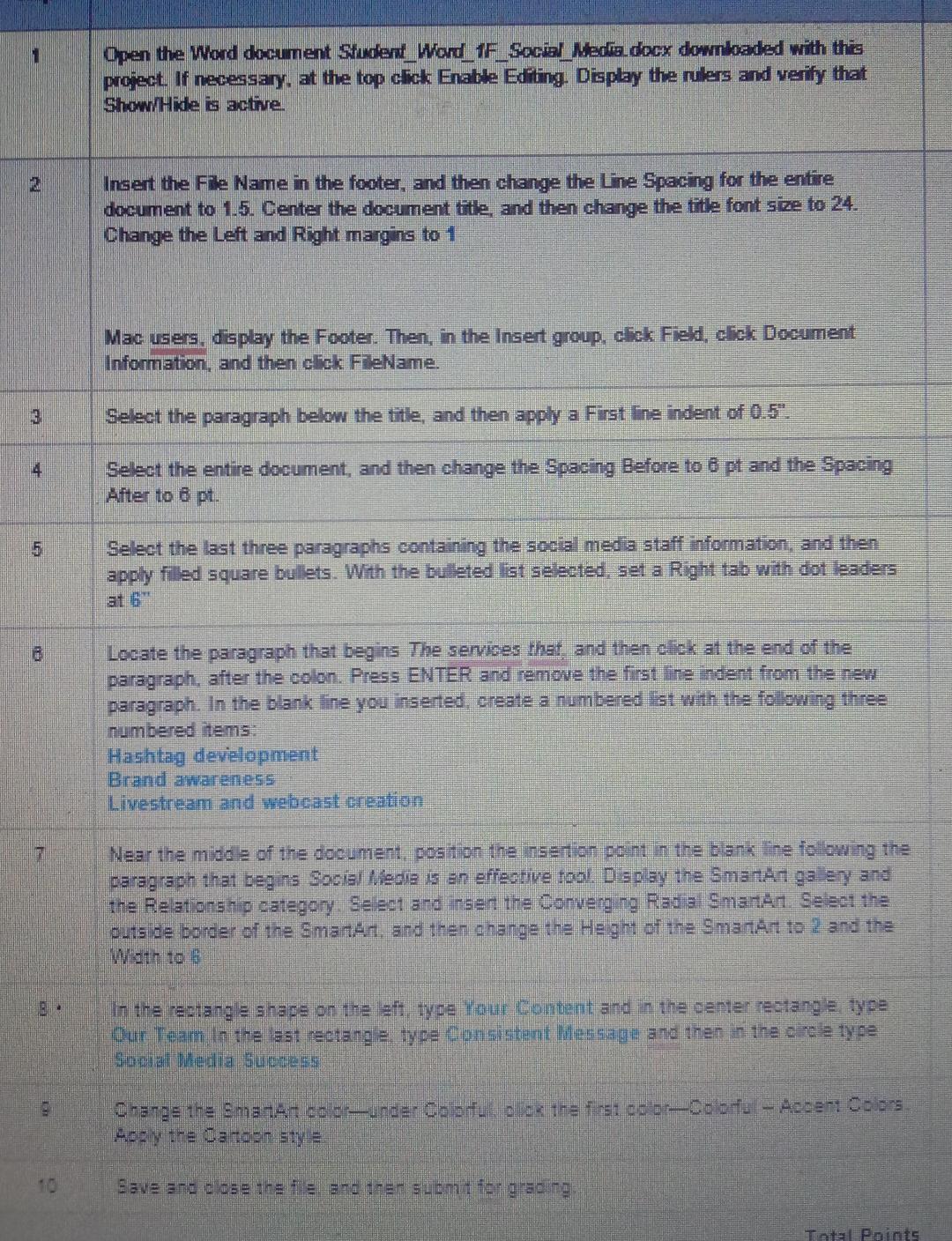
Question: 1 Open the Word document Sfudent _ Word _ 1 F _ Social _ Nedia docx downloaded with this project. If necessary, at the top
Open the Word document SfudentWordFSocialNedia docx downloaded with this project. If necessary, at the top cick Enable Editing. Display the nulers and verify that ShowHide is active
Insert the File Name in the footer, and then change the Line Spacing for the entire document to Center the document title, and then change the titie font size to Change the Left and Right margins to
Mac users, display the Footer. Then, in the Insert group, click Field, click Document Information, and then click FileName.
Select the paragraph below the title, and then apply a First line indent of :
Select the entire document, and then change the Spacing Before to pt and the Spacing After to pt
Select the last three paragraphs containing the social media staff information, and then apply filed square bullets. With the bulleted list selected, set a Right tab with dot leaders at
Locate the paragraph that begins The services that, and then click at the end of the paragraph, after the colon. Press ENTER and remove the first line indent from the new paragraph. In the blank line you inserted, create a numbered Ist with the following three numbered items:
Hashtag devielopment
Brand awareness
Livestream and webcast creation
Near the middle of the document, position the insertion pcint in the blank line following the paragraph that begins Social Media is an effective tool. Display the SmartAit galley and the Relationsh'p category. Select and insent the Corverging Radial SmanA Select the outside border of the SmanArt, and then ehange the Heght of the SmanArt to and the Width to
In the rectangle shape on the left, type Your Content and in the center rectangle, type Our Team In the last rectangle, type Consistent Mitessage and then in the clrole type Social Media sucesess Acey the Canoon sty
Save aro close the fl e ard thert submt for gracing
Step by Step Solution
There are 3 Steps involved in it
1 Expert Approved Answer
Step: 1 Unlock

Question Has Been Solved by an Expert!
Get step-by-step solutions from verified subject matter experts
Step: 2 Unlock
Step: 3 Unlock
 Study Help