







Question: 1. Please write the program in Python 3 code. (see attached activity #3) 2. Also, please add comments to the code. Questions After completing the
1. Please write the program in Python 3 code. (see attached activity #3)
2. Also, please add comments to the code.
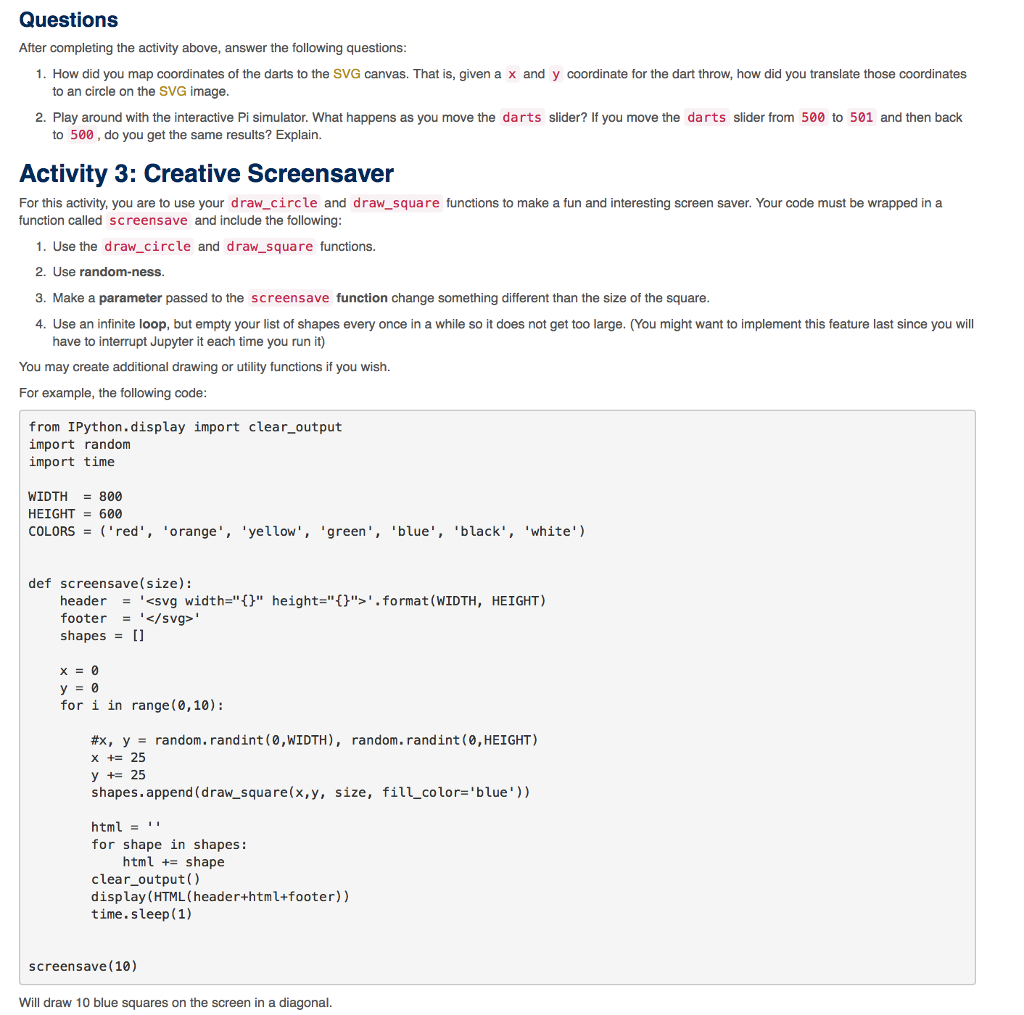
Questions After completing the activity above, answer the following questions: 1. How did you map coordinates of the darts to the SVG canvas. That is, given a x and y coordinate for the dart throw, how did you translate those coordinates to an circle on the SVG image 2. Play around with the interactive Pi simulatorWhat happens as you move the darts slider? If you move the darts slider from 500 to 501 and then back to 500, do you get the same results? Explain. Activity 3: Creative Screensaver For this activity, you are to use your draw_circle and draw_square functions to make a fun and interesting screen saver. Your code must be wrapped in a function called screensave and include the following: 1. Use the draw_circle and draw_square functions. 2. Use random-ness. 3. Make a parameter passed to the screensave function change something different than the size of the square 4. Use an infinite loop, but empty your list of shapes every once in a while so it does not get too large. (You might want to implement this feature last since you will have to interrupt Jupyter it each time you run it) You may create additional drawing or utility functions if you wish. For example, the following code: from IPython display import clear_output import random import time WIDTH = 800 HEIGHT = 600 COLORS = ('red', 'orange", 'yellow', 'green", 'blue', 'black', 'white') def screensavesize): header = ' shapes = [] for i in range (O,10): #x, y = random, rand int(0,WIDTH), random.randint (0, HEIGHT) x = 25 y = 25 shapes.append (draw_square(x,y, size, fil_color='blue')) html - for shape in shapes: html += shape clear_output() display (HTML(header+html+footer)) time.sleep (1) screensave(10) will draw 10 blue squares on the screen in a diagonal. Questions After completing the activity above, answer the following questions: 1. How did you map coordinates of the darts to the SVG canvas. That is, given a x and y coordinate for the dart throw, how did you translate those coordinates to an circle on the SVG image 2. Play around with the interactive Pi simulatorWhat happens as you move the darts slider? If you move the darts slider from 500 to 501 and then back to 500, do you get the same results? Explain. Activity 3: Creative Screensaver For this activity, you are to use your draw_circle and draw_square functions to make a fun and interesting screen saver. Your code must be wrapped in a function called screensave and include the following: 1. Use the draw_circle and draw_square functions. 2. Use random-ness. 3. Make a parameter passed to the screensave function change something different than the size of the square 4. Use an infinite loop, but empty your list of shapes every once in a while so it does not get too large. (You might want to implement this feature last since you will have to interrupt Jupyter it each time you run it) You may create additional drawing or utility functions if you wish. For example, the following code: from IPython display import clear_output import random import time WIDTH = 800 HEIGHT = 600 COLORS = ('red', 'orange", 'yellow', 'green", 'blue', 'black', 'white') def screensavesize): header = ' shapes = [] for i in range (O,10): #x, y = random, rand int(0,WIDTH), random.randint (0, HEIGHT) x = 25 y = 25 shapes.append (draw_square(x,y, size, fil_color='blue')) html - for shape in shapes: html += shape clear_output() display (HTML(header+html+footer)) time.sleep (1) screensave(10) will draw 10 blue squares on the screen in a diagonal
Step by Step Solution
There are 3 Steps involved in it

Get step-by-step solutions from verified subject matter experts
 Study Help