







Question: 1. Present value functions Time Value of Money calculations using Excel Time value of money concepts are a lifeline to most areas of the finance
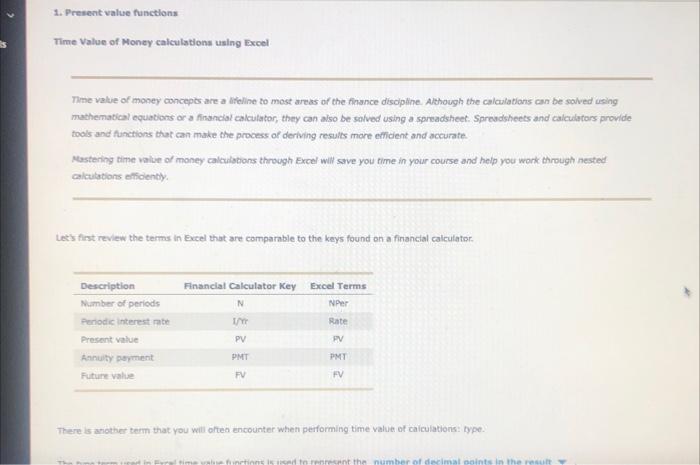
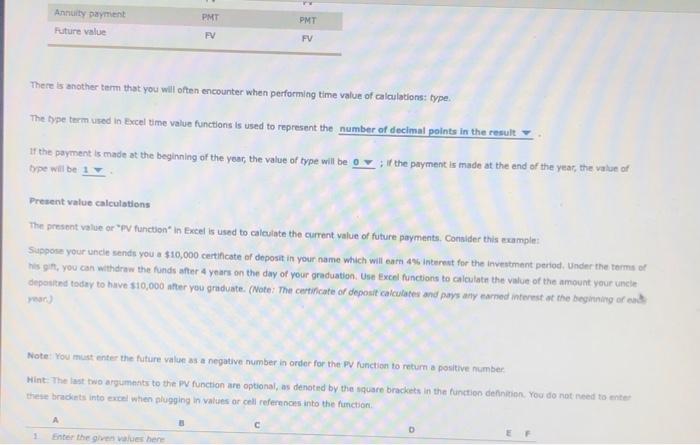
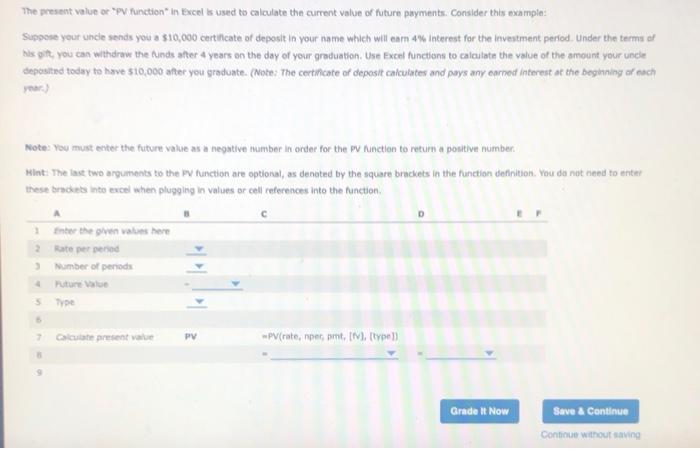
1. Present value functions Time Value of Money calculations using Excel Time value of money concepts are a lifeline to most areas of the finance discipline. Although the calculations can be solved using mathematical equations or a financial calculator, they can also be solved using a spreadsheet. Spreadsheets and calculators provide tools and functions that can make the process of deriving results more efficient and accurate. Mastering time value of money calculations through Excel will save you time in your course and help you work through nested calculations efficiently. Let's first review the terms in Excel that are comparable to the keys found on a financial calculator. Description Financial Calculator Key Excel Terms Number of periods N NPer Periodic interest rate U/m Rate Present value PV PV Annuity payment PMT PMT Future value FV FV There is another term that you will often encounter when performing time value of calculations: type. ime value finctions is used to represent the number of decimal points in the result Y Annuity payment PMT PMT Future value FV FV There is another term that you will often encounter when performing time value of calculations: type. The type term used in Excel time value functions is used to represent the number of decimal points in the result If the payment is made at the beginning of the year, the value of type will be 0; if the payment is made at the end of the year, the value of type will be 1 Present value calculations The present value or "PV function in Excel is used to calculate the current value of future payments. Consider this example: Suppose your uncle sends you a $10,000 certificate of deposit in your name which will earn 4% interest for the investment period. Under the terms of his gift, you can withdraw the funds after 4 years on the day of your graduation. Use Excel functions to calculate the value of the amount your uncle deposited today to have $10,000 after you graduate. (Note: The certificate of deposit calculates and pays any earned interest at the beginning of ea Note: You must enter the future value as a negative number in order for the PV function to return a positive number Hint: The last two arguments to the PV function are optional, as denoted by the square brackets in the function definition. You do not need to enter these brackets into excel when plugging in values or cell references into the function. A Enter the given values here The present value or "PV function" in Excel is used to calculate the current value of future payments. Consider this example: Suppose your uncle sends you a $10,000 certificate of deposit in your name which will earn 4% Interest for the investment period. Under the terms of his gift, you can withdraw the funds after 4 years on the day of your graduation. Use Excel functions to calculate the value of the amount your uncle deposited today to have $10,000 after you graduate. (Note: The certificate of deposit calculates and pays any earned interest at the beginning of each Note: You must enter the future value as a negative number in order for the PV function to return a positive number. Hint: The last two arguments to the PV function are optional, as denoted by the square brackets in the function definition. You do not need to enter these brackets into excel when plugging in values or cell references into the function. A 1 Enter the given values here 2 Rate per period Number of periods 4 Future Value S Type 6 7 Calculate present value PV(rate, nper, pmt, [v), [type]) 8 Grade It Now Save & Continue Continue without saving PV
Step by Step Solution
There are 3 Steps involved in it

Get step-by-step solutions from verified subject matter experts
 Study Help