







Question: 1 Start Excel. Open eApp_Cap2_Manufacturing.xlsx and save the workbook as eApp_Cap2_Manufacturing_LastFirst . 0 2 Group all the worksheets in the workbook and fill the range
| 1 | Start Excel. Open eApp_Cap2_Manufacturing.xlsx and save the workbook as eApp_Cap2_Manufacturing_LastFirst. | 0 |
| 2 | Group all the worksheets in the workbook and fill the range A1:F1 from the Insurance worksheet across all worksheets maintaining the formatting. Ungroup the worksheets after the fill is complete and ensure the Insurance worksheet is active. | 4 |
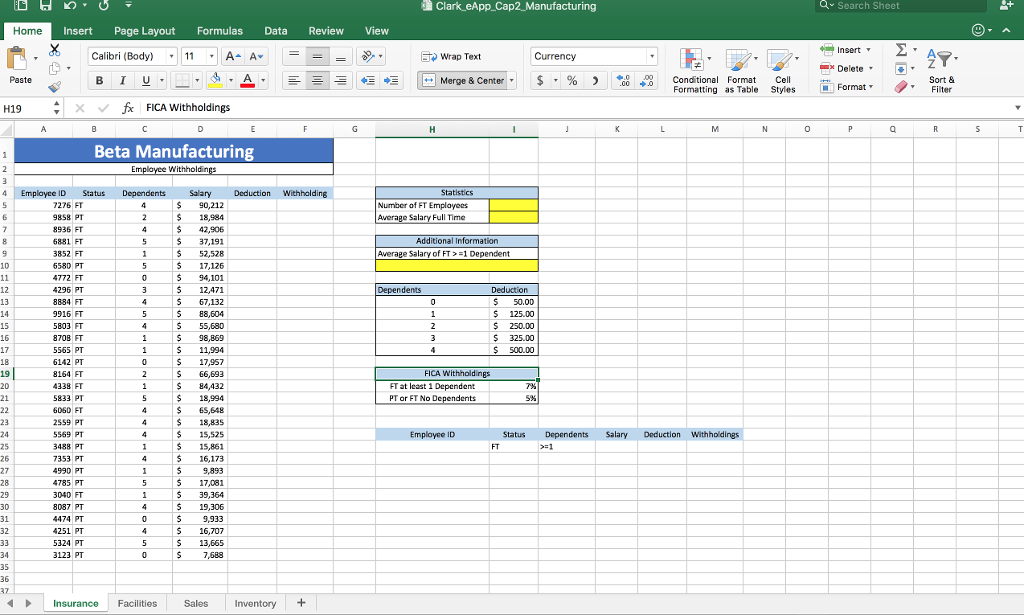
| 3 | Click cell I5 and enter a function that determines the number of full-time employees, (FT). | 2 |
| 4 | Enter a function in cell I6 that determines the average salary of all full-time employees. Format the results in Accounting Number Format. | 2 |
| 5 | Enter a lookup function in cell E5 that returns the tax deduction amount for the number of dependents listed in the cell C5. Use the table in range H13:I17 to complete the function. The maximum deduction is $500.00; therefore, employees with more than four dependents will receive no additional deductions. | 2 |
| 6 | Use Auto Fill to copy the function down, completing column E. Be sure to use the appropriate cell referencing. Format the data in column E with the Accounting Number Format. | 4 |
| 7 | Enter a logical function in cell F5 that calculates employee FICA withholding. If the employee is full-time and has at least one dependent, then he or she pays 7% of the annual salary minus any deductions. All other employees pay 5% of the annual salary minus any deductions. Copy the function down through column F. Format the data in column F with Accounting Number Format. | 3 |
| 8 | Apply conditional formatting to the range C5:C34 that highlights any dependents that are greater than 3 with Light Red Fill and Dark Red Text. | 4 |
| 9 | Click cell H10, and enter an AVERAGEIFS function to determine the average salary of full-time employees with at least one dependent. Format the results in Accounting Number Format. | 3 |
| 10 | Use Advanced Filtering to restrict the data to only display full-time employees with at least one dependent. Place the results in cell A37. Use the criteria in the range H24:M25 to complete the function. | 2 |
| 11 | Ensure that the Facilities worksheet is active. Use Goal Seek to reduce the monthly payment in cell B6 to the optimal value of $6000. Complete this task by changing the Loan amount in cell E6. | 5 |
| 12 | Create the following three scenarios using Scenario Manager. The scenarios should change the cells B7, B8, and E6. Good B7 = .0325 B8 = 5 E6 = 275000 Most Likely B7 = .057 B8 = 5 E6 = 312227.32 Bad B7 = .0700 B8 = 3 E6 = 350000 Create a Scenario Summary Report based on the value in cell B6. Format the new report appropriately. | 5 |
| 13 | Ensure that the Facilities worksheet is active. Enter a reference to the beginning loan balance in cell B12 and enter a reference to the payment amount in cell C12. | 4 |
| 14 | Enter a function in cell D12, based on the payment and loan details, that calculates the amount of interest paid on the first payment. Be sure to use the appropriate absolute, relative, or mixed cell references. | 3 |
| 15 | Enter a function in cell E12, based on the payment and loan details, that calculates the amount of principal paid on the first payment. Be sure to use the appropriate absolute, relative, or mixed cell references. | 3 |
| 16 | Enter a formula in cell F12 to calculate the remaining balance after the current payment. The remaining balance is calculated by subtracting the principal payment from the balance in column B. | 2 |
| 17 | Enter a function in cell G12, based on the payment and loan details, that calculates the amount of cumulative interest paid on the first payment. Be sure to use the appropriate absolute, relative, or mixed cell references. | 3 |
| 18 | Enter a function in cell H12, based on the payment and loan details, that calculates the amount of cumulative principal paid on the first payment. Be sure to use the appropriate absolute, relative, or mixed cell references. | 3 |
| 19 | Enter a reference to the remaining balance of payment 1 in cell B13. Use the fill handle to copy the functions created in the prior steps down to complete the amortization table. | 3 |
| 20 | Ensure the Sales worksheet is active. Enter a function in cell B8 to create a custom transaction number. The transaction number should be comprised of the item number listed in cell C8 combined with the quantity in cell D8 and the first initial of the payment type in cell E8. Use Auto Fill to copy the function down, completing the data in column B. | 7 |
| 21 | Enter a nested function in cell G8 that displays the word Flag if the Payment Type is Credit and the Amount is greater than or equal to $4000. Otherwise, the function will display a blank cell. Use Auto Fill to copy the function down, completing the data in column G. | 7 |
| 22 | Create a data validation list in cell D5 that displays Quantity,Payment Type, and Amount. | 5 |
| 23 | Type the Trans# 30038C in cell B5, and select Quantity from the validation list in cell D5. | 2 |
| 24 | Enter a nested lookup function in cell F5 that evaluates the Trans # in cell B5 as well as the Category in cell D5, and returns the results based on the data in the range A8:F32. | 3 |
| 25 | Create a PivotTable based on the range A7:G32. Place the PivotTable in cell I17 on the current worksheet. Place Payment Type in the Rows box and Amount in the Values box. Format the Amount with Accounting Number Format. | 5 |
| 26 | Insert a PivotChart using the Pie chart type based on the data. Place the upper-left corner of the chart inside cell I22. Format the Legend of the chart to appear at the bottom of the chart area. Format the Data Labels to appear on the Outside end of the chart. Note, Mac users, select the range I18:J20, on the Insert tab, click Recommended Charts, and then click Pie. Format the legend, and apply the data labels as specified. | 4 |
| 27 | Insert a Slicer based on Date. Place the upper-left corner of the Slicer inside cell L8. | 3 |
| 28 | Ensure the Inventory worksheet is active. Import the Access database eApp_Cap2_Inventory.accdb into the worksheet starting in cell A3. Note, Mac users, download and import the delimited Inventory.txt file into the worksheet starting in cell A3. | 5 |
| 29 | Create a footer with your name on the left, the sheet code in the center, and the file name on the right for each worksheet. | 2 |
| 30 | Save and close the file. Based on your instructor's directions, submit eApp_Cap2_Manufacturing_LastFirst.xlsx. | 0 |
Clark eApp Cap2 Manufacturing Search Sheet Home Insert Page Layout Formulas Data Review View Calibri (Body) 11.1 A-A, Wrap Text Currency Delete Merge & Center, $ , 96 , .00.00 Conditional Format Cell Sort & Filter Formatting as Table Styles H19 f, FICA withholdings Beta Manufacturing Withholdin Emplayce ID Status Dependents Salary Deduction Withhalding 7276 FT 9858 PT 8936 FT 6881 FT 3852 FT 6580 PT 772 FT 4296 PT 8884 FT 9916 FT 5803 FT 870B FT 5565 PT 6142 PT 8164 FT 4338 FT 5833 PT S050 F 2559 PT 5569 PT 3488 PT 7353 PT 990 PT 4785 PT 3040 FT 8087 PT 4474 PT 4251 PT 5324 PT 3123 PT 90,212 $18,984 $42,906 $37,191 $ 52,528 5 17,126 94,101 5 12,471 5 67,132 5 88,604 5 55,680 $98,869 $11,994 17,957 66,693 84,432 $ 18,994 6S,648 $18,835 $15,525 $ 15,861 $16,173 5 9,893 5 17,081 5 39,364 5 19,306 5 9,933 516,707 $13,665 $7,688 Number of FT Employees Salary Full Time Additional Information Average Salary of FT 2-1 Dependent Deduction $50.00 $ 125.00 $ 250.00 $325.00 12 Dependents 15 500.00 FICA Withholdings 20 FT at least 1 Dependent PT or FT No D Emplayee ID Salary Deduction Withholdings FT 26 28 29 36 Insurance Facilities Sales nventory + Clark eApp Cap2 Manufacturing Search Sheet Home Insert Page Layout Formulas Data Review View Calibri (Body) 11.1 A-A, Wrap Text Currency Delete Merge & Center, $ , 96 , .00.00 Conditional Format Cell Sort & Filter Formatting as Table Styles H19 f, FICA withholdings Beta Manufacturing Withholdin Emplayce ID Status Dependents Salary Deduction Withhalding 7276 FT 9858 PT 8936 FT 6881 FT 3852 FT 6580 PT 772 FT 4296 PT 8884 FT 9916 FT 5803 FT 870B FT 5565 PT 6142 PT 8164 FT 4338 FT 5833 PT S050 F 2559 PT 5569 PT 3488 PT 7353 PT 990 PT 4785 PT 3040 FT 8087 PT 4474 PT 4251 PT 5324 PT 3123 PT 90,212 $18,984 $42,906 $37,191 $ 52,528 5 17,126 94,101 5 12,471 5 67,132 5 88,604 5 55,680 $98,869 $11,994 17,957 66,693 84,432 $ 18,994 6S,648 $18,835 $15,525 $ 15,861 $16,173 5 9,893 5 17,081 5 39,364 5 19,306 5 9,933 516,707 $13,665 $7,688 Number of FT Employees Salary Full Time Additional Information Average Salary of FT 2-1 Dependent Deduction $50.00 $ 125.00 $ 250.00 $325.00 12 Dependents 15 500.00 FICA Withholdings 20 FT at least 1 Dependent PT or FT No D Emplayee ID Salary Deduction Withholdings FT 26 28 29 36 Insurance Facilities Sales nventory +
Step by Step Solution
There are 3 Steps involved in it
To complete the tasks in the Excel workbook follow these detailed steps Steps 1 Open and Save Open eAppCap2Manufacturingxlsx Save the workbook as eAppCap2ManufacturingLastFirstxlsx 2 Group Worksheets ... View full answer

Get step-by-step solutions from verified subject matter experts
 Study Help