







Question: 1 Start Excel. Open the downloaded file named Excel _ CH 1 3 _ PS 2 _ PaperSales.xlsx . Grader has automatically added your last
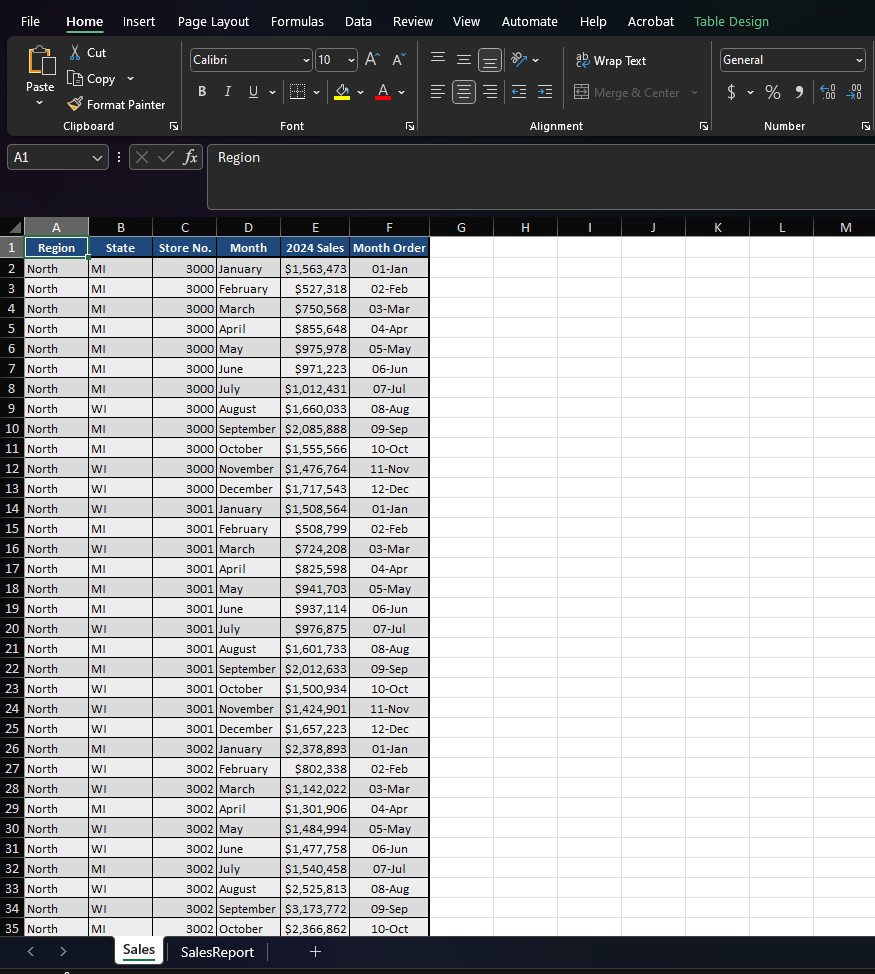
Start Excel. Open the downloaded file named ExcelCHPSPaperSales.xlsx Grader has automatically added your last name to the beginning of the filename. Save the file to the location where you are storing your files.
On the Sales worksheet, with cell A selected, display the Power Pivot tab, and then in the Tables group, click or press Add to Data Model.
Close the Power Pivot for Excel window. Display the SalesReport worksheet. Type Paper Mill Sales Report in cell A changing the font to pt and bold.
Insert a PivotChart into the worksheet using the workbook's Data Model as the source. Move the PivotChart so that the upperleft corner of the chart is in cell B and the lowerright corner of the PivotChart is in I
Add Sales as the Value and Month Order as the Axis. Ensure the chart is a Clustered Column chart. If necessary, remove the legend. Add the chart title Sales by Month to the PivotChart.
Insert a second PivotChart into the worksheet using the workbook's Data Model as the source. Move the PivotChart so that the upperleft corner of the chart is in cell J and the lowerright corner of the PivotChart is in Q
Add Sales as the Value and Month Order as the Axis. Add Region as the Legend. Change the chart type to a Line with Markers chart. Add the chart title Sales by Region to the PivotChart.
Insert a PivotTable into cell C on the worksheet using the workbook's Data Model as the source. Add State as the Row and Sales for the Values. Remove the Grand Totals for both Rows and Columns.
Insert a slicer for Month Order. Move the Slicer so that the upperleft corner is in cell J and the lowerright corner of the Slicer is in L
Convert the PivotTable to Formulas. Insert a Filled Map Chart using the converted PivotTable. Type Sales by State as the chart title. Move the Chart so that the upperleft corner of the chart is in cell C and the lowerright corner of the chart is in I
Hide the Gridlines and Headings on the worksheet.
Save and close ExcelCHPSPaperSales. Exit Excel. Submit the file as directed.
Step by Step Solution
There are 3 Steps involved in it
1 Expert Approved Answer
Step: 1 Unlock

Question Has Been Solved by an Expert!
Get step-by-step solutions from verified subject matter experts
Step: 2 Unlock
Step: 3 Unlock
 Study Help