







Question: 1. The information and requirements for the Chapter 2 Applying Excel problem can be found on page 78 of the textbook 3. Enable macros on
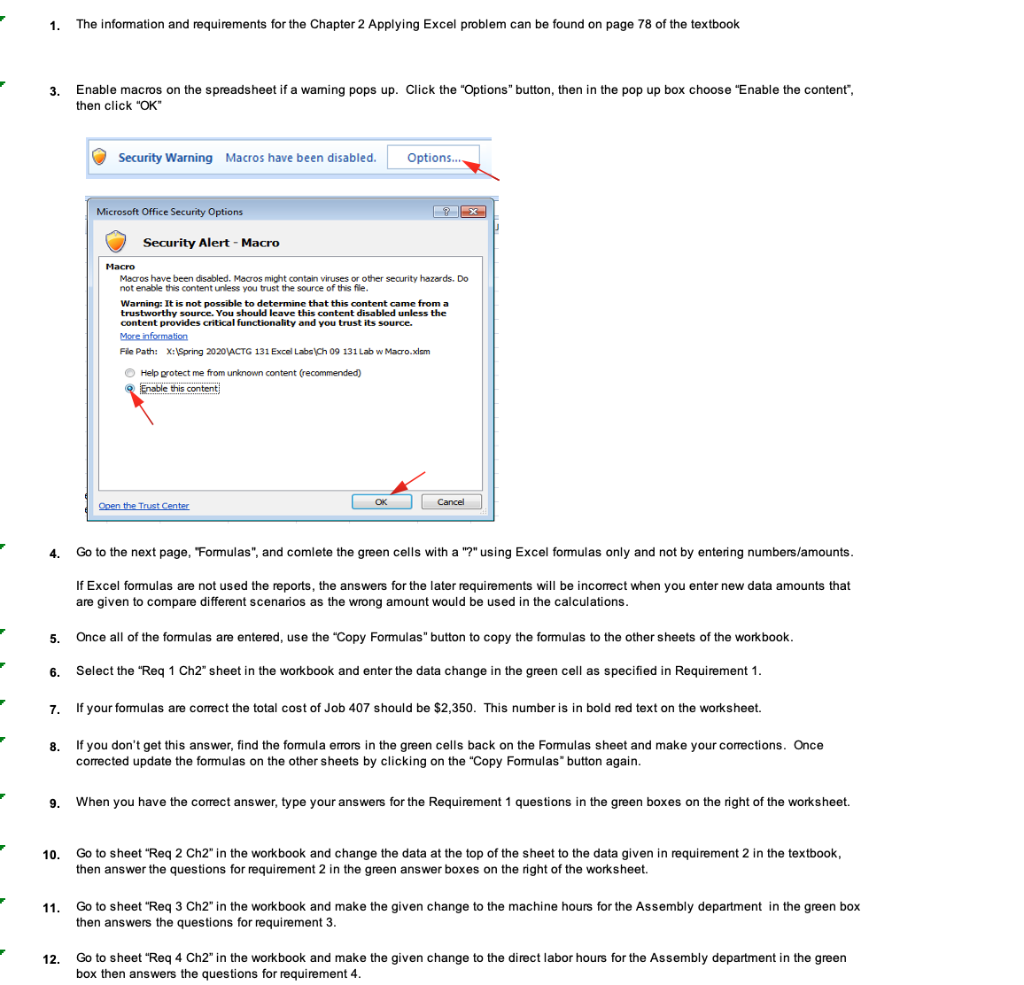
1. The information and requirements for the Chapter 2 Applying Excel problem can be found on page 78 of the textbook 3. Enable macros on the spreadsheet if a waming pops up. Click the "Options" button, then in the pop up box choose "Enable the content", then click "OK" Security Warning Macros have been disabled. Options... Microsoft Office Security Options Security Alert - Macro Macro Macros have been disabled. Macros might contain viruses or other security hazards. Do . not enable this content unless you trust the source of this file. Warning: It is not possible to determine that this content came from a trustworthy source. You should leave this content disabled unless the content provides critical functionality and you trust its source. More information File Path: X:\Spring 2020 \ACTG 131 Excel Labs (Ch 09 131 Lab w Macro.xiom Help grotect me from unknown content (recommended) Enable this content OK Cancel Open the Trust Center 4. Go to the next page, "Formulas", and comlete the green cells with a "?" using Excel formulas only and not by entering numbers/amounts. If Excel formulas are not used the reports, the answers for the later requirements will be incorrect when you enter new data amounts that are given to compare different scenarios as the wrong amount would be used in the calculations. 5. Once all of the formulas are entered, use the "Copy Formulas" button to copy the formulas to the other sheets of the workbook. 6. Select the "Req 1 Ch2" sheet in the workbook and enter the data change in the green cell as specified in Requirement 1. 7. If your formulas are correct the total cost of Job 407 should be $2,350. This number is in bold red text on the worksheet. 8. If you don't get this answer, find the formula errors in the green cells back on the Formulas sheet and make your corrections. Once corrected update the formulas on the other sheets by clicking on the "Copy Formulas" button again. 9. When you have the correct answer, type your answers for the Requirement 1 questions in the green boxes on the right of the worksheet. 10. Go to sheet "Req 2 Ch2" in the workbook and change the data at the top of the sheet to the data given in requirement 2 in the textbook, then answer the questions for requirement 2 in the green answer boxes on the right of the worksheet. 11. Go to sheet "Req 3 Ch2" in the workbook and make the given change to the machine hours for the Assembly department in the green box then answers the questions for requirement 3. 12. Go to sheet "Req 4 Ch2" in the workbook and make the given change to the direct labor hours for the Assembly department in the green box then answers the questions for requirement 4. 1. The information and requirements for the Chapter 2 Applying Excel problem can be found on page 78 of the textbook 3. Enable macros on the spreadsheet if a waming pops up. Click the "Options" button, then in the pop up box choose "Enable the content", then click "OK" Security Warning Macros have been disabled. Options... Microsoft Office Security Options Security Alert - Macro Macro Macros have been disabled. Macros might contain viruses or other security hazards. Do . not enable this content unless you trust the source of this file. Warning: It is not possible to determine that this content came from a trustworthy source. You should leave this content disabled unless the content provides critical functionality and you trust its source. More information File Path: X:\Spring 2020 \ACTG 131 Excel Labs (Ch 09 131 Lab w Macro.xiom Help grotect me from unknown content (recommended) Enable this content OK Cancel Open the Trust Center 4. Go to the next page, "Formulas", and comlete the green cells with a "?" using Excel formulas only and not by entering numbers/amounts. If Excel formulas are not used the reports, the answers for the later requirements will be incorrect when you enter new data amounts that are given to compare different scenarios as the wrong amount would be used in the calculations. 5. Once all of the formulas are entered, use the "Copy Formulas" button to copy the formulas to the other sheets of the workbook. 6. Select the "Req 1 Ch2" sheet in the workbook and enter the data change in the green cell as specified in Requirement 1. 7. If your formulas are correct the total cost of Job 407 should be $2,350. This number is in bold red text on the worksheet. 8. If you don't get this answer, find the formula errors in the green cells back on the Formulas sheet and make your corrections. Once corrected update the formulas on the other sheets by clicking on the "Copy Formulas" button again. 9. When you have the correct answer, type your answers for the Requirement 1 questions in the green boxes on the right of the worksheet. 10. Go to sheet "Req 2 Ch2" in the workbook and change the data at the top of the sheet to the data given in requirement 2 in the textbook, then answer the questions for requirement 2 in the green answer boxes on the right of the worksheet. 11. Go to sheet "Req 3 Ch2" in the workbook and make the given change to the machine hours for the Assembly department in the green box then answers the questions for requirement 3. 12. Go to sheet "Req 4 Ch2" in the workbook and make the given change to the direct labor hours for the Assembly department in the green box then answers the questions for requirement 4
Step by Step Solution
There are 3 Steps involved in it

Get step-by-step solutions from verified subject matter experts
 Study Help