Question: 1. The Lab 1 Setup 1.1 Get the Lab 1 Download Click here Lab1.zip to download this lab's zip file Save Lab1.zip to your C:CppDevSp17
1. The Lab 1 Setup
1.1 Get the Lab 1 Download
Click here Lab1.zip to download this lab's zip file
Save Lab1.zip to your C:CppDevSp17 folder - this folder was created when you did Lab 0 (if you have not completed Lab 0, do so now before proceeding with Lab 1)
Once downloaded, double click the Lab1.zip, and copy the L1 folder from inside the zip to the C:CppDevSp17 folder. After doing this step, the L1 folder will be subordinate to the C:CppDevSp17 folder and will have the path name C:CppDevSp17L1. See screen shot to the right
Lab1 Folder
1.2 Create the Lab 1 Project in Visual Studio
Create a new Visual Studio Console Application Project by following these steps:
Creating A New VS2015 Project
Be sure to name your project L1
Adding .cpp Files To A Project
Be sure to add the already existing source code file called: driver.cpp
It is in the L1 folder that you downloaded in Part 1.1 above.
Changing A Project's Settings
Building a Project
Changing From Debug to Release Configuration
2. Lab 1 Statement of Work
2.1 Primary Objectives
The primary objectives of this lab are provide you experience working with:
the C++ project environment
the Sequence component as a client programmer
2.2 Overview
Overview of steps to be performed:
Get set up for this lab (see Getting Setup For Lab 1, above)
Make necessary modifications to the files: driver.cpp and createInstance.h
2.3 Specifics
Create the L1 Project
A screen shot of the "Solution Explorer" of the Visual Studio project for L1, is shown to the right
You can Build the project by clicking on the menu bar choice: Project | Build All
The build process will create a L1.exe which you will be able to run from Windows File Explorer by double clicking on the L1.exe file found in C:CppDevSp17L1Debug folder
Your Job - Overview
The code in driver.cpp currently works with the data type IntegerQueue
Your job is to transform the program so that it works with the data type IntegerSequence
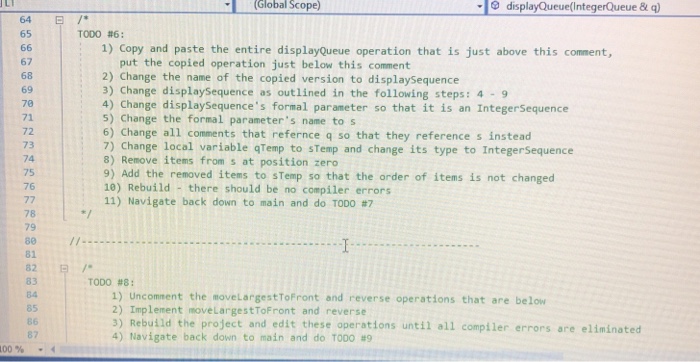
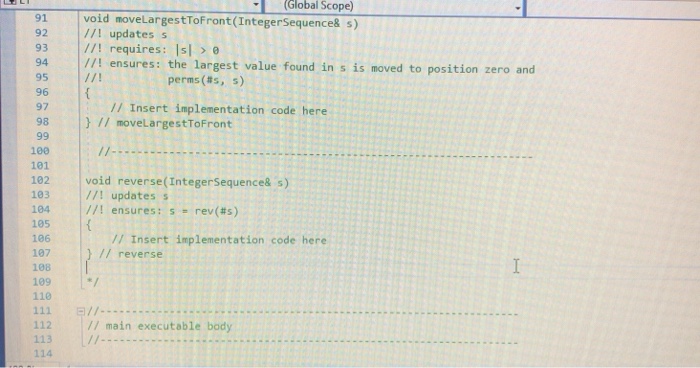
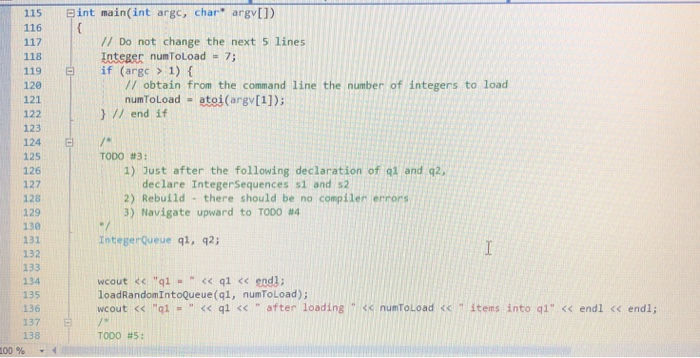
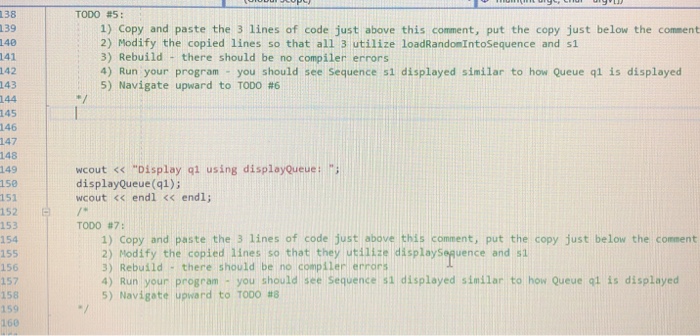
Your Job - Step by Step "TODO"s
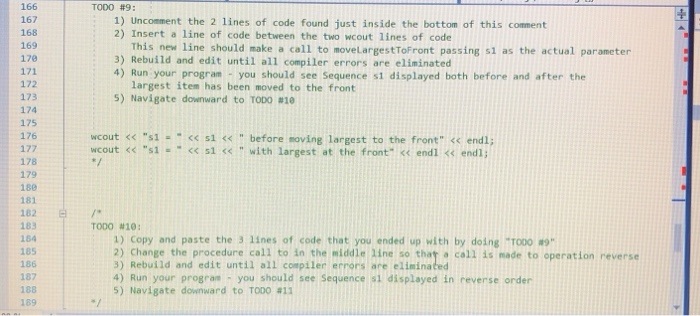
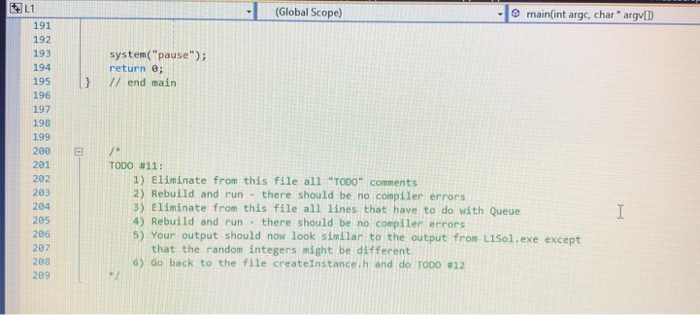
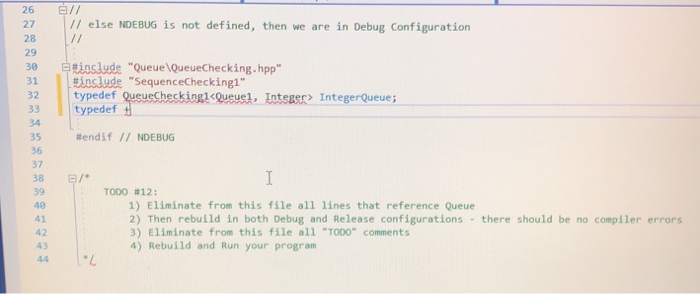
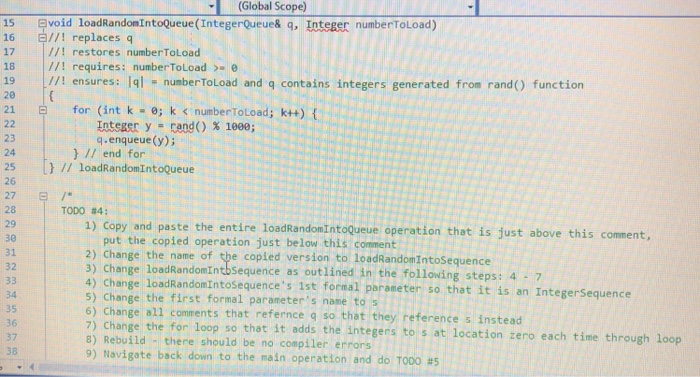
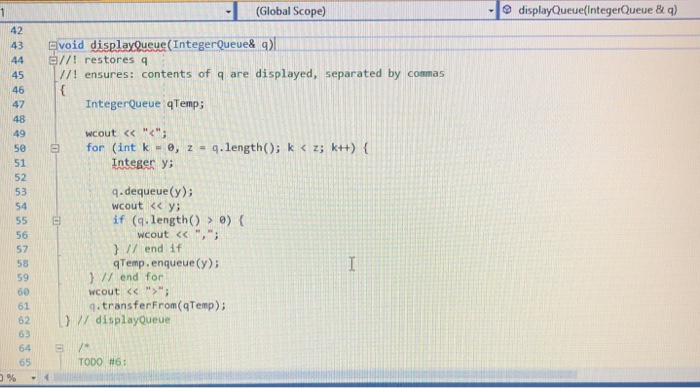
Open driver.cpp while in Visual Studio and find a comment toward the top of the file that starts out with a line saying "TODO #1"
Follow the instructions of "TODO #1" and then move on to "TODO #2"
Keep going until you have done all 12 "TODO"s
Project L1 at the Outset
L1 Project Queue
When You Have Finished
Your Visual Studio project should look like what is shown in the screen shot to the right
Project L1 When Finished
L1 Project Sequence
3. Testing
Run your L1.exe and compare its output to L1Sol.exe (located in your L1 folder)
Make your output look like L1Sol.exe - the only difference allowed between the output of your L1.exe and L1Sol.exe are the integers that are actually stored in the IntegerSequence
 1. The Lab 1 Setup 1.1 Get the Lab 1 Download
Click here Lab1.zip to download this lab's zip file Save Lab1.zip to
your C:CppDevSp17 folder - this folder was created when you did Lab
0 (if you have not completed Lab 0, do so now before
proceeding with Lab 1) Once downloaded, double click the Lab1.zip, and copy
the L1 folder from inside the zip to the C:CppDevSp17 folder. After
doing this step, the L1 folder will be subordinate to the C:CppDevSp17
folder and will have the path name C:CppDevSp17L1. See screen shot to
the right Lab1 Folder 1.2 Create the Lab 1 Project in Visual
Studio Create a new Visual Studio Console Application Project by following these
steps: Creating A New VS2015 Project Be sure to name your project

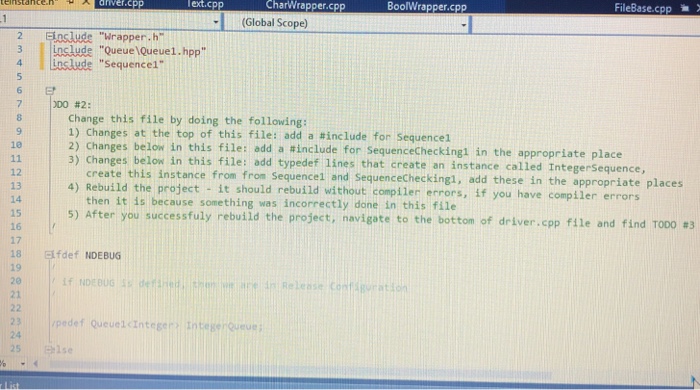
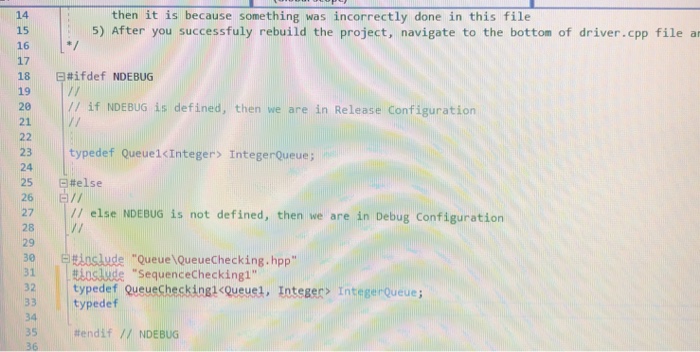
CharWrapper.cpp BoolWrapper.cpp FileBase.cpp driver.cpP (Global Scope) 2 Eoslude "Wrapper.h 3 nslude "Queue lQueue1.hpp" 4 Baslude "Sequence 00 #2: Change this file by doing the following: 1) Changes at the top of this file add a #include for sequence 1 2) Changes below in this file: add a #include for SequenceCheckingl in the appropriate place 3) Changes below in this file: add typedef lines that create an instance called IntegerSequence, 10 create this instance from from Sequence1 and SequenceCheckingl, add these in the appropriate places 12 13 14 15 16 17 18 fdef NDEBUG 4) Rebuild the project it should rebuild without compiler errors, if y then it is because something was incorrectly done in this file 5) Afte r you successfuly rebuild the project, navigate to the bottom of driver.cpp file and find TOOO.3 20 24 5lse CharWrapper.cpp BoolWrapper.cpp FileBase.cpp driver.cpP (Global Scope) 2 Eoslude "Wrapper.h 3 nslude "Queue lQueue1.hpp" 4 Baslude "Sequence 00 #2: Change this file by doing the following: 1) Changes at the top of this file add a #include for sequence 1 2) Changes below in this file: add a #include for SequenceCheckingl in the appropriate place 3) Changes below in this file: add typedef lines that create an instance called IntegerSequence, 10 create this instance from from Sequence1 and SequenceCheckingl, add these in the appropriate places 12 13 14 15 16 17 18 fdef NDEBUG 4) Rebuild the project it should rebuild without compiler errors, if y then it is because something was incorrectly done in this file 5) Afte r you successfuly rebuild the project, navigate to the bottom of driver.cpp file and find TOOO.3 20 24 5lse

Step by Step Solution

There are 3 Steps involved in it

1 Expert Approved Answer
Step: 1 Unlock blur-text-image
Question Has Been Solved by an Expert!

Get step-by-step solutions from verified subject matter experts

Step: 2 Unlock
Step: 3 Unlock

Students Have Also Explored These Related Databases Questions!