Question: 1. Use OpenGL + GLUT + C/C++ to write a program to draw a red 2D circle and a rectangle with an output look like
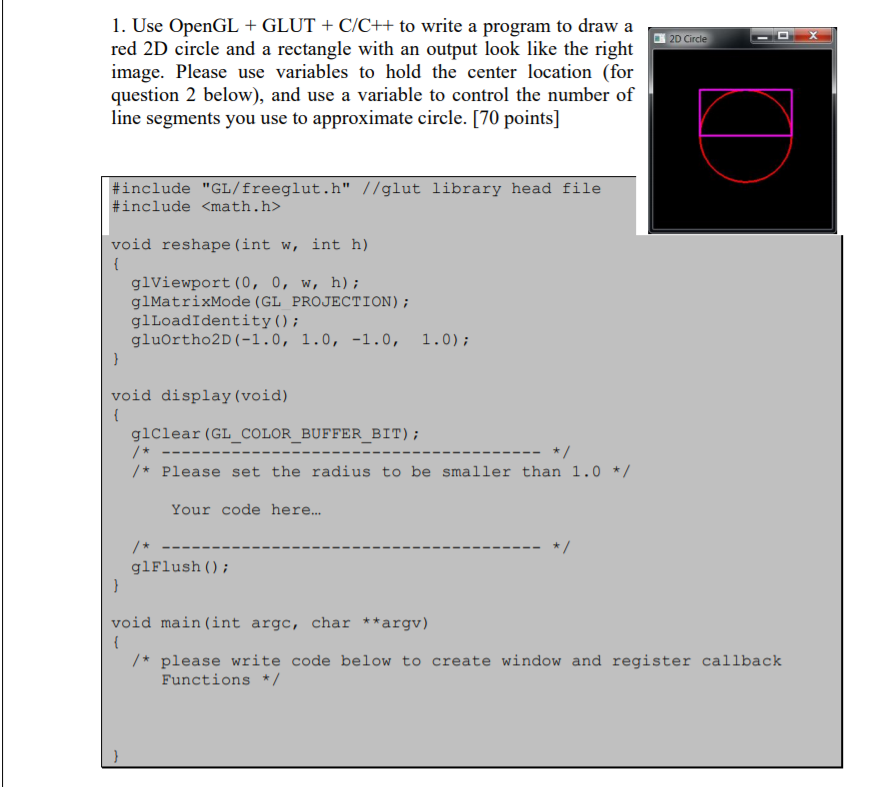

1. Use OpenGL + GLUT + C/C++ to write a program to draw a red 2D circle and a rectangle with an output look like the right image. Please use variables to hold the center location (for question 2 below), and use a variable to control the number of line segments you use to approximate circle. [70 points] D Circle #include #include "GL/freeglut.h" //glut library head file void reshape (int w, int h) glViewport (0, 0, w, h); glMatrixMode (GL PROJECTION); glLoadIdentity); gluortho2D (-1.0, 1.0, -1.0, 1.0) void display (void) giclear (GL COLOR_BUFFER BIT) /*Please set the radius to be smaller than 1.0 Your code here... glFlush ) void main (int argc, char **argv) /*please write code below to create window and register callback Functions 2. Add a keyboard-callback function to the above program and make appropriate modification so that you can use key 'X' and 'x' to move the circle and the rectangle left and right, and 'Y" and 'y' to move up and down. [30 points] 1. Use OpenGL + GLUT + C/C++ to write a program to draw a red 2D circle and a rectangle with an output look like the right image. Please use variables to hold the center location (for question 2 below), and use a variable to control the number of line segments you use to approximate circle. [70 points] D Circle #include #include "GL/freeglut.h" //glut library head file void reshape (int w, int h) glViewport (0, 0, w, h); glMatrixMode (GL PROJECTION); glLoadIdentity); gluortho2D (-1.0, 1.0, -1.0, 1.0) void display (void) giclear (GL COLOR_BUFFER BIT) /*Please set the radius to be smaller than 1.0 Your code here... glFlush ) void main (int argc, char **argv) /*please write code below to create window and register callback Functions 2. Add a keyboard-callback function to the above program and make appropriate modification so that you can use key 'X' and 'x' to move the circle and the rectangle left and right, and 'Y" and 'y' to move up and down. [30 points]









 Study Help