







Question: 1. Use your editor to open the pc_specials_txt.html and pc_specials_txt.css files from the htmlo3 review folder. Enter your name and the date in the comment
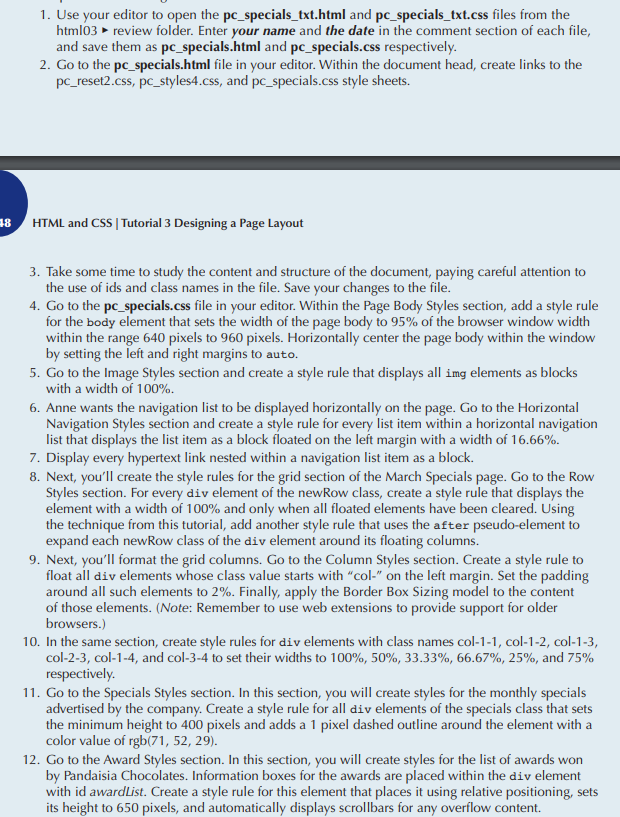
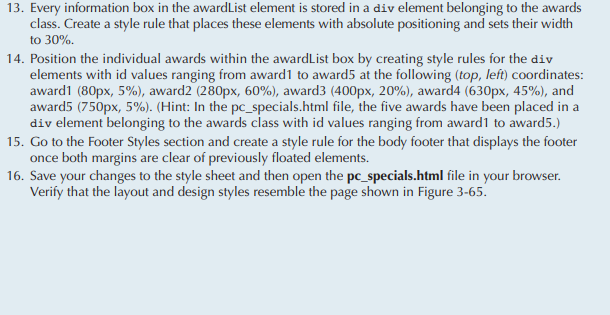
1. Use your editor to open the pc_specials_txt.html and pc_specials_txt.css files from the htmlo3 review folder. Enter your name and the date in the comment section of each file, and save them as pc_specials.html and pc_specials.css respectively 2. Go to the pc_specials.html file in your editor. Within the document head, create links to the pc_reset2.css, pc_styles4.css, and pc_specials.css style sheets. 18 HTML and CSS Tutorial 3 Designing a Page Layout 3. Take some time to study the content and structure of the document, paying careful attention to the use of ids and class names in the file. Save your changes to the file 4. Go to the pc_specials.css file in your editor. Within the Page Body Styles section, add a style rule for the body element that sets the width of the page body to 95% of the browser window width within the range 640 pixels to 960 pixels. Horizontally center the page body within the window by setting the left and right margins to auto. 5. Go to the Image Styles section and create a style rule that displays all img elements as blocks with a width of 100%. 6. Anne wants the navigation list to be displayed horizontally on the page. Go to the Horizontal Navigation Styles section and create a style rule for every list item within a horizontal navigation list that displays the list item as a block floated on the left margin with a width of 16.66%. 7. Display every hypertext link nested within a navigation list item as a block. 8. Next, you'll create the style rules for the grid section of the March Specials page. Go to the Row Styles section. For every div element of the newRow class, create a style rule that displays the element with a width of 100% and only when all floated elements have been cleared. Using the technique from this tutorial, add another style rule that uses the after pseudo-element to expand each newRow class of the div element around its floating columns. 9. Next, you'll format the grid columns. Go to the Column Styles section. Create a style rule to float all div elements whose class value starts with "col-" on the left margin. Set the padding around all such elements to 2%. Finally, apply the Border Box Sizing model to the content of those elements. (Note: Remember to use web extensions to provide support for older browsers.) 10. In the same section, create style rules for div elements with class names col-1-1, col-1-2, col-1-3, col-2-3 col-14, and col-3-4 to set their widths to 100%, 50%, 33.33%, 66.67%, 25%, and 75% respectively 11. Go to the Specials Styles section. In this section, you will create styles for the monthly specials advertised by the company. Create a style rule for all div elements of the specials class that sets the minimum height to 400 pixels and adds a 1 pixel dashed outline around the element with a color value of rgb(71, 52, 29) 12. Go to the Award Styles section. In this section, you will create styles for the list of awards won by Pandaisia Chocolates. Information boxes for the awards are placed within the div element with id awardList. Create a style rule for this element that places it using relative positioning, sets its height to 650 pixels, and automatically displays scrollbars for any overflow content
Step by Step Solution
There are 3 Steps involved in it

Get step-by-step solutions from verified subject matter experts
 Study Help