







Question: 1. Write the command su to root and enter the following commands: Note: During this lab you will need to substitute emN with the
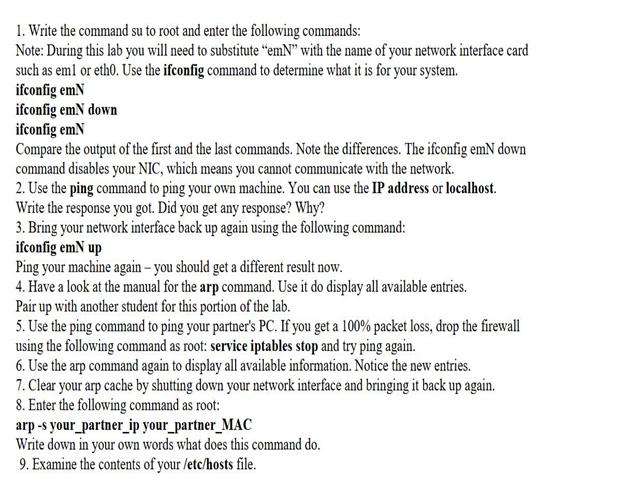
1. Write the command su to root and enter the following commands: Note: During this lab you will need to substitute "emN" with the name of your network interface card such as eml or eth0. Use the ifconfig command to determine what it is for your system. ifconfig em N ifconfig emN down ifconfig em N Compare the output of the first and the last commands. Note the differences. The ifconfig emN down command disables your NIC, which means you cannot communicate with the network. 2. Use the ping command to ping your own machine. You can use the IP address or localhost. Write the response you got. Did you get any response? Why? 3. Bring your network interface back up again using the following command: ifconfig em N up Ping your machine again - you should get a different result now. 4. Have a look at the manual for the arp command. Use it do display all available entries. Pair up with another student for this portion of the lab. 5. Use the ping command to ping your partner's PC. If you get a 100% packet loss, drop the firewall using the following command as root: service iptables stop and try ping again. 6. Use the arp command again to display all available information. Notice the new entries. 7. Clear your arp cache by shutting down your network interface and bringing it back up again. 8. Enter the following command as root: arp -s your partner_ip your partner_MAC Write down in your own words what does this command do. 9. Examine the contents of your /etc/hosts file.
Step by Step Solution
There are 3 Steps involved in it
1 Disable and Enable Network Interface Switch to root user su Substitute emN with your network inter... View full answer

Get step-by-step solutions from verified subject matter experts
 Study Help