







Question: 1.1) Check the built-in MOD function of Excel a. On cell C6, enter the MOD function for the remainder after division of a dividend (B6)
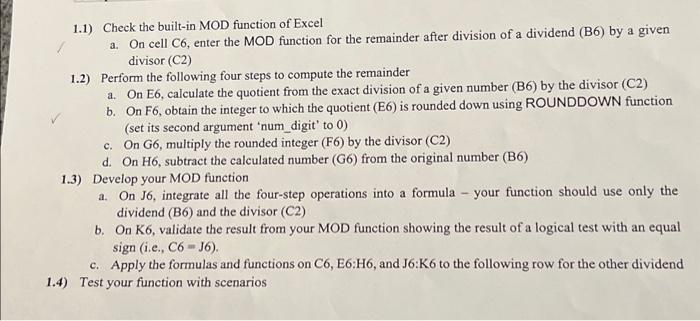
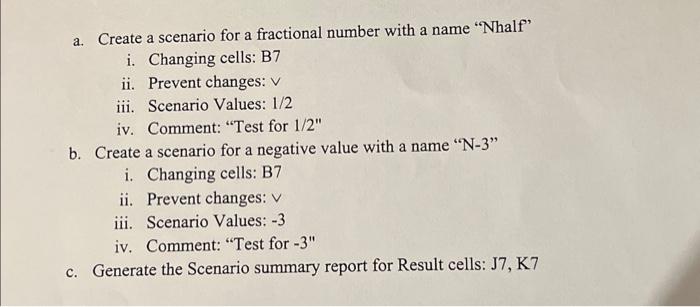
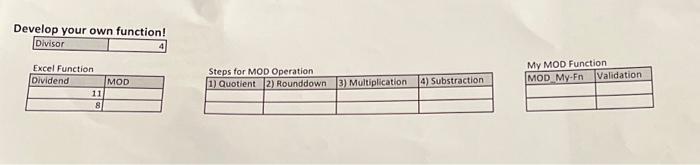
1.1) Check the built-in MOD function of Excel a. On cell C6, enter the MOD function for the remainder after division of a dividend (B6) by a given divisor (C2) 1.2) Perform the following four steps to compute the remainder a. On E6, calculate the quotient from the exact division of a given number (B6) by the divisor (C2) b. On F6, obtain the integer to which the quotient (E6) is rounded down using ROUNDDOWN function (set its second argument 'num_digit' to 0 ) c. On G6, multiply the rounded integer (F6) by the divisor (C2) d. On H6, subtract the calculated number (G6) from the original number (B6) 1.3) Develop your MOD function a. On J6, integrate all the four-step operations into a formula - your function should use only the dividend (B6) and the divisor (C2) b. On K6, validate the result from your MOD function showing the result of a logical test with an equal sign (i.e., C6 = J6). Develop your own function! Excel Function a. Create a scenario for a fractional number with a name "Nhalf" i. Changing cells: B7 ii. Prevent changes: v iii. Scenario Values: 1/2 iv. Comment: "Test for 1/2 " b. Create a scenario for a negative value with a name "N-3" i. Changing cells: B7 ii. Prevent changes: v iii. Scenario Values: -3 iv. Comment: "Test for -3 " c. Generate the Scenario summary report for Result cells: J7, K7
Step by Step Solution
There are 3 Steps involved in it

Get step-by-step solutions from verified subject matter experts
 Study Help