



Question: 11.To easily run the macro, you will add a macro button. Add a form control button in cell F1 that will run the ClearContents macro.
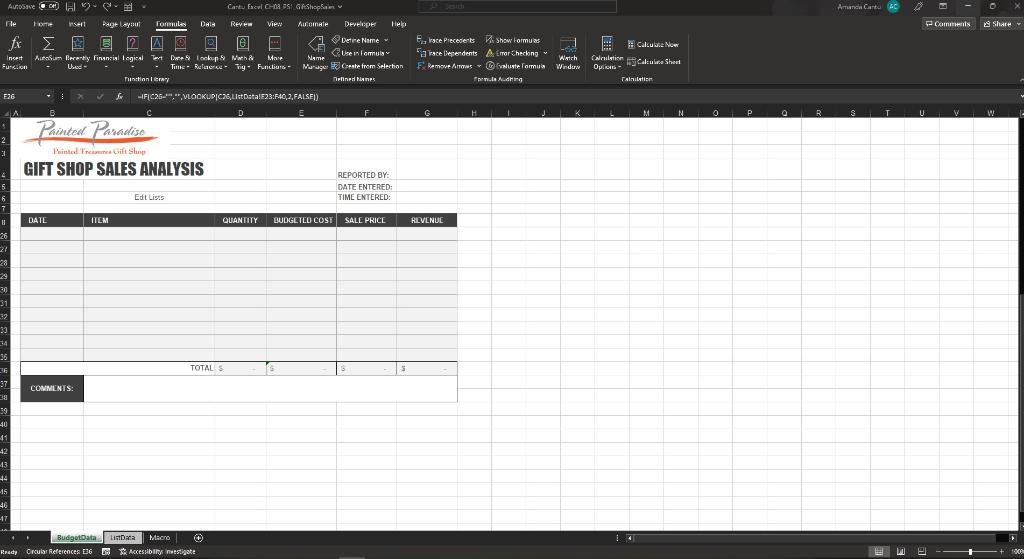
11.To easily run the macro, you will add a macro button. Add a form control button in cell F1 that will run the ClearContents macro. Change the text on the button to Clear Contents and then resize the button as necessary to read all the text. Enter the following data in the report to test the macro: In cell G4, using the list arrow, select Jamie In cell G5, todays date In cell G6, 2:00 PM In cell B9, enter todays date In cell C9, select Chips Snack Size from the list arrow In cell D9, type 3 Test the ClearContents macro by using the Clear Contents form control button.
12. Open the Visual Basic editor to copy the Macro code. Paste the Macro code into cell A1 on the Macro worksheet.
13. You want to protect parts of the workbook that you do not want users to be able to change. Before you add worksheet protection, you need to unlock cells for data entry. On the BudgetData worksheet, unlock cells C6, G4:G6, B9:D35, and C37.
14. Even if a worksheet is protected, worksheet formulas could still be visible in Formula view. You want to hide the formulas for the BudgetData worksheet in all views. Hide the formulas from the following: E9:G35.
Step by Step Solution
There are 3 Steps involved in it

Get step-by-step solutions from verified subject matter experts