







Question: 15. 16. 17. 18. Calculate a new eld using a combination of two functions as follows: ValiNZuAmounts Received], 0)) to create a value that can
![of two functions as follows: ValiNZuAmounts Received], 0)) to create a value](https://s3.amazonaws.com/si.experts.images/answers/2024/06/6676699e45c6c_3186676699e2260d.jpg)
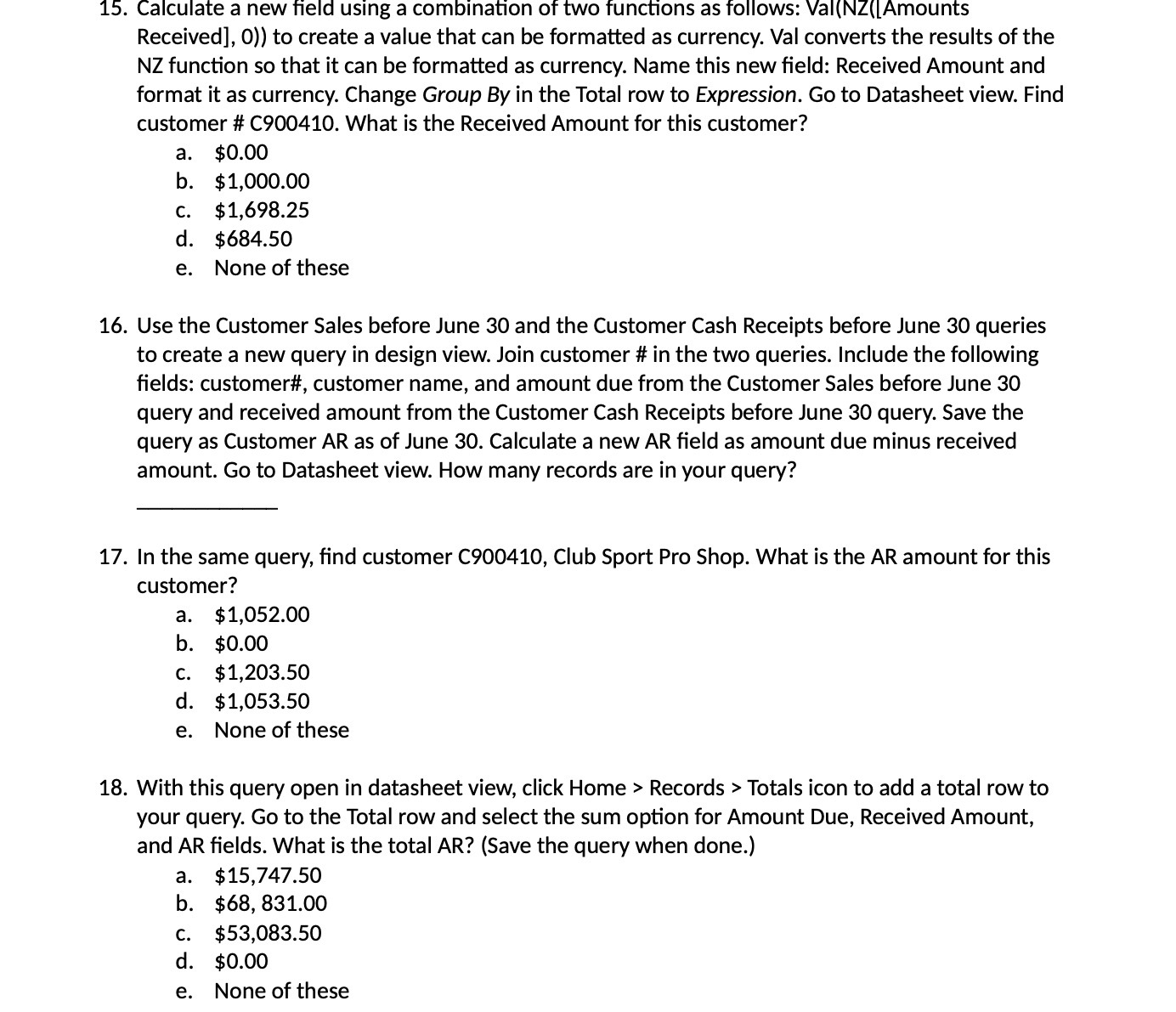
15. 16. 17. 18. Calculate a new eld using a combination of two functions as follows: ValiNZuAmounts Received], 0)) to create a value that can be formatted as currency. Val converts the results of the NZ function so that it can be formatted as currency. Name this new eld: Received Amount and format it as currency. Change Group By in the Total row to Expression. Go to Datasheet view. Find customer # C900410. What is the Received Amount for this customer? a. $0.00 b $1,000.00 c. $1,698.25 d. $684.50 e None of these Use the Customer Sales before June 30 and the Customer Cash Receipts before June 30 queries to create a new query in design view. Join customer # in the two queries. Include the following elds: customer#, customer name, and amount due from the Customer Sales before June 30 query and received amount from the Customer Cash Receipts before June 30 query. Save the query as Customer AR as of June 30. Calculate a new AR eld as amount due minus received amount. Go to Datasheet view. How many records are in your query? In the same query, nd customer C900410, Club Sport Pro Shop. What is the AR amount for this customer? a. $1,052.00 b. $0.00 c. $1,203.50 d. $1,053.50 e. None of these With this query open in datasheet view, click Home > Records > Totals icon to add a total row to your query. Go to the Total row and select the sum option for Amount Due, Received Amount, and AR elds. What is the total AR? (Save the query when done.) 3. $15,747.50 b $68, 831.00 c. $53,083.50 d. $0.00 e None of these
Step by Step Solution
There are 3 Steps involved in it

Get step-by-step solutions from verified subject matter experts
 Study Help