





Question: 175% EE T View Zoom Add Page Insert Table Chart Text Shape Media Comment Collaborate Format Document Pages CSC300 Module 4 Section Practical Design Assignment
175% EE T View Zoom Add Page Insert Table Chart175% EE T View Zoom Add Page Insert Table Chart175% EE T View Zoom Add Page Insert Table Chart
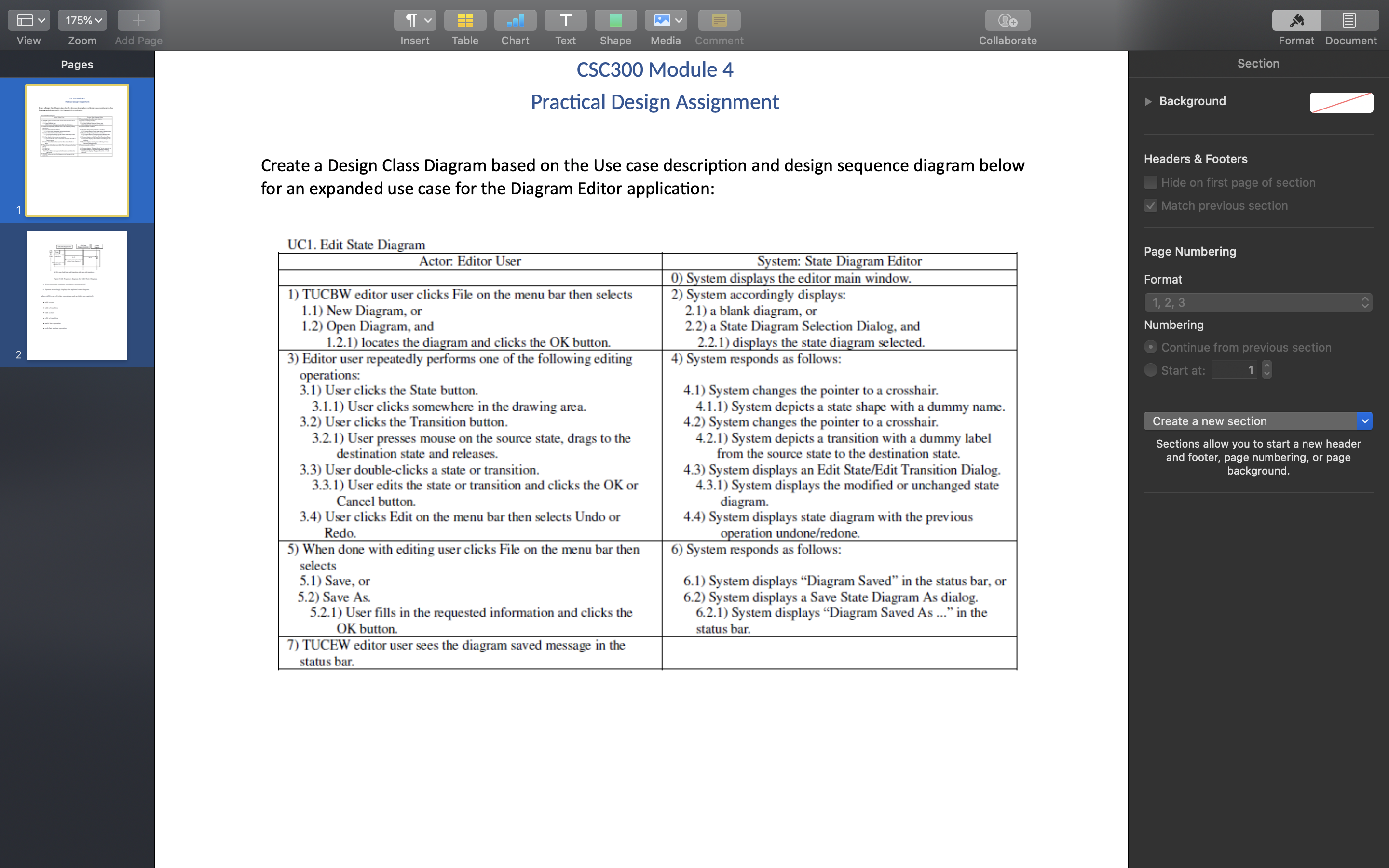
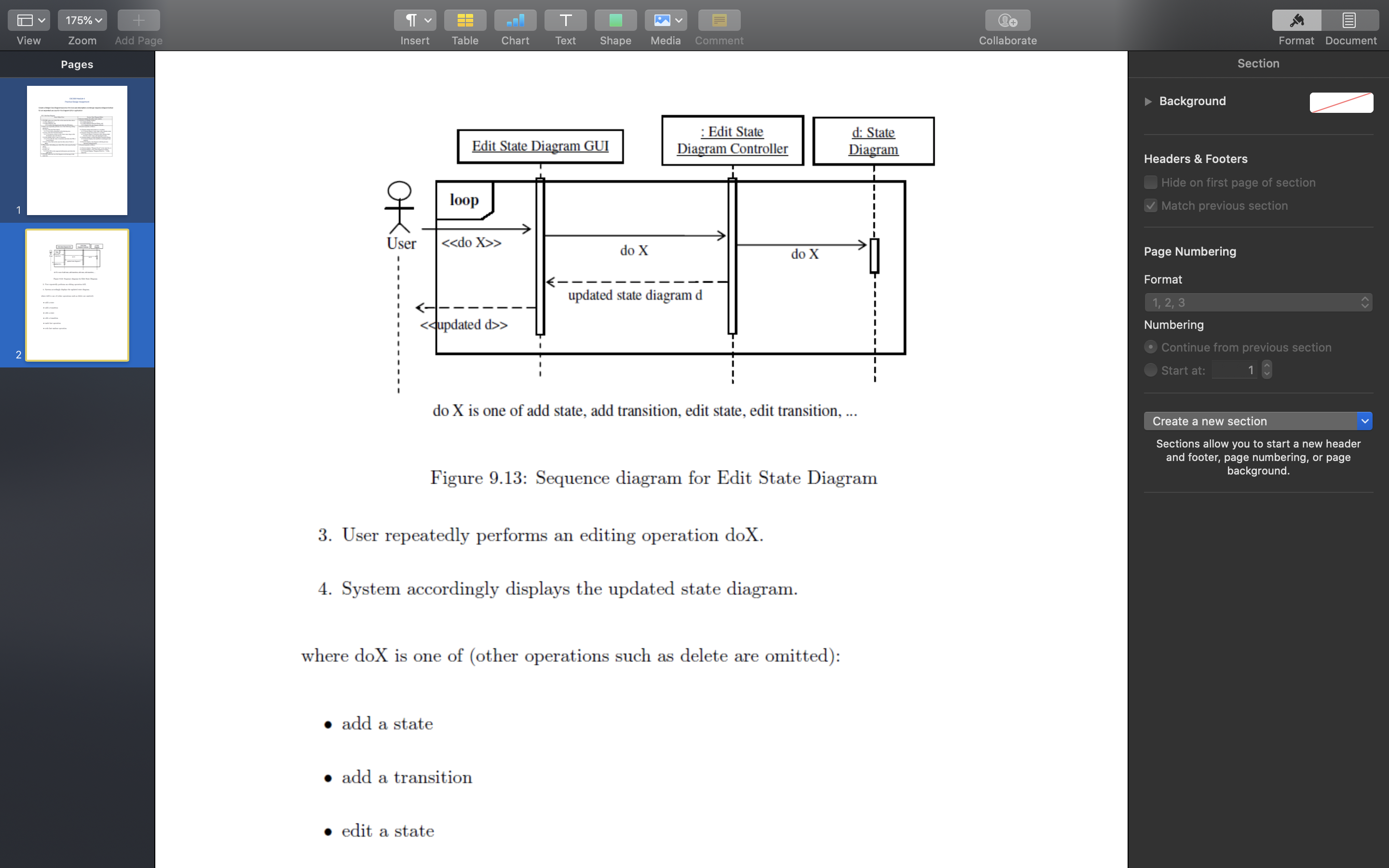
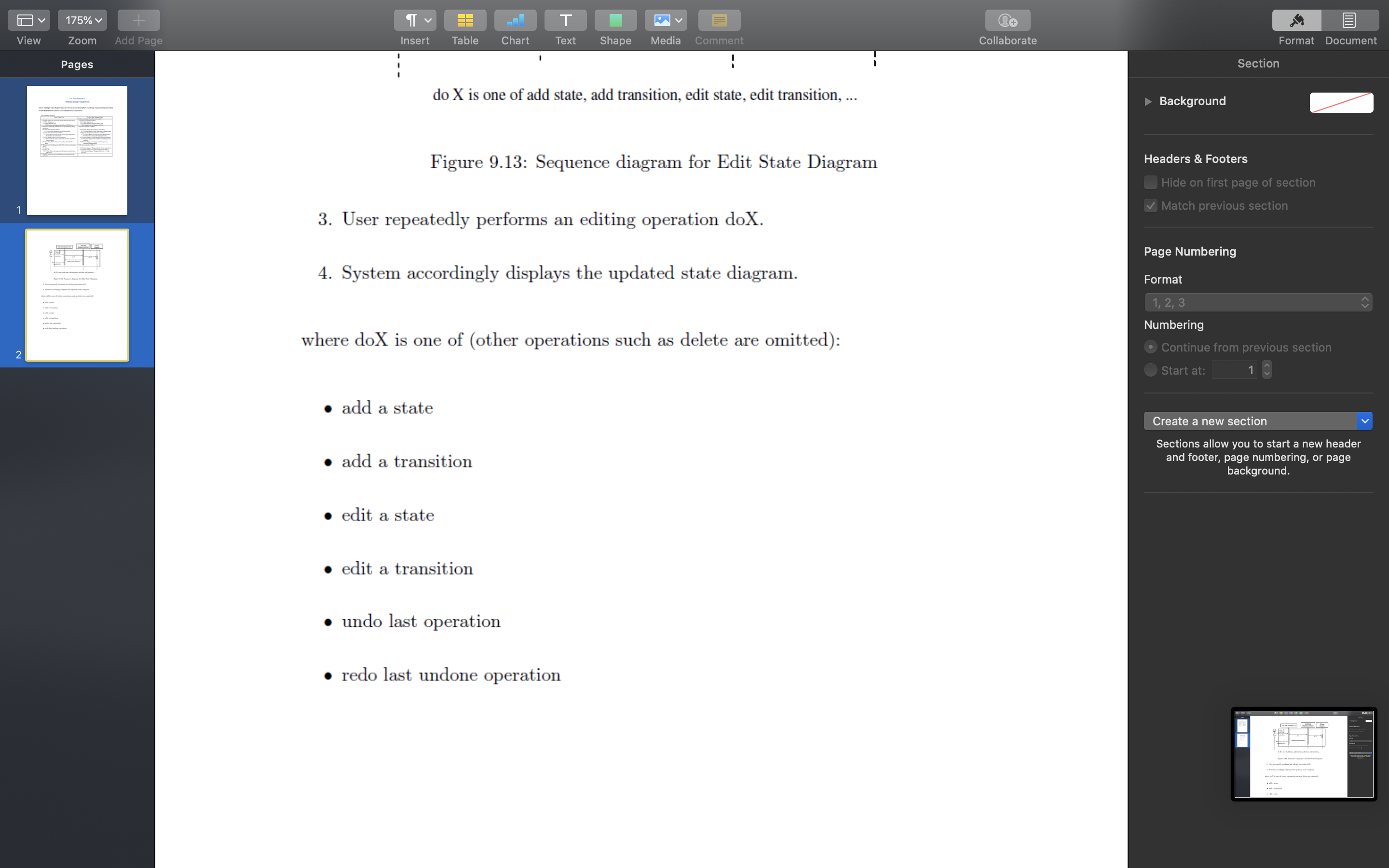
175% EE T View Zoom Add Page Insert Table Chart Text Shape Media Comment Collaborate Format Document Pages CSC300 Module 4 Section Practical Design Assignment Background Create a Design Class Diagram based on the Use case description and design sequence diagram below Headers & Footers for an expanded use case for the Diagram Editor application: Hide on first page of section Match previous section UC1. Edit State Diagram Page Numbering Actor: Editor User System: State Diagram Editor 0) System displays the editor main window. Format 1) TUCBW editor user clicks File on the menu bar then selects 2) System accordingly displays: 1 , 2 , 3 E 1.1) New Diagram, or 2.1) a blank diagram, or 1.2) Open Diagram, and 2.2) a State Diagram Selection Dialog, and Numbering 1.2.1) locates the diagram and clicks the OK button. 2.2.1) displays the state diagram selected. . Continue from previous section 3) Editor user repeatedly performs one of the following editing 4) System responds as follows: Start at: 1 operations: 3.1) User clicks the State button. 4.1) System changes the pointer to a crosshair. 3.1.1) User clicks somewhere in the drawing area. 4.1.1) System depicts a state shape with a dummy name. 3.2) User clicks the Transition button. 4.2) System changes the pointer to a crosshair. Create a new section 3.2.1) User presses mouse on the source state, drags to the 4.2.1) System depicts a transition with a dummy label Sections allow you to start a new header destination state and releases. from the source state to the destination state. and footer, page numbering, or page 3.3) User double-clicks a state or transition. 4.3) System displays an Edit State/Edit Transition Dialog. background. 3.3.1) User edits the state or transition and clicks the OK or 4.3.1) System displays the modified or unchanged state Cancel button. diagram. 3.4) User clicks Edit on the menu bar then selects Undo or 4.4) System displays state diagram with the previous Redo. operation undone/redone. 5) When done with editing user clicks File on the menu bar then 6) System responds as follows: selects 5.1) Save, or 6.1) System displays "Diagram Saved" in the status bar, or 5.2) Save As. 6.2) System displays a Save State Diagram As dialog. 5.2.1) User fills in the requested information and clicks the 6.2.1) System displays "Diagram Saved As ..." in the OK button. status bar. 7) TUCEW editor user sees the diagram saved message in the status bar175% EE -.I T View Zoom Add Page Insert Table Chart Text Shape Media Comment Collaborate Format Document Pages Section Background : Edit State d: State Edit State Diagram GUI Diagram Controller Diagram Headers & Footers Hide on first page of section loop Match previous section User > do X do X Page Numbering Format updated state diagram d 1 , 2 , 3 E > Numbering . Continue from previous section Start at: 1 do X is one of add state, add transition, edit state, edit transition, .. Create a new section Sections allow you to start a new header and footer, page numbering, or page Figure 9.13: Sequence diagram for Edit State Diagram background. 3. User repeatedly performs an editing operation dox. 4. System accordingly displays the updated state diagram. where doX is one of (other operations such as delete are omitted): . add a state . add a transition . edit a state175% T View Zoom Add Page Insert Table Chart Text Shape Media Comment Collaborate Format Document Pages Section do X is one of add state, add transition, edit state, edit transition, ... Background Figure 9.13: Sequence diagram for Edit State Diagram Headers & Footers Hide on first page of section Match previous section 3. User repeatedly performs an editing operation dox. Page Numbering 4. System accordingly displays the updated state diagram. Format 1 , 2 , 3 E Numbering where doX is one of (other operations such as delete are omitted): . Continue from previous section Start at: 1 . add a state Create a new section Sections allow you to start a new header . add a transition and footer, page numbering, or page background. . edit a state . edit a transition . undo last operation . redo last undone operation
Step by Step Solution

There are 3 Steps involved in it

1 Expert Approved Answer
Step: 1 Unlock blur-text-image

Question Has Been Solved by an Expert!

Get step-by-step solutions from verified subject matter experts

Step: 2 Unlock
Step: 3 Unlock

Students Have Also Explored These Related Accounting Questions!