







Question: 2 Create three Sparkline's (type: column) on the rows labelled Revenue Expense, and EBIT The Sparkline's should show the Amounts . Merge and centre the
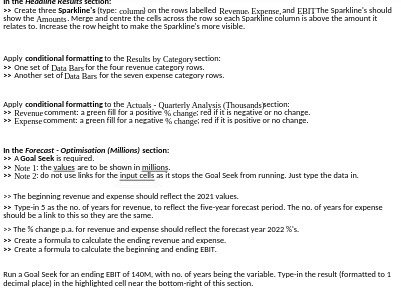
"2 Create three Sparkline's (type: column) on the rows labelled Revenue Expense, and EBIT The Sparkline's should show the Amounts . Merge and centre the cells across the row so each Sparkline column is above the amount it relates to. Increase the row height to make the Sparkline's more visible. Apply conditional formatting to the Results by Category section: 2> One set of Data Bars for the four revenue category rows. >> Another set of Data Bars for the seven expense category rows. Apply conditional formatting to the Actuals - Quarterly Analysis (Thousands section: >> Revenue comment: a green fill for a positive 1% change; red if it is negative or no change. "2 Expense comment: a green fill for a negative % change; red if it is positive or no change. In the Forecast - Optimisation (Millions) section: $2 A Goal Seek is required. >" Note 1: the values are to be shown in millions. "> Note 2: do not use links for the input cells as it stops the Goal Seek from running. Just type the data in. " The beginning revenue and expense should reflect the 2021 values. " Type-in 5 as the no. of years for revenue, to reflect the five-year forecast period. The no. of years for expense should be a link to this so they are the same. "> The % change p.a. for revenue and expense should reflect the forecast year 2022 X's. "> Create a formula to calculate the ending revenue and expense. 32 Create a formula to calculate the beginning and ending EBIT. Run a Goal Seek for an ending BBIT of 140M with no. of years being the variable. Type-in the result (formatted to 1 decimal place] in the highlighted cell near the bottom-right of this
Step by Step Solution
There are 3 Steps involved in it

Get step-by-step solutions from verified subject matter experts
 Study Help