







Question: 2 Enter a formula in cell B1 that inserts the current date. Whenever the workbook is reopened, your formula must always update the date with
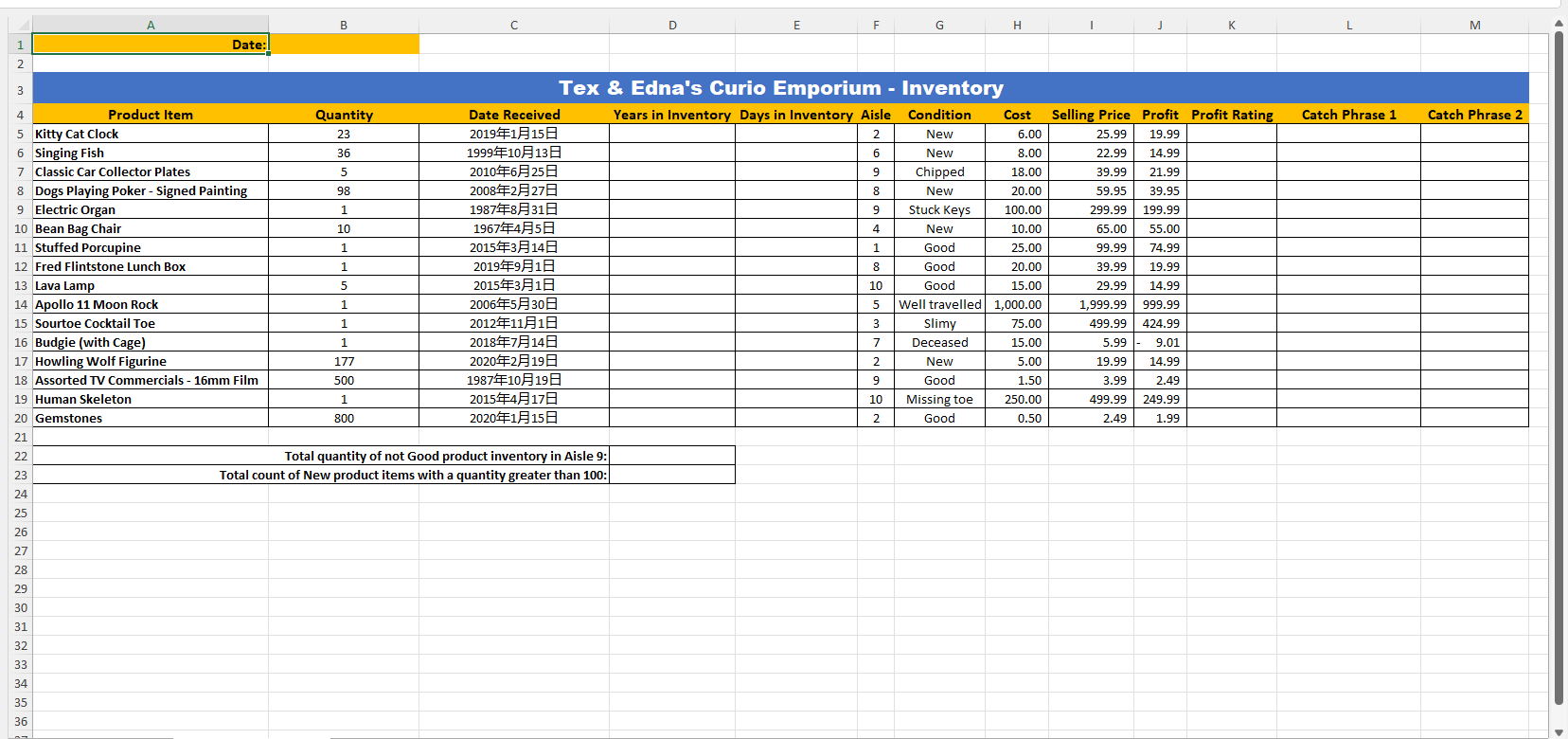
2 Enter a formula in cell B1 that inserts the current date. Whenever the workbook is reopened, your formula must always update the date with the current date.
3. Format cell B1 with the Long Date number format.
4. Enter a formula in cell D5 that calculates the number of years (and fraction of years) that the product item has been in inventory since the date it was received. Use the date in cell B1 as your ending date. Copy cell D5 to cells D6 through D20. When copying cells, always make sure to use appropriate references so that your formulas will copy correctly.
5. Enter a formula in cell E5 that determines the number of days that the product item has been in inventory by using the dates in cells B1 and C5. Do not use a function in your formula. Copy cell E5 to cells E6 through E20.
6. Enter a formula in cell K5 that uses the IFS function to determine the Profit Rating as follows: - when the Profit for an item is less than 0, the Profit Rating is set to the text Loss - when the Profit for an item is less than 10, the Profit Rating is set to the text OK - when the Profit for an item is less than 50, the Profit Rating is set to the text Great - otherwise the Profit Rating is set to the text Excellent Copy cell K5 to cells K6 through K20.
7. Enter a formula in cell L5 that uses the SWITCH function to determine Catch Phrase 1 as follows: - when the Condition is New, then Catch Phrase 1 is set to the text Custom Made for You - when the Condition is Good, then Catch Phrase 1 is set to the text Previously Enjoyed - otherwise the Catch Phrase 1 is set to the text One of a Kind Copy cell L5 to cells L6 through L20.
8. Enter a formula in cell M5 that uses an IF function along with a nested AND function to determine Catch Phrase 2 as follows: - if the Condition is not equal to New and the Profit Rating is equal to Excellent, then Catch Phrase 2 is set to the text Won't Last Long! - otherwise Catch Phrase 2 is set to the text Awesome Deal! Copy cell M5 to cells M6 through M20.
9. Enter a formula in cell D22 that uses the SUMIFS function to calculate the total Quantity of productinventory that is not in Good condition and is located in Aisle 9.
10. Enter a formula in cell D23 that uses the COUNTIFS function to count the number of Product Items that are in New condition and have a Quantity that is greater than 100
Total quantity of not Good product inventory in Aisle 9: Total count of New product items with a quantity greater than 100Step by Step Solution
There are 3 Steps involved in it

Get step-by-step solutions from verified subject matter experts
 Study Help