







Question: 3. Boot the Mint disk image, click Start Linux Mint, and when the desktop appears, double-click Install Linux Mint to start installation Type out all
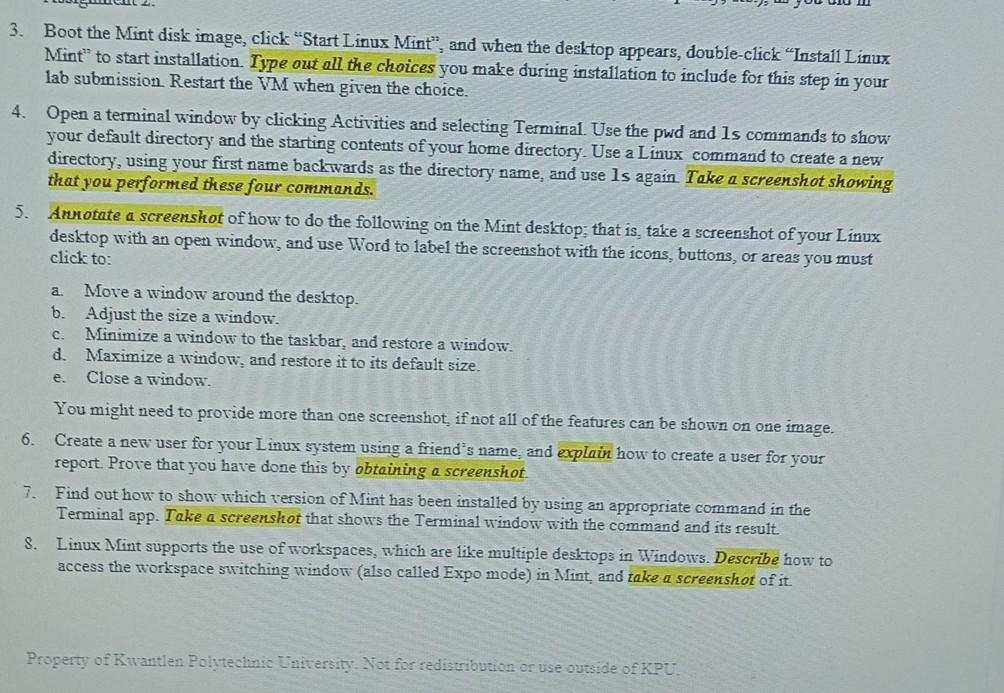
3. Boot the Mint disk image, click "Start Linux Mint", and when the desktop appears, double-click "Install Linux Mint" to start installation Type out all the choices you make during installation to include for this step in your lab submission Restart the VM when given the choice. 4. Open a terminal window by clicking Activities and selecting Terminal. Use the pwd and ls commands to show your default directory and the starting contents of your home directory. Use a Linux command to create a new directory, using your first name backwards as the directory name, and use ls again. Take a screenshot showing that you performed these four commands. 5. Annotate a screenskot of how to do the following on the Mint desktop: that is, take a screenshot of your Linux desktop with an open window, and use Word to label the screenshot with the icons, buttons, or areas you must click to: a Move a window around the desktop 6. Adjust the size a window C. Minimize a window to the taskbar, and restore a window d. Maximize a window, and restore it to its default size Close a window. You might need to provide more than one screenshot if not all of the features can be shown on one image. 6. Create a new user for your Linux system using a friend's name, and explain how to create a user for your report. Prove that you have done this by obtaining a screenshot 7. Find out how to show which rersion of Mint has been installed by using an appropriate command in the Terminal app. Take a screenshot that shows the Terminal window with the command and its result S. Linux Mint supports the use of workspaces, which are like multiple desktops in Windows. Describe how to access the workspace switching window (also called Expo mode) in Mint, and take a screenshot of it e. Property of Kwantlen Polytechnic University. Not for redistribution or use outside of KPU 3. Boot the Mint disk image, click "Start Linux Mint", and when the desktop appears, double-click "Install Linux Mint" to start installation Type out all the choices you make during installation to include for this step in your lab submission Restart the VM when given the choice. 4. Open a terminal window by clicking Activities and selecting Terminal. Use the pwd and ls commands to show your default directory and the starting contents of your home directory. Use a Linux command to create a new directory, using your first name backwards as the directory name, and use ls again. Take a screenshot showing that you performed these four commands. 5. Annotate a screenskot of how to do the following on the Mint desktop: that is, take a screenshot of your Linux desktop with an open window, and use Word to label the screenshot with the icons, buttons, or areas you must click to: a Move a window around the desktop 6. Adjust the size a window C. Minimize a window to the taskbar, and restore a window d. Maximize a window, and restore it to its default size Close a window. You might need to provide more than one screenshot if not all of the features can be shown on one image. 6. Create a new user for your Linux system using a friend's name, and explain how to create a user for your report. Prove that you have done this by obtaining a screenshot 7. Find out how to show which rersion of Mint has been installed by using an appropriate command in the Terminal app. Take a screenshot that shows the Terminal window with the command and its result S. Linux Mint supports the use of workspaces, which are like multiple desktops in Windows. Describe how to access the workspace switching window (also called Expo mode) in Mint, and take a screenshot of it e. Property of Kwantlen Polytechnic University. Not for redistribution or use outside of KPU
Step by Step Solution
There are 3 Steps involved in it

Get step-by-step solutions from verified subject matter experts
 Study Help