







Question: 3. In the start method create a new Group by writing: Group group = new Group(); 4. Next, create a rectangle for the red walls
3. In the start method create a new Group by writing:
Group group = new Group();
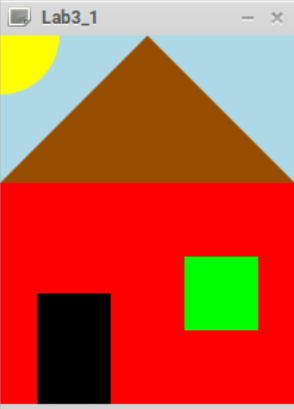
4. Next, create a rectangle for the red walls of the house by writing:
Rectangle walls = new Rectangle(0, 100, 200, 150);
walls.setFill(Color.RED);
group.getChildren().add(walls);
The constructor Rectangle(double x, double y, double width, double height) creates a new Rectangle object with an upper left corner at position (x, y) and with given width and height.
The setFill(Color c) method sets the interior color of the rectangle. If we wanted to set the color of the lines drawn around the rectangle we could have call the rectangles setStroke(Color c) method. The last line simple adds the rectangle to our group.
5. Add a door and a window to the house by creating rectangles similar to the previous step. To get the color black we can use Color.BLACK.
We can create a custom color by using the constructor Color(double red, double green, double blue, double opacity).
The red, green, blue, and opacity components of a color is specified as a double from 0.0 (completely off) to 1.0 (completely on). For Example, to create a new Color object that is green we can write: new Color(0, 1, 0, 1)
6. The roof can be drawn as a triangle by creating a Polygon object:
Polygon roof = new Polygon();
roof.setFill(Color.web("#974E00")); // roof color is brown
The Color.web(String colorString) method creates a color specified with an HTML or CSS attribute string.
7. Now add three points to roof:
roof.getPoints().addAll(0.0, 100.0); // lower left point
roof.getPoints().addAll(100.0, 0.0); // top point
roof.getPoints().addAll(200.0, 100.0); // lower right point
8. Add roof to our group:
group.getChildren().add(roof);
9. Draw the sun by creating a circle:
Circle sun = new Circle(0, 0, 40); // center (0,0), radius 40
sun.setFill(Color.YELLOW);
10. Now create a pane and add our group to it:
Pane mainPane = new Pane(group);
11. Set the background color of
mainPane to lightblue: mainPane.setStyle("-fx-background-color: lightblue;");
The setStyle(String value) method is used to set the style of a node using CSS.
Finally, create a scene that is 200 pixels wide and 250 pixels high and place it on the main stage:
Scene scene = new Scene(mainPane, 200, 250);
stage.setTitle("Lab3_1"); // Set the stage title
stage.setScene(scene); // Place the scene in the stage
stage.setResizable(false); // Make window non-resizable
stage.show(); // Display the stage
package lab3; import javafx.application.Application; import javafx.stage.Stage; import javafx.scene.Scene; import javafx.scene.Group; import javafx.scene.layout.Pane; import javafx.scene.paint.Color; import javafx.scene.shape.*; public class Lab3 extends Application { @Override public void start(Stage stage) { // TODO: Add code here to draw the house } // The main method is only needed for IDEs with limited JavaFX support public static void main(String[] args) { Application.launch(args); } }
Lab3_1 - X
Step by Step Solution
There are 3 Steps involved in it

Get step-by-step solutions from verified subject matter experts
 Study Help