







Question: 3. Joining Data from Two Tables a. Use the Join step to join Employee Payroll and Employee Addresses on the Employee_ID column. Rename the step
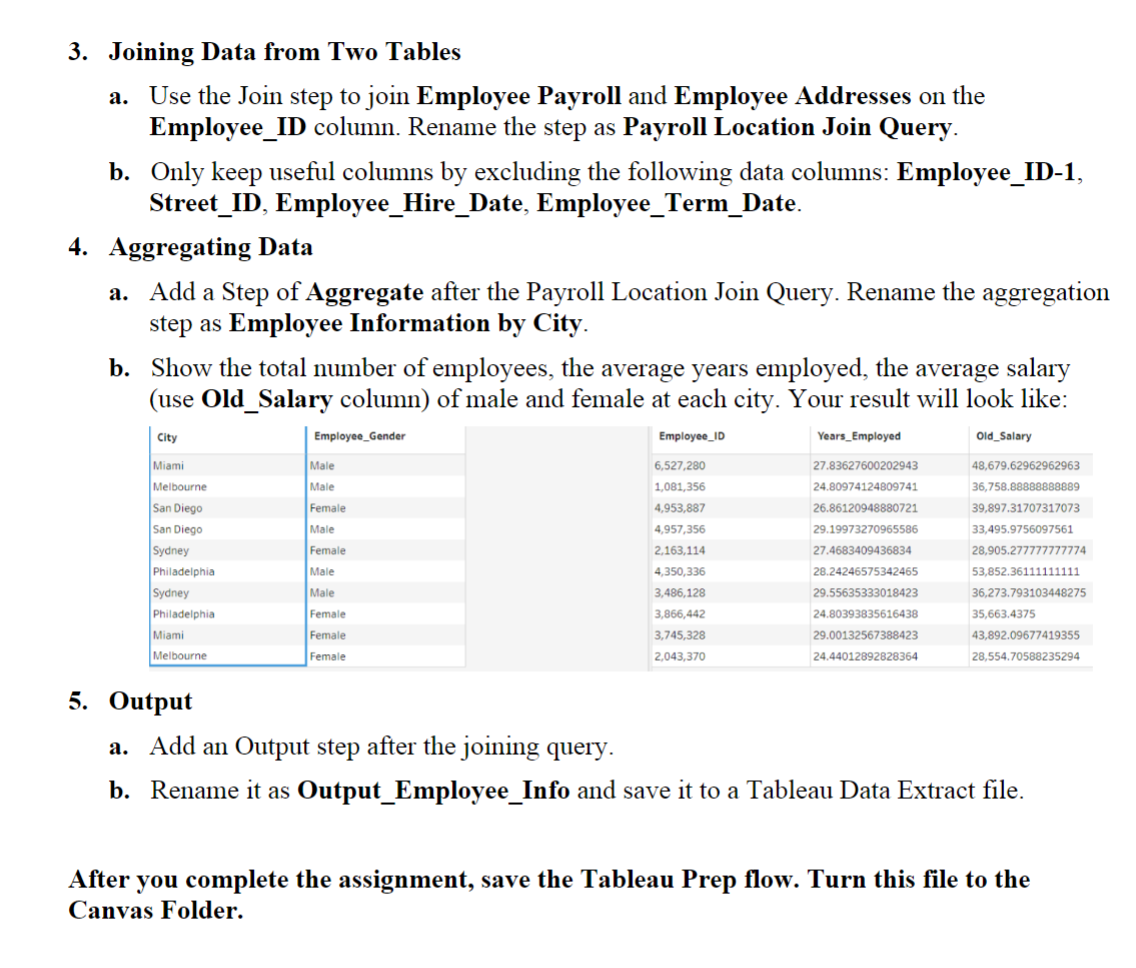
3. Joining Data from Two Tables a. Use the Join step to join Employee Payroll and Employee Addresses on the Employee_ID column. Rename the step as Payroll Location Join Query. b. Only keep useful columns by excluding the following data columns: Employee_ID-1, Street_ID, Employee_Hire_Date, Employee_Term_Date. 4. Aggregating Data a. Add a Step of Aggregate after the Payroll Location Join Query. Rename the aggregation step as Employee Information by City. b. Show the total number of employees, the average years employed, the average salary (use Old_Salary column) of male and female at each city. Your result will look like: 5. Output a. Add an Output step after the joining query. b. Rename it as Output_Employee_Info and save it to a Tableau Data Extract file. After you complete the assignment, save the Tableau Prep flow. Turn this file to the Canvas Folder. 3. Joining Data from Two Tables a. Use the Join step to join Employee Payroll and Employee Addresses on the Employee_ID column. Rename the step as Payroll Location Join Query. b. Only keep useful columns by excluding the following data columns: Employee_ID-1, Street_ID, Employee_Hire_Date, Employee_Term_Date. 4. Aggregating Data a. Add a Step of Aggregate after the Payroll Location Join Query. Rename the aggregation step as Employee Information by City. b. Show the total number of employees, the average years employed, the average salary (use Old_Salary column) of male and female at each city. Your result will look like: 5. Output a. Add an Output step after the joining query. b. Rename it as Output_Employee_Info and save it to a Tableau Data Extract file. After you complete the assignment, save the Tableau Prep flow. Turn this file to the Canvas Folder
Step by Step Solution
There are 3 Steps involved in it

Get step-by-step solutions from verified subject matter experts
 Study Help