







Question: 3. Using the Visual Basic Editor, create a form named frmAddSlide that meets the following requirements: a. Contains all the controls as illustrated in Figure
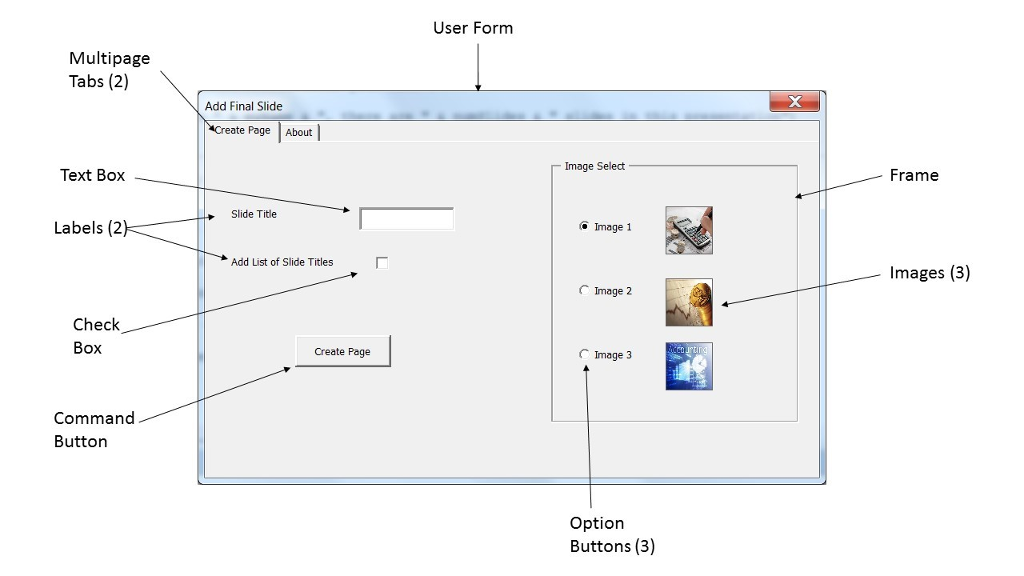
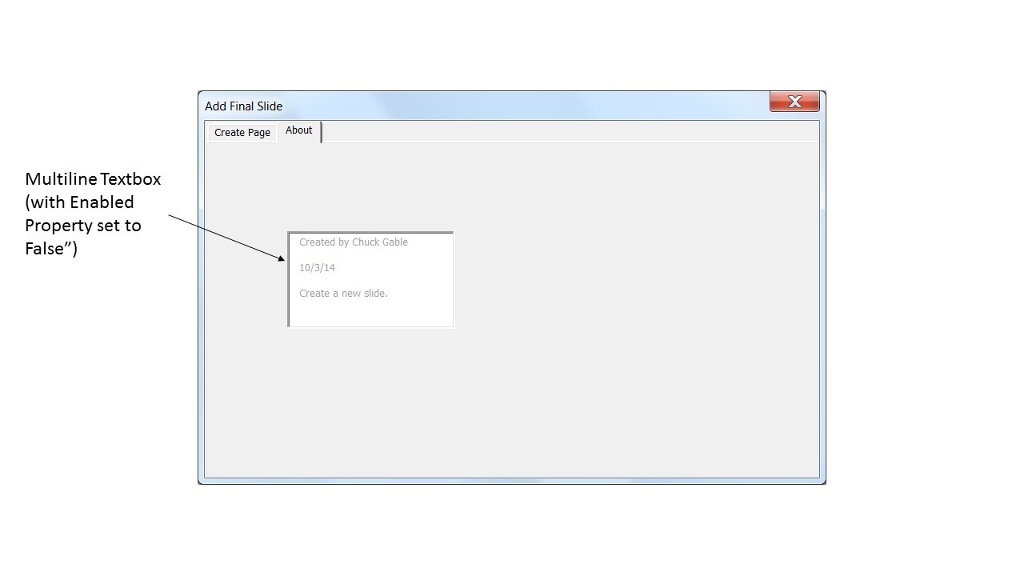
 3. Using the Visual Basic Editor, create a form named frmAddSlide that meets the following requirements: a. Contains all the controls as illustrated in Figure 1 and Figure 2. b. Create a VBA procedure named Main that will open your form. The only line of code that it needs is frmAddSlide.Show. c. Double click the Command Button on the form and a procedure will be created that will run on the click event of the button. To return any time to the Form Code Page, right click on the form name and select View Code. d. When the Create Page Command Button is clicked the procedure should do the following: i. Create a new slide after the last slide in the presentation. (Use the ppLayoutText layout.) ii. Add a Title to the new slide as typed into the Text Box on the Form. (This is on Shapes(1) on the new slide.) iii. If the Add List of Slide Titles Checkbox is checked, a list of all of the slides Titles should be added to the new slide. (This is on Shapes(2) on the new slide.) iv. Add an image to the slide as selected by the user. (Have the Image 1 Option Button as the default.) When adding the image to the slide, you will have to use the AddPicture method of the Shapes collection. You will have to specify the file path depending on where you put the three image files. v. Ensure to unload your form at the end of the procedure. e. Figure 3 shows what the new slide will look like if the user entered Table of Contents as the Title, checked the Add List of Slide Titles Checkbox, and selected Image 3.
User Form Multipage Tabs (2) Add Final Slide Create Page About Image Select Text Box Frame -H. slide Title Labels (2) Image 1 Add List of Slide Titles Images (3) Image 2 Check Box Create Page ? Image 3 Command Button Option Buttons (3) User Form Multipage Tabs (2) Add Final Slide Create Page About Image Select Text Box Frame -H. slide Title Labels (2) Image 1 Add List of Slide Titles Images (3) Image 2 Check Box Create Page ? Image 3 Command Button Option Buttons (3)
Step by Step Solution
There are 3 Steps involved in it

Get step-by-step solutions from verified subject matter experts
 Study Help