







Question: 4. Complete in Excel and show your work Question 4: Welcome Page - Create three worksheets: Welcome, Input, and Analysis - Design a code so
4. Complete in Excel and show your work
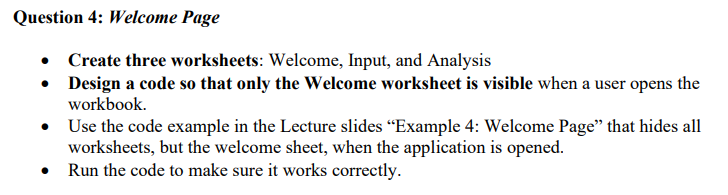
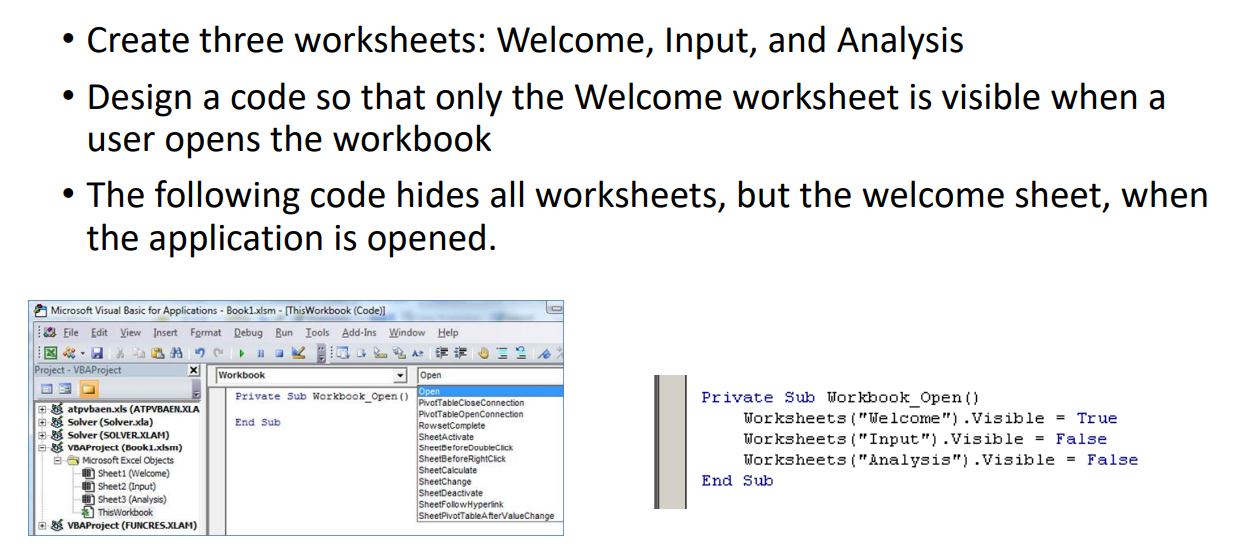
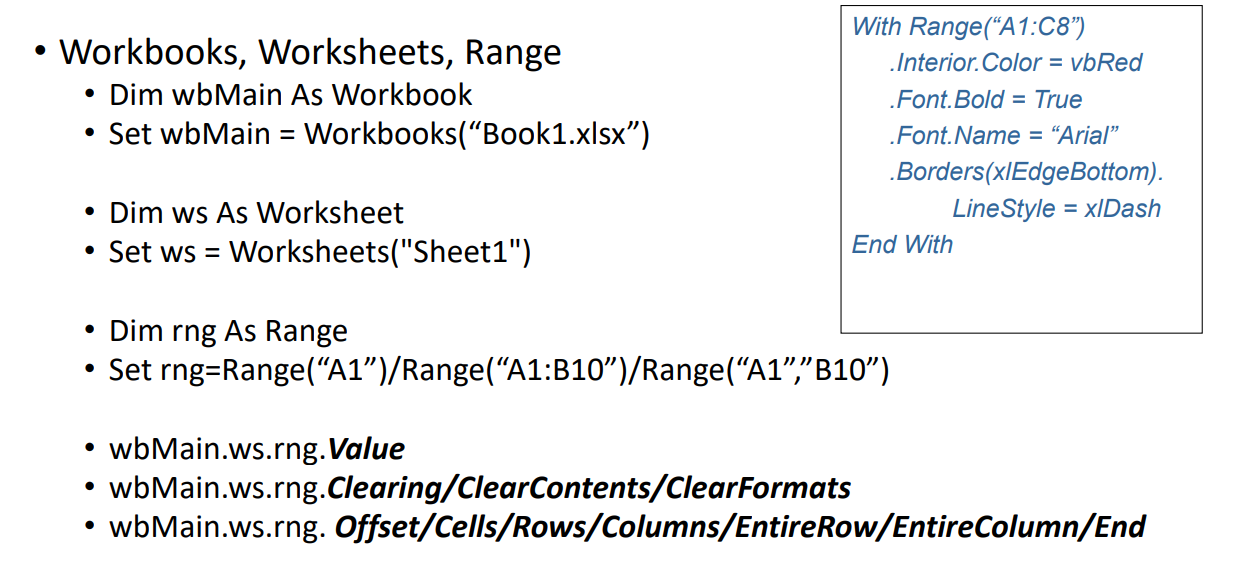
Question 4: Welcome Page - Create three worksheets: Welcome, Input, and Analysis - Design a code so that only the Welcome worksheet is visible when a user opens the workbook. - Use the code example in the Lecture slides "Example 4: Welcome Page" that hides all worksheets, but the welcome sheet, when the application is opened. - Run the code to make sure it works correctly. - Create three worksheets: Welcome, Input, and Analysis - Design a code so that only the Welcome worksheet is visible when a user opens the workbook - The following code hides all worksheets, but the welcome sheet, when the application is opened. Private Sub torkbook_Open() Worksheets("telcome"). Visible = True Worksheets("Input") . Visible = False Worksheets("Analysis") . Visible = False End Sub With Range("A1:C8") - Workbooks, Worksheets, Range .Interior.Color =vbRed - Dim wbMain As Workbook . Font. Bold = True - Set wbMain = Workbooks( "Book1.xlsx") .Font. Name = "Arial" .Borders(xIEdgeBottom). - Dim ws As Worksheet - Set ws = Worksheets( "Sheet1") End With - Dim rng As Range - Set rng=Range("A1")/Range( "A1:B10")/Range("A1", B10) - wbMain.ws.rng.Value - wbMain.ws.rng.Clearing/ClearContents/ClearFormats - wbMain.ws.rng. Offset/Cells/Rows/Columns/EntireRow/EntireColumn/End Question 4: Welcome Page - Create three worksheets: Welcome, Input, and Analysis - Design a code so that only the Welcome worksheet is visible when a user opens the workbook. - Use the code example in the Lecture slides "Example 4: Welcome Page" that hides all worksheets, but the welcome sheet, when the application is opened. - Run the code to make sure it works correctly. - Create three worksheets: Welcome, Input, and Analysis - Design a code so that only the Welcome worksheet is visible when a user opens the workbook - The following code hides all worksheets, but the welcome sheet, when the application is opened. Private Sub torkbook_Open() Worksheets("telcome"). Visible = True Worksheets("Input") . Visible = False Worksheets("Analysis") . Visible = False End Sub With Range("A1:C8") - Workbooks, Worksheets, Range .Interior.Color =vbRed - Dim wbMain As Workbook . Font. Bold = True - Set wbMain = Workbooks( "Book1.xlsx") .Font. Name = "Arial" .Borders(xIEdgeBottom). - Dim ws As Worksheet - Set ws = Worksheets( "Sheet1") End With - Dim rng As Range - Set rng=Range("A1")/Range( "A1:B10")/Range("A1", B10) - wbMain.ws.rng.Value - wbMain.ws.rng.Clearing/ClearContents/ClearFormats - wbMain.ws.rng. Offset/Cells/Rows/Columns/EntireRow/EntireColumn/End
Step by Step Solution
There are 3 Steps involved in it

Get step-by-step solutions from verified subject matter experts
 Study Help