







Question: 4. Save and close the table after updating the properties. 5. Import data from Excel into the Fleet table. a. Launch the Get External Data
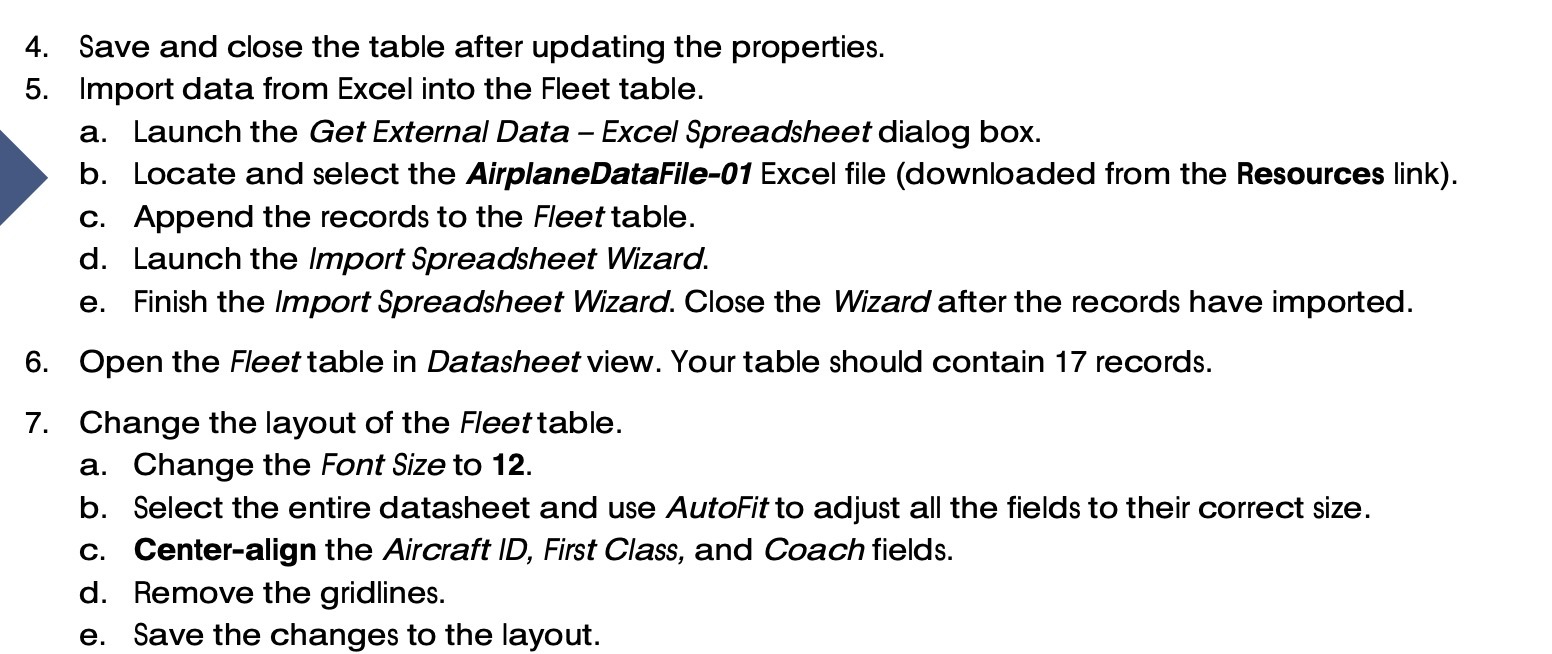
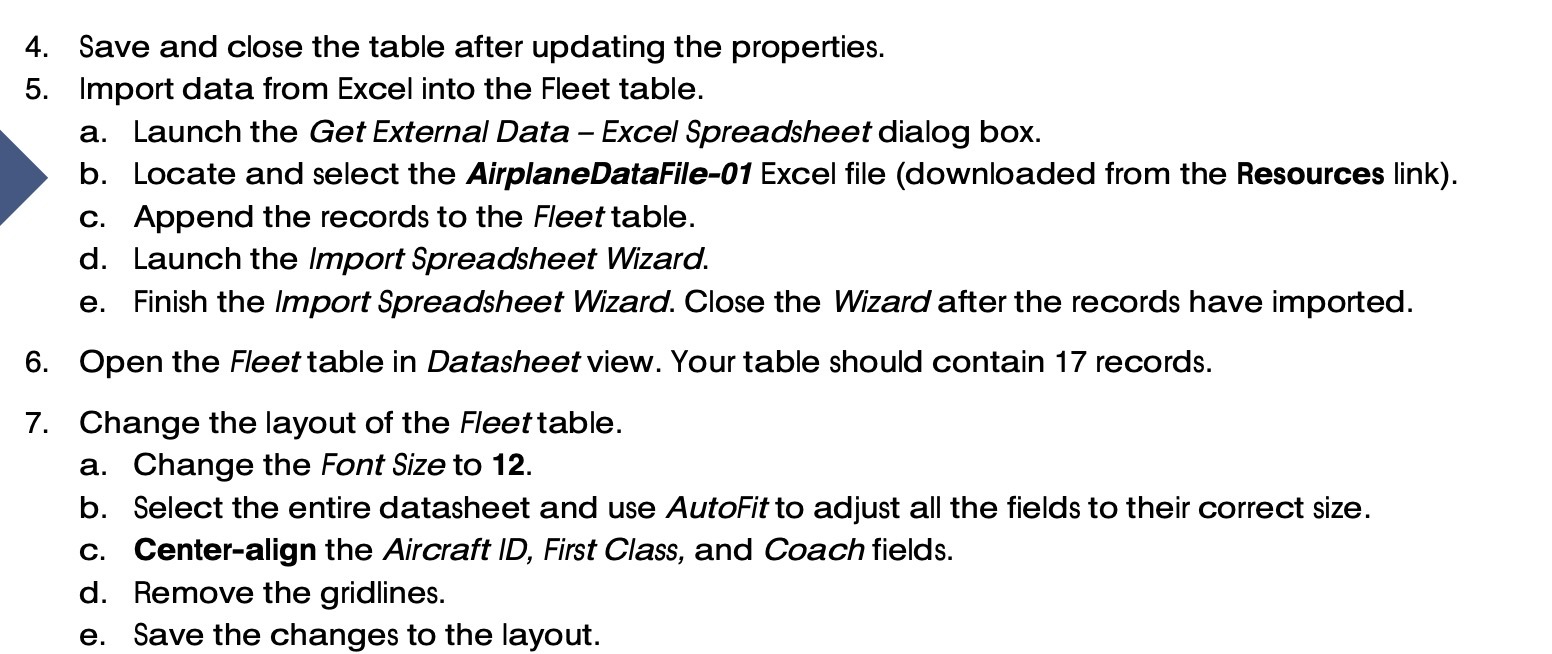
4. Save and close the table after updating the properties. 5. Import data from Excel into the Fleet table. a. Launch the Get External Data - Excel Spreadsheet dialog box. b. Locate and select the AirplaneDataFile-01 Excel file (downloaded from the Resources link). c. Append the records to the Fleet table. d. Launch the Import Spreadsheet Wizard. e. Finish the Import Spreadsheet Wizard. Close the Wizard after the records have imported. 6. Open the Fleet table in Datasheet view. Your table should contain 17 records. 7. Change the layout of the Fleettable. a. Change the Font Size to 12. b. Select the entire datasheet and use AutoFit to adjust all the fields to their correct size. c. Center-align the Aircraft ID, First Class, and Coach fields. d. Remove the gridlines. e. Save the changes to the layout
Step by Step Solution
There are 3 Steps involved in it

Get step-by-step solutions from verified subject matter experts
 Study Help