



Question: DC worksheet place worksheet cities worksheet 134 14 15+ 16 17+ 18 19 20 21 22 23 On the Places worksheet, sort the data by
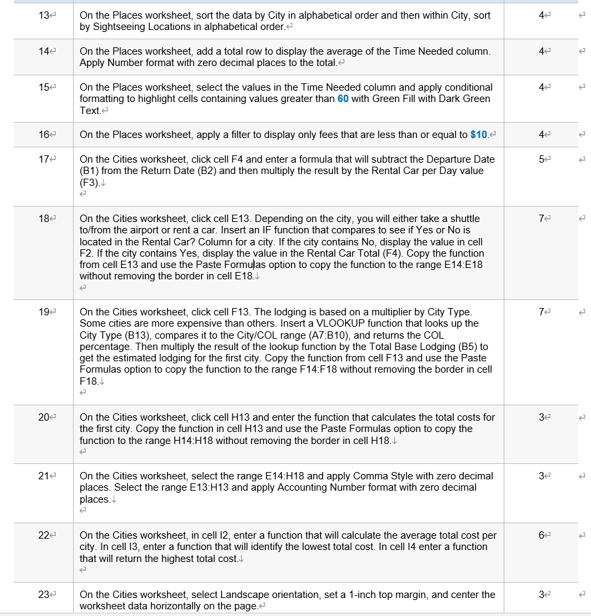
DC worksheet
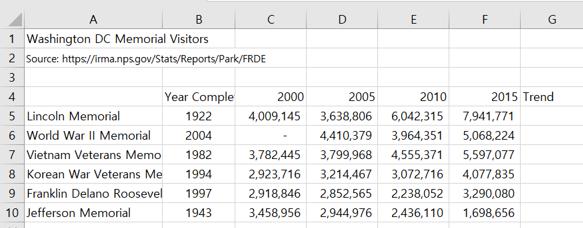
place worksheet
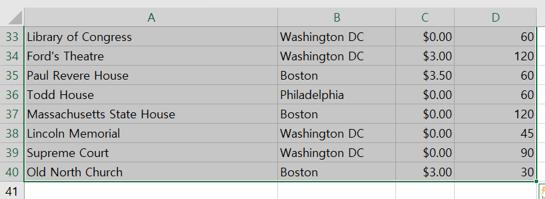
cities worksheet
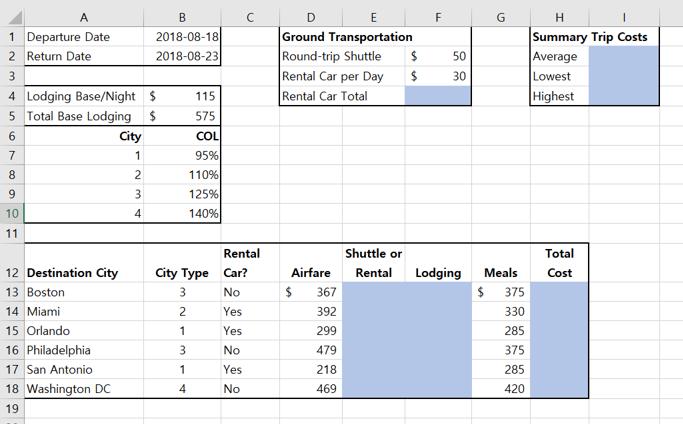
134 14 15+ 16 17+ 18 19 20 21 22 23 On the Places worksheet, sort the data by City in alphabetical order and then within City, sort by Sightseeing Locations in alphabetical order. On the Places worksheet, add a total row to display the average of the Time Needed column. Apply Number format with zero decimal places to the total. On the Places worksheet, select the values in the Time Needed column and apply conditional formatting to highlight cells containing values greater than 60 with Green Fill with Dark Green Text. On the Places worksheet, apply a filter to display only fees that are less than or equal to $10. On the Cities worksheet, click cell F4 and enter a formula that will subtract the Departure Date (B1) from the Return Date (B2) and then multiply the result by the Rental Car per Day value (F3). On the Cities worksheet, click cell E13. Depending on the city, you will either take a shuttle to/from the airport or rent a car. Insert an IF function that compares to see if Yes or No is located in the Rental Car? Column for a city. If the city contains No, display the value in cell F2. If the city contains Yes, display the value in the Rental Car Total (F4). Copy the function from cell E13 and use the Paste Formulas option to copy the function to the range E14.E18 without removing the border in cell E18. On the Cities worksheet, click cell F13. The lodging is based on a multiplier by City Type Some cities are more expensive than others. Insert a VLOOKUP function that looks up the City Type (B13), compares it to the City/COL range (A7:B10), and returns the COL percentage. Then multiply the result of the lookup function by the Total Base Lodging (B5) to get the estimated lodging for the first city. Copy the function from cell F13 and use the Paste Formulas option to copy the function to the range F14:F18 without removing the border in cell F18. P On the Cities worksheet, click cell H13 and enter the function that calculates the total costs for the first city. Copy the function in cell H13 and use the Paste Formulas option to copy the function to the range H14:H18 without removing the border in cell H18. P On the Cities worksheet, select the range E14:H18 and apply Comma Style with zero decimal places. Select the range E13:H13 and apply Accounting Number format with zero decimal places. On the Cities worksheet, in cell 12, enter a function that will calculate the average total cost per city. In cell 13, enter a function that will identify the lowest total cost. In cell 14 enter a function that will return the highest total cost. # On the Cities worksheet, select Landscape orientation, set a 1-inch top margin, and center the worksheet data horizontally on the page. 3 3 44 4 4 5+ 7e 7+ 3+ 3 6 3 2 7 4 2
Step by Step Solution
3.46 Rating (156 Votes )
There are 3 Steps involved in it

Get step-by-step solutions from verified subject matter experts