







Question: 6. Excel Problem. Objective: Enhancing Tabular Displays in Excel. REQUIRED a. Improve tabular displays of information by shading alternate rows. Download the spreadsheet for this
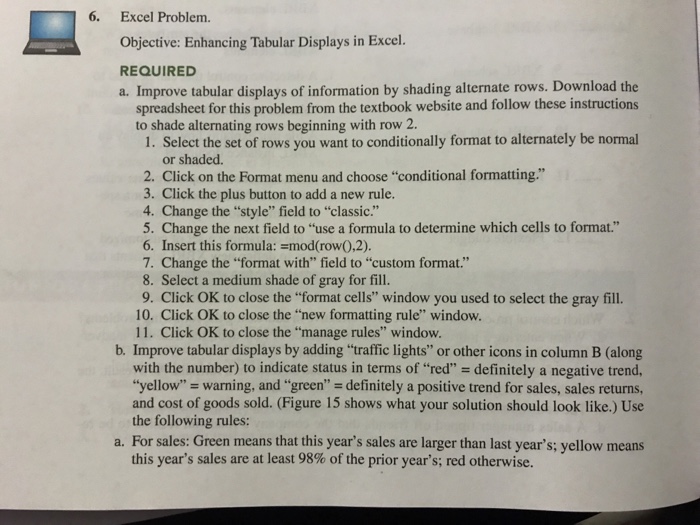
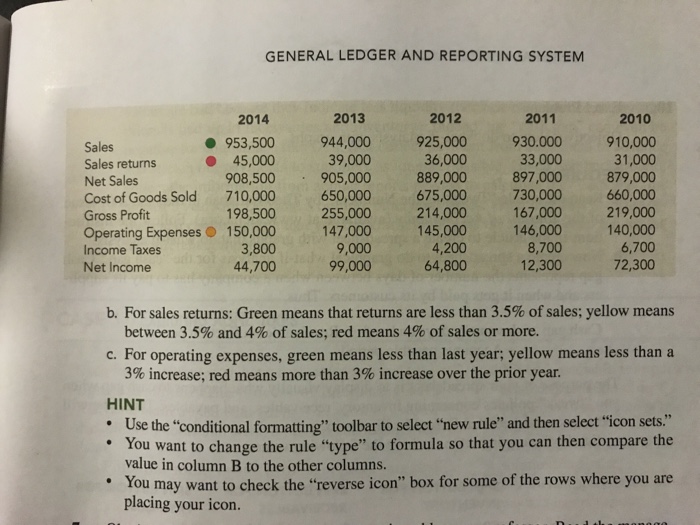
6. Excel Problem. Objective: Enhancing Tabular Displays in Excel. REQUIRED a. Improve tabular displays of information by shading alternate rows. Download the spreadsheet for this problem from the textbook website and follow these instructions to shade alternating rows beginning with row 2 1. Select the set of rows you want to conditionally format to alternately be normal or shaded. 2. Click on the Format menu and choose "conditional formatting." 3. Click the plus button to add a new rule. 4. Change the "style" field to "classic." 5. Change the next field to "use a formula to determine which cells to format." 6. Insert this formula: =mod(rowd),2). 7. Change the "format with" field to "custom format." 8. Select a medium shade of gray for fill. 9. Click OK to close the "format cells" window you used to select the gray fill. 10. Click OK to close the "new formatting rule" window. 11. Click OK to close the "manage rules" window. b. Improve tabular displays by adding "traffic lights" or other icons in column B (along with the number) to indicate status in terms of "red" definitely a negative trend, "yellow" = warning, and green"-definitely a positive trend for sales, sales returns, and cost of goods sold. (Figure 15 shows what your solution should look like.) Use the following rules: a. For sales: Green means that this year's sales are larger than last year's; yellow means this year's sales are at least 98% of the prior year's; red otherwise
Step by Step Solution
There are 3 Steps involved in it

Get step-by-step solutions from verified subject matter experts
 Study Help