







Question: 7. On E1, add a Dynamic Date & Time 8. Wrap the text on Column B 9. Apply Bold Font on Row 1 10. Set
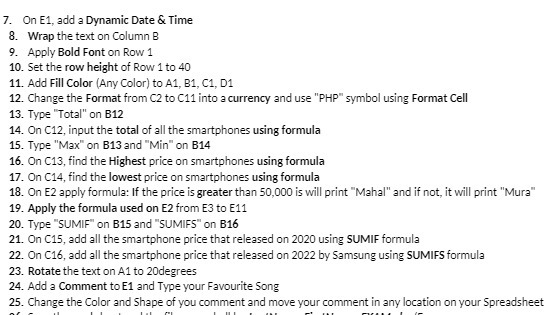
7. On E1, add a Dynamic Date & Time 8. Wrap the text on Column B 9. Apply Bold Font on Row 1 10. Set the row height of Row 1 to 40 11. Add Fill Color (Any Color) to A1, B1, C1, D1 12. Change the Format from C2 to C11 into a currency and use "PHP" symbol using Format Cell 13. Type "Total" on B12 14. On C12, input the total of all the smartphones using formula 15. Type "Max" on B13 and "Min" on B14 16. On C13, find the Highest price on smartphones using formula 17. On C14, find the lowest price on smartphones using formula 18. On E2 apply formula: If the price is greater than 50,000 is will print "Mahal" and if not, it will print "Mura" 19. Apply the formula used on E2 from E3 to E11 20. Type "SUMIF" on B15 and "SUMIFS" on B16 21. On C15, add all the smartphone price that released on 2020 using SUMIF formula 22. On C16, add all the smartphone price that released on 2022 by Samsung using SUMIFS formula 23. Rotate the text on A1 to 20degrees 24. Add a Comment to E1 and Type your Favourite Song 25. Change the Color and Shape of you comment and move your comment in any location on your Spreadsheet
Step by Step Solution
There are 3 Steps involved in it

Get step-by-step solutions from verified subject matter experts
 Study Help