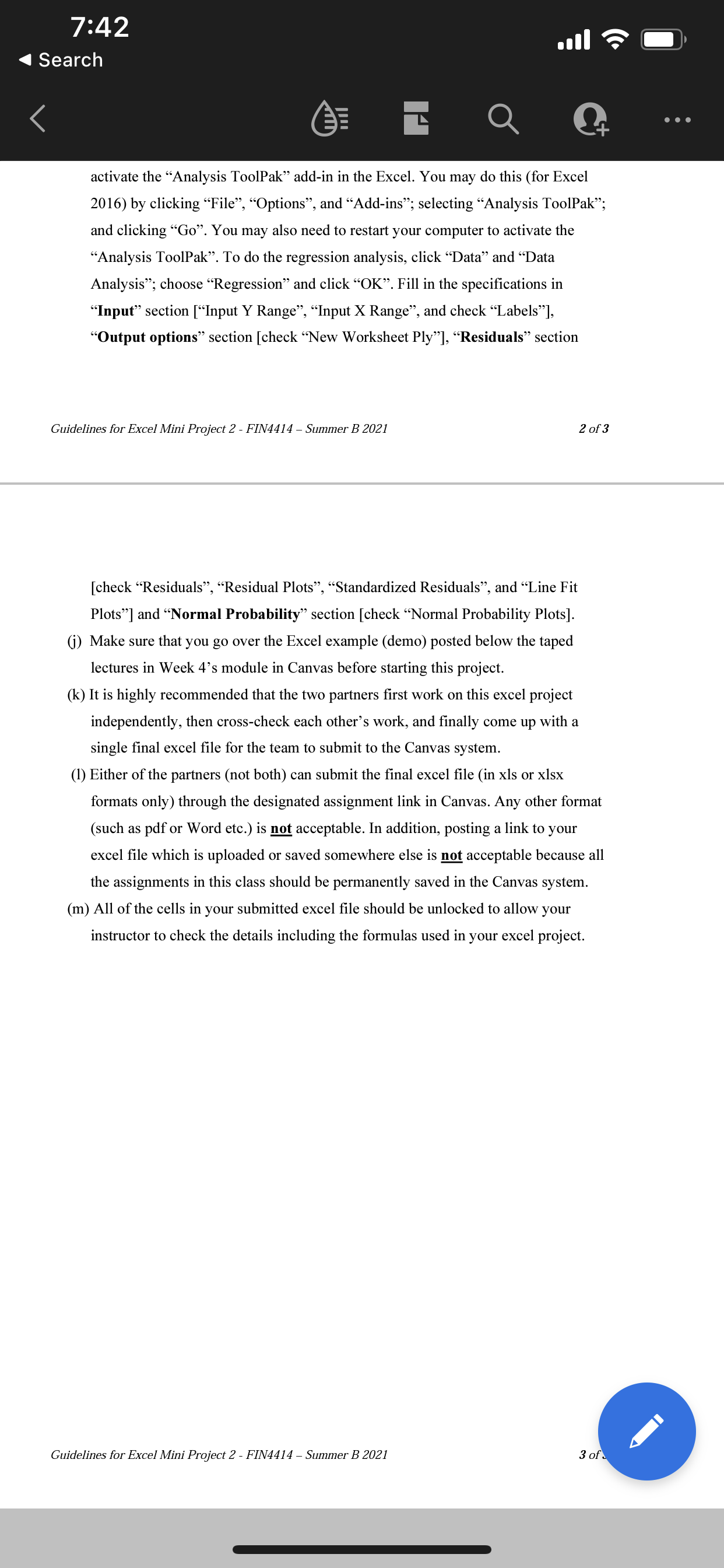
Question: 7:42 Search Q . . . activate the Analysis ToolPak add-in in the Excel. You may do this (for Excel 2016) by clicking File, Options,
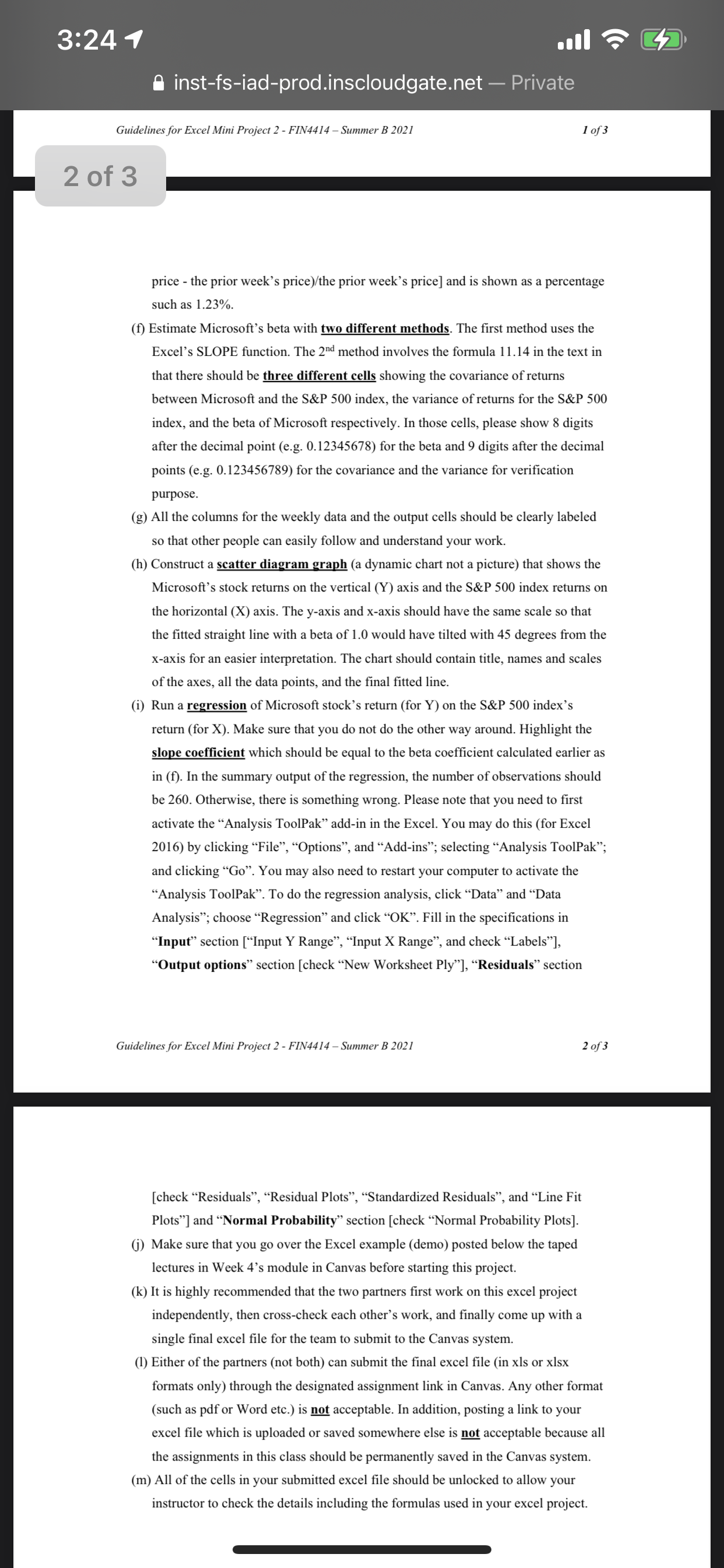
7:42 Search Q . . . activate the "Analysis ToolPak" add-in in the Excel. You may do this (for Excel 2016) by clicking "File", "Options", and "Add-ins"; selecting "Analysis ToolPak"; and clicking "Go". You may also need to restart your computer to activate the "Analysis ToolPak". To do the regression analysis, click "Data" and "Data Analysis"; choose "Regression" and click "OK". Fill in the specifications in "Input" section ["Input Y Range", "Input X Range", and check "Labels"], "Output options" section [check "New Worksheet Ply"], "Residuals" section Guidelines for Excel Mini Project 2 - FIN4414 - Summer B 2021 2 of 3 [check "Residuals", "Residual Plots", "Standardized Residuals", and "Line Fit Plots"] and "Normal Probability" section [check "Normal Probability Plots]. (j) Make sure that you go over the Excel example (demo) posted below the taped lectures in Week 4's module in Canvas before starting this project. (k) It is highly recommended that the two partners first work on this excel project independently, then cross-check each other's work, and finally come up with a single final excel file for the team to submit to the Canvas system. (1) Either of the partners (not both) can submit the final excel file (in xIs or xlsx formats only) through the designated assignment link in Canvas. Any other format (such as pdf or Word etc.) is not acceptable. In addition, posting a link to your excel file which is uploaded or saved somewhere else is not acceptable because all the assignments in this class should be permanently saved in the Canvas system. (m) All of the cells in your submitted excel file should be unlocked to allow your instructor to check the details including the formulas used in your excel project. Guidelines for Excel Mini Project 2 - FIN4414 - Summer B 2021 3 of3:24 1 A inst-fs-iad-prod.inscloudgate.net - Private Guidelines for Excel Mini Project 2 - FIN4414 - Summer B 2021 1 of 3 2 of 3 price - the prior week's price)/the prior week's price] and is shown as a percentage such as 1.23%. (f) Estimate Microsoft's beta with two different methods. The first method uses the Excel's SLOPE function. The 2nd method involves the formula 11.14 in the text in that there should be three different cells showing the covariance of returns between Microsoft and the S&P 500 index, the variance of returns for the S&P 500 index, and the beta of Microsoft respectively. In those cells, please show 8 digits after the decimal point (e.g. 0.12345678) for the beta and 9 digits after the decimal points (e.g. 0.123456789) for the covariance and the variance for verification purpose. (g) All the columns for the weekly data and the output cells should be clearly labeled so that other people can easily follow and understand your work. (h) Construct a scatter diagram graph (a dynamic chart not a picture) that shows the Microsoft's stock returns on the vertical (Y) axis and the S&P 500 index returns on the horizontal (X) axis. The y-axis and x-axis should have the same scale so that the fitted straight line with a beta of 1.0 would have tilted with 45 degrees from the x-axis for an easier interpretation. The chart should contain title, names and scales of the axes, all the data points, and the final fitted line. (i) Run a regression of Microsoft stock's return (for Y) on the S&P 500 index's return (for X). Make sure that you do not do the other way around. Highlight the slope coefficient which should be equal to the beta coefficient calculated earlier as in (f). In the summary output of the regression, the number of observations should be 260. Otherwise, there is something wrong. Please note that you need to first activate the "Analysis ToolPak" add-in in the Excel. You may do this (for Excel 2016) by clicking "File", "Options", and "Add-ins"; selecting "Analysis ToolPak"; and clicking "Go". You may also need to restart your computer to activate the "Analysis ToolPak". To do the regression analysis, click "Data" and "Data Analysis"; choose "Regression" and click "OK". Fill in the specifications in "Input" section ["Input Y Range", "Input X Range", and check "Labels"], "Output options" section [check "New Worksheet Ply"], "Residuals" section Guidelines for Excel Mini Project 2 - FIN4414 - Summer B 2021 2 of 3 [check "Residuals", "Residual Plots", "Standardized Residuals", and "Line Fit Plots"] and "Normal Probability" section [check "Normal Probability Plots]. (j) Make sure that you go over the Excel example (demo) posted below the taped lectures in Week 4's module in Canvas before starting this project. (k) It is highly recommended that the two partners first work on this excel project independently, then cross-check each other's work, and finally come up with a single final excel file for the team to submit to the Canvas system. (1) Either of the partners (not both) can submit the final excel file (in xIs or xIsx formats only) through the designated assignment link in Canvas. Any other format (such as pdf or Word etc.) is not acceptable. In addition, posting a link to your excel file which is uploaded or saved somewhere else is not acceptable because all the assignments in this class should be permanently saved in the Canvas system. (m) All of the cells in your submitted excel file should be unlocked to allow your instructor to check the details including the formulas used in your excel project









 Study Help