







Question: a. a. 3. Create a new query named: Greenhouse Techs FT Add all the fields from the Employees table. b. The query should list all
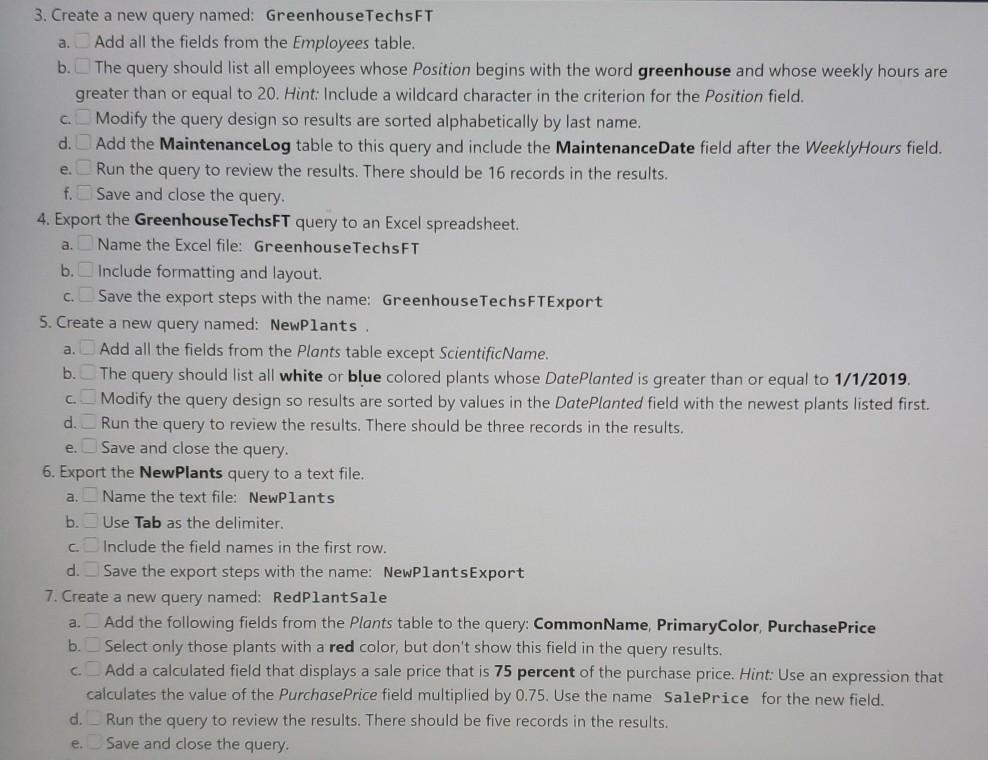
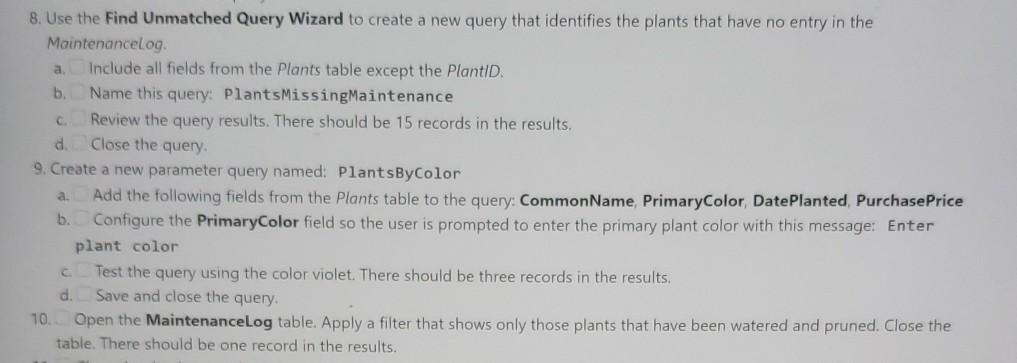
a. a. 3. Create a new query named: Greenhouse Techs FT Add all the fields from the Employees table. b. The query should list all employees whose Position begins with the word greenhouse and whose weekly hours are greater than or equal to 20. Hint: Include a wildcard character in the criterion for the Position field. c Modify the query design so results are sorted alphabetically by last name. d. Add the MaintenanceLog table to this query and include the Maintenance Date field after the WeeklyHours field. e. Run the query to review the results. There should be 16 records in the results. f. Save and close the query. 4. Export the Greenhouse TechsFT query to an Excel spreadsheet. Name the Excel file: Greenhouse TechsFT b. Include formatting and layout. c. Save the export steps with the name: Greenhouse Techs FTExport 5. Create a new query named: NewPlants a. Add all the fields from the Plants table except ScientificName. b. The query should list all white or blue colored plants whose Date Planted is greater than or equal to 1/1/2019 c. Modify the query design so results are sorted by values in the Date Planted field with the newest plants listed first. d. Run the query to review the results. There should be three records in the results. e. Save and close the query. 6. Export the NewPlants query to a text file. Name the text file: NewPlants b. Use Tab as the delimiter. Include the field names in the first row. d. Save the export steps with the name: NewPlantsExport 7. Create a new query named: RedPlantSale Add the following fields from the Plants table to the query: CommonName, Primary Color, Purchase Price b. Select only those plants with a red color, but don't show this field in the query results. Add a calculated field that displays a sale price that is 75 percent of the purchase price. Hint: Use an expression that calculates the value of the Purchase Price field multiplied by 0.75. Use the name SalePrice for the new field. d Run the query to review the results. There should be five records in the results. Save and close the query. a a. c e a 8. Use the Find Unmatched Query Wizard to create a new query that identifies the plants that have no entry in the Maintenancelog Include all fields from the Plants table except the PlantID. b Name this query: PlantsMissingMaintenance Review the query results. There should be 15 records in the results, d Close the query 9. Create a new parameter query named: PlantsBy Color Add the following fields from the Plants table to the query: Common Name PrimaryColor, Date Planted, Purchase Price b. Configure the PrimaryColor field so the user is prompted to enter the primary plant color with this message: Enter plant color Test the query using the color violet. There should be three records in the results. d. Save and close the query. 10. Open the MaintenanceLog table. Apply a filter that shows only those plants that have been watered and pruned. Close the table. There should be one record in the results. a. a. a. 3. Create a new query named: Greenhouse Techs FT Add all the fields from the Employees table. b. The query should list all employees whose Position begins with the word greenhouse and whose weekly hours are greater than or equal to 20. Hint: Include a wildcard character in the criterion for the Position field. c Modify the query design so results are sorted alphabetically by last name. d. Add the MaintenanceLog table to this query and include the Maintenance Date field after the WeeklyHours field. e. Run the query to review the results. There should be 16 records in the results. f. Save and close the query. 4. Export the Greenhouse TechsFT query to an Excel spreadsheet. Name the Excel file: Greenhouse TechsFT b. Include formatting and layout. c. Save the export steps with the name: Greenhouse Techs FTExport 5. Create a new query named: NewPlants a. Add all the fields from the Plants table except ScientificName. b. The query should list all white or blue colored plants whose Date Planted is greater than or equal to 1/1/2019 c. Modify the query design so results are sorted by values in the Date Planted field with the newest plants listed first. d. Run the query to review the results. There should be three records in the results. e. Save and close the query. 6. Export the NewPlants query to a text file. Name the text file: NewPlants b. Use Tab as the delimiter. Include the field names in the first row. d. Save the export steps with the name: NewPlantsExport 7. Create a new query named: RedPlantSale Add the following fields from the Plants table to the query: CommonName, Primary Color, Purchase Price b. Select only those plants with a red color, but don't show this field in the query results. Add a calculated field that displays a sale price that is 75 percent of the purchase price. Hint: Use an expression that calculates the value of the Purchase Price field multiplied by 0.75. Use the name SalePrice for the new field. d Run the query to review the results. There should be five records in the results. Save and close the query. a a. c e a 8. Use the Find Unmatched Query Wizard to create a new query that identifies the plants that have no entry in the Maintenancelog Include all fields from the Plants table except the PlantID. b Name this query: PlantsMissingMaintenance Review the query results. There should be 15 records in the results, d Close the query 9. Create a new parameter query named: PlantsBy Color Add the following fields from the Plants table to the query: Common Name PrimaryColor, Date Planted, Purchase Price b. Configure the PrimaryColor field so the user is prompted to enter the primary plant color with this message: Enter plant color Test the query using the color violet. There should be three records in the results. d. Save and close the query. 10. Open the MaintenanceLog table. Apply a filter that shows only those plants that have been watered and pruned. Close the table. There should be one record in the results. a
Step by Step Solution
There are 3 Steps involved in it

Get step-by-step solutions from verified subject matter experts
 Study Help