







Question: A Financial Statement Example of Formulas Below is data from an Income Statement. We have highlighted cells for you to calculate totals, ratios, and growth
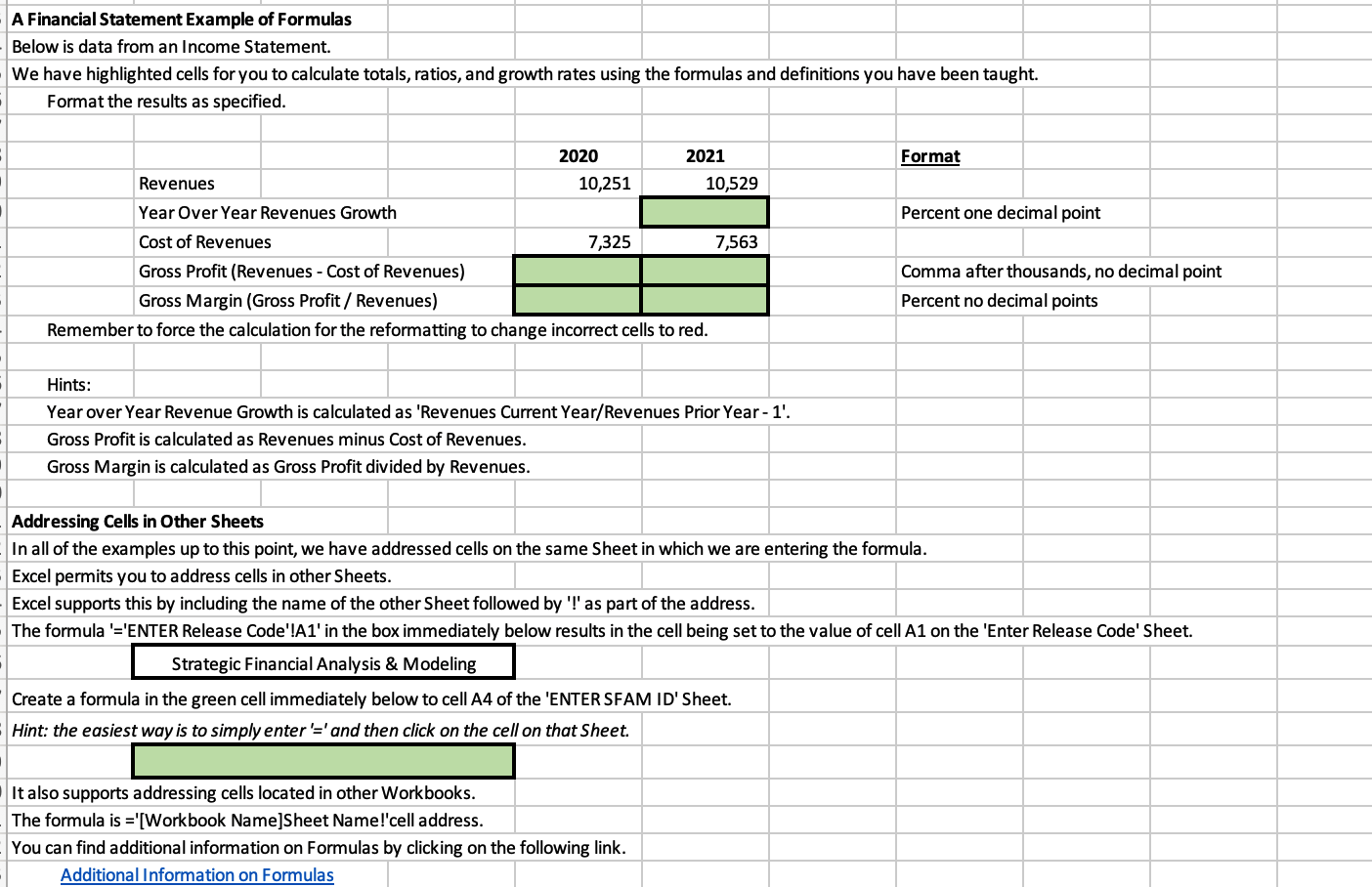
A Financial Statement Example of Formulas Below is data from an Income Statement. We have highlighted cells for you to calculate totals, ratios, and growth rates using the formulas and definitions you have been taught. Hints: Year over Year Revenue Growth is calculated as 'Revenues Current Year/Revenues Prior Year - 1'. Gross Profit is calculated as Revenues minus Cost of Revenues. Gross Margin is calculated as Gross Profit divided by Revenues. Addressing Cells in Other Sheets In all of the examples up to this point, we have addressed cells on the same Sheet in which we are entering the formula. Excel permits you to address cells in other Sheets. Excel supports this by including the name of the other Sheet followed by '!' as part of the address. The formula '='ENTER Release Code'!A1' in the box immediately below results in the cell being set to the value of cell A1 on the 'Enter Release Code' Sheet. Strategic Financial Analysis \& Modeling Create a formula in the green cell immediately below to cell A4 of the 'ENTER SFAM ID' Sheet. Hint: the easiest way is to simply enter' = ' and then click on the cell on that Sheet. It also supports addressing cells located in other Workbooks. The formula is ='[Workbook Name] Sheet Name!'cell address. You can find additional information on Formulas by clicking on the following link. AdditionalInformationonFormulas A Financial Statement Example of Formulas Below is data from an Income Statement. We have highlighted cells for you to calculate totals, ratios, and growth rates using the formulas and definitions you have been taught. Hints: Year over Year Revenue Growth is calculated as 'Revenues Current Year/Revenues Prior Year - 1'. Gross Profit is calculated as Revenues minus Cost of Revenues. Gross Margin is calculated as Gross Profit divided by Revenues. Addressing Cells in Other Sheets In all of the examples up to this point, we have addressed cells on the same Sheet in which we are entering the formula. Excel permits you to address cells in other Sheets. Excel supports this by including the name of the other Sheet followed by '!' as part of the address. The formula '='ENTER Release Code'!A1' in the box immediately below results in the cell being set to the value of cell A1 on the 'Enter Release Code' Sheet. Strategic Financial Analysis \& Modeling Create a formula in the green cell immediately below to cell A4 of the 'ENTER SFAM ID' Sheet. Hint: the easiest way is to simply enter' = ' and then click on the cell on that Sheet. It also supports addressing cells located in other Workbooks. The formula is ='[Workbook Name] Sheet Name!'cell address. You can find additional information on Formulas by clicking on the following link. AdditionalInformationonFormulas
Step by Step Solution
There are 3 Steps involved in it

Get step-by-step solutions from verified subject matter experts
 Study Help