







Question: A-6 Professionalize Your Application's Interface In this section, you will professionalize the interface for one of the Game Show applications from this chapter's Focus lesson.
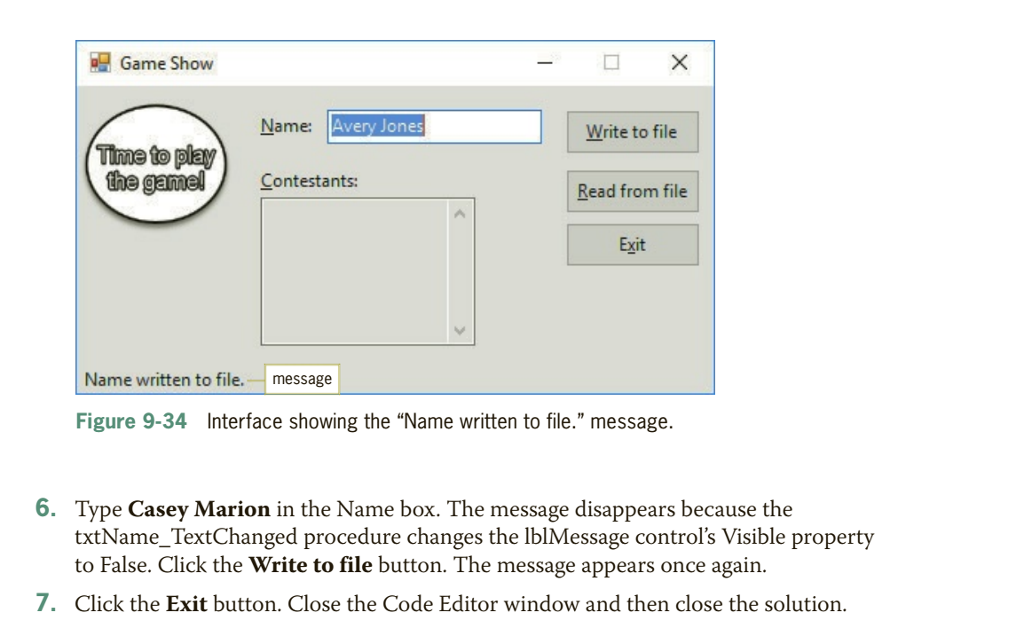
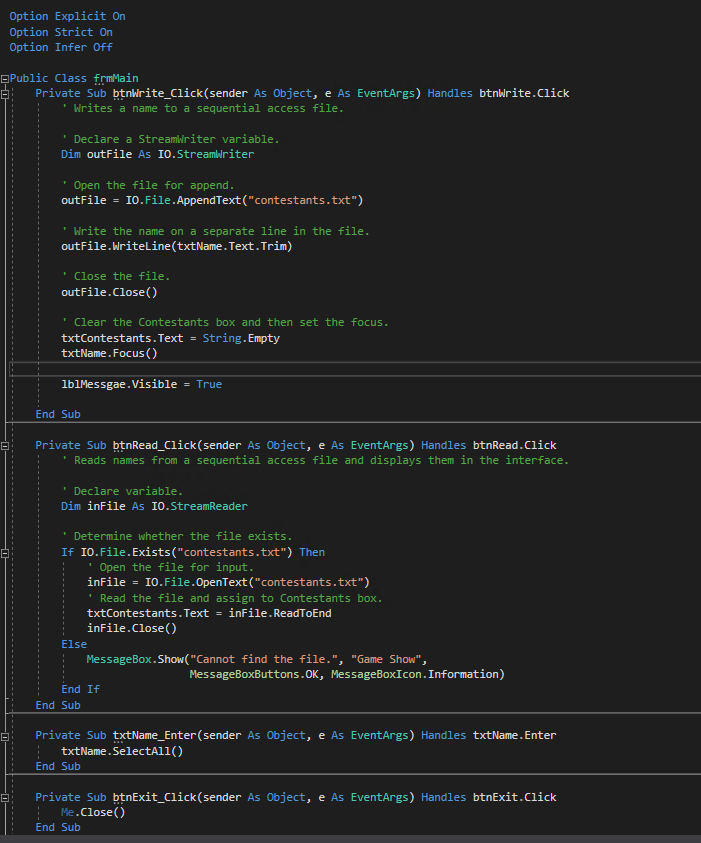
A-6 Professionalize Your Application's Interface In this section, you will professionalize the interface for one of the Game Show applications from this chapter's Focus lesson. More specifically, you will have the application display a message each time the user clicks the Write to file button. The message will confirm that the contestant's name was written to the contestants.txt file. You can display the message in either a message box or a label on the form. You will use a label so that the user will not need to close the message box each time a record is written to the file. To professionalize the application's interface: 1. Open the Game Show Solution. In file contained in the VB2017\Chap09\Game Show Solution-Professionalize folder. 2. Add a label to the form. Position it in the lower-left corner. Change its Name, Text, and Visible properties to IblMessage, Name written to file., and False, respectively Open the Code Editor window and locate the btnWrite_Click procedure. Insert a blank line above the End Sub clause. Type 1blMessage.Visible then press Enter 3. True and 4. Open the code template for the txtName_TextChanged procedure. Type 1blMessage.Visible Save the solution and then start the application. Type Avery Jones in the Name box and then click the Write to file button. The btnWrite_Click procedure changes the lblMessage control's Visible property to True. As a result, the "Name written to file message appears in the lower-left corner of the interface. See Figure 9-34 False and then press Enter. 5. Game Show Name: Avery Jones Write to file Time to play the Contestants: Read from file Exit Name written to file. message Figure 9-34 Interface showing the "Name written to file." message. 6. Type Casey Marion in the Name box. The message disappears because the txtName_TextChanged procedure changes the IblMessage control's Visible property to False. Click the Write to file button. The message appears once again. 7. Click the Exit button. Close the Code Editor window and then close the solution Option Explicit On Option Strict On Option Infer Off Public Class frnMain Private Sub btnwirite_Click (sender As Object, e As EventArgs) Handles btnwrite.Click Writes a name to a sequential access file ' Declare a Streamiriter variable Dim outFile As I0.Streamwriter Open the file for append outFile I0.File.AppendText("contestants.txt") Write the name on a separate line in the file outFile.WriteLine (txtName. Text.Trim) Close the file outFile.Close() Clear the Contestants box and then set the focus txtContestants.Text - String.Empty txtName. Focus () 1blMessgae.Visible -True End Sub Private Sub btnRead_Click (sender As Object, e As EventArgs) Handles btnRead.Click ' Reads names from a sequential access file and displays them in the interface ' Declare variable Dim inFile As 1O.StreamReader Determine whether the file exists If I0.File.Exists ("contestants.txt") Then Open the file for input inFile = 10. File .OpenText("contestants . txt") Read the file and assign to Contestants box. txtContestants.TextinFile.ReadToEnd inFile.Close() Else MessageBox.Show("Cannot find the file.", "Game Show", MessageBoxButtons.0K, MessageBoxIcon. Information) End If End Sub Private Sub txtName_Enter(sender As Object, e As EventArgs) Handles txtName.Enter txtName.SelectAll) End Sub Private Sub btnExit_Click (sender As Object, e As EventArgs) Handles btnExit.click Me.Close() End Sub A-6 Professionalize Your Application's Interface In this section, you will professionalize the interface for one of the Game Show applications from this chapter's Focus lesson. More specifically, you will have the application display a message each time the user clicks the Write to file button. The message will confirm that the contestant's name was written to the contestants.txt file. You can display the message in either a message box or a label on the form. You will use a label so that the user will not need to close the message box each time a record is written to the file. To professionalize the application's interface: 1. Open the Game Show Solution. In file contained in the VB2017\Chap09\Game Show Solution-Professionalize folder. 2. Add a label to the form. Position it in the lower-left corner. Change its Name, Text, and Visible properties to IblMessage, Name written to file., and False, respectively Open the Code Editor window and locate the btnWrite_Click procedure. Insert a blank line above the End Sub clause. Type 1blMessage.Visible then press Enter 3. True and 4. Open the code template for the txtName_TextChanged procedure. Type 1blMessage.Visible Save the solution and then start the application. Type Avery Jones in the Name box and then click the Write to file button. The btnWrite_Click procedure changes the lblMessage control's Visible property to True. As a result, the "Name written to file message appears in the lower-left corner of the interface. See Figure 9-34 False and then press Enter. 5. Game Show Name: Avery Jones Write to file Time to play the Contestants: Read from file Exit Name written to file. message Figure 9-34 Interface showing the "Name written to file." message. 6. Type Casey Marion in the Name box. The message disappears because the txtName_TextChanged procedure changes the IblMessage control's Visible property to False. Click the Write to file button. The message appears once again. 7. Click the Exit button. Close the Code Editor window and then close the solution Option Explicit On Option Strict On Option Infer Off Public Class frnMain Private Sub btnwirite_Click (sender As Object, e As EventArgs) Handles btnwrite.Click Writes a name to a sequential access file ' Declare a Streamiriter variable Dim outFile As I0.Streamwriter Open the file for append outFile I0.File.AppendText("contestants.txt") Write the name on a separate line in the file outFile.WriteLine (txtName. Text.Trim) Close the file outFile.Close() Clear the Contestants box and then set the focus txtContestants.Text - String.Empty txtName. Focus () 1blMessgae.Visible -True End Sub Private Sub btnRead_Click (sender As Object, e As EventArgs) Handles btnRead.Click ' Reads names from a sequential access file and displays them in the interface ' Declare variable Dim inFile As 1O.StreamReader Determine whether the file exists If I0.File.Exists ("contestants.txt") Then Open the file for input inFile = 10. File .OpenText("contestants . txt") Read the file and assign to Contestants box. txtContestants.TextinFile.ReadToEnd inFile.Close() Else MessageBox.Show("Cannot find the file.", "Game Show", MessageBoxButtons.0K, MessageBoxIcon. Information) End If End Sub Private Sub txtName_Enter(sender As Object, e As EventArgs) Handles txtName.Enter txtName.SelectAll) End Sub Private Sub btnExit_Click (sender As Object, e As EventArgs) Handles btnExit.click Me.Close() End Sub
Step by Step Solution
There are 3 Steps involved in it

Get step-by-step solutions from verified subject matter experts
 Study Help