







Question: Ac313 Preparing an Income Statement using Excel's SUM, IF and Basic Math Functions 2 Reading Readiness, Inc. has provided you its list of accounts and
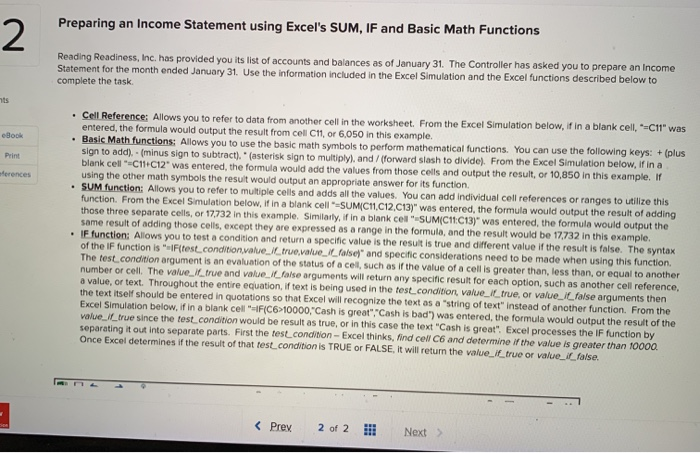
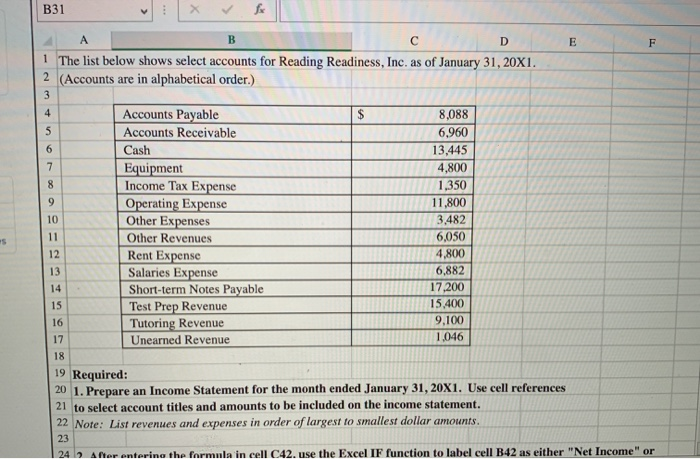
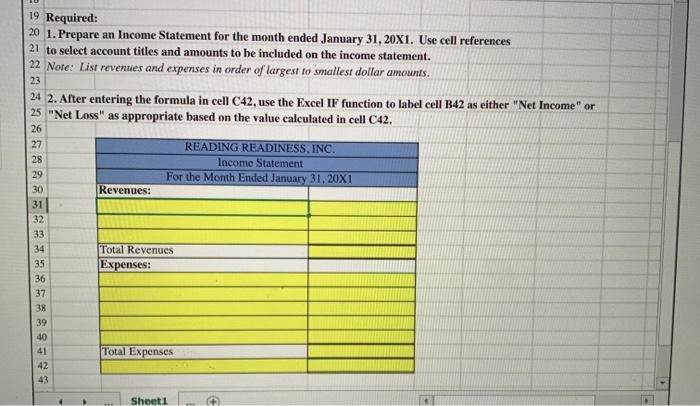
Preparing an Income Statement using Excel's SUM, IF and Basic Math Functions 2 Reading Readiness, Inc. has provided you its list of accounts and balances as of January 31. The Controller has asked you to prepare an Income Statement for the month ended January 31. Use the information included in the Excel Simulation and the Excel functions described below to complete the task nts Cell Reference; Allows you to refer to data from another cell in the worksheet. From the Excel Simulation below, if in a blank cell, "-C11" was entered, the formula would output the result from cell C11, or 6,050 in this example. Basic Math functions: Allows you to use the basic math symbols to perform mathematical functions. You can use the following keys: +(plus sign to add), (minus sign to subtract), (asterisk sign to multiply), and /(forward slash to divide). From the Excel Simulation below, if in a blank cell "-C11 C12 was entered, the formula would add the values from those cells and output the result, or 10,850 in this example. If using the other math symbols the result would output an appropriate answer for its function. SUM function: Allows you to refer to multiple cells and adds all the values. You can add individual cell references or ranges to utilize this function. From the Excel Simulation below, if in a blank cell -SUM(C11,C12,C13)" was entered, the formula would output the result of adding those three separate cells, or 17732 in this example. Similarly, if in a blank cel "-SUM(C11:C13)" was entered, the formula would output the same result of adding those cells, except they are expressed as a range in the formula, and the result would be 17732 in this example. IF function: Allows you to test a condition and return a specific value is the result is true and different value if the result is false. The syntax of the IF function is "-IF(test.condition,value ittrue,value it false" and specific considerations need to be made when using this function. The test condition argument is an evaluation of the status of a cell, such as if the value of a cell is greater than, less than, or equal to another number or cell. The value it true and value itfalse arguments will return any specific result for each option, such as another cell reference, a value, or text. Throughout the entire equation, if text is being used in the testcondition, value_it true, or value_if false arguments then the text itself should be entered in quotations so that Excel will recognize the text as a "string of text" instead of another function. From the Excel Simulation below, if in a blank cell "-IF(C6 10000,"Cash is great"Cash is bad) was entered, the formula would output the result of the value if true since the test condition would be result as true, or in this case the text "Cash is great". Excel processes the IF function by separating it out into separate parts. First the test condition-Excel thinks, find cell C6 and determine if the value is greater than 10000 Once Excel determines if the result of that test condition is TRUE or FALSE, it will return the value if true or value_if false. eBook Print eferences
Step by Step Solution
There are 3 Steps involved in it

Get step-by-step solutions from verified subject matter experts
 Study Help