







Question: Activity 7: Conditional Formatting and Pivot Microsoft Excel 1. Insert a new worksheet and name it Conditional Fomat. Place conditional formatting for the speed column
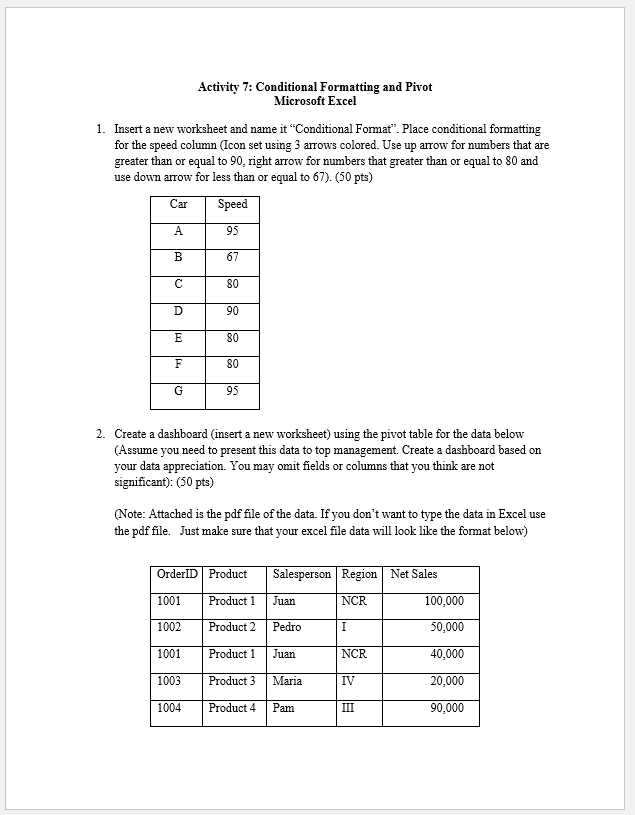
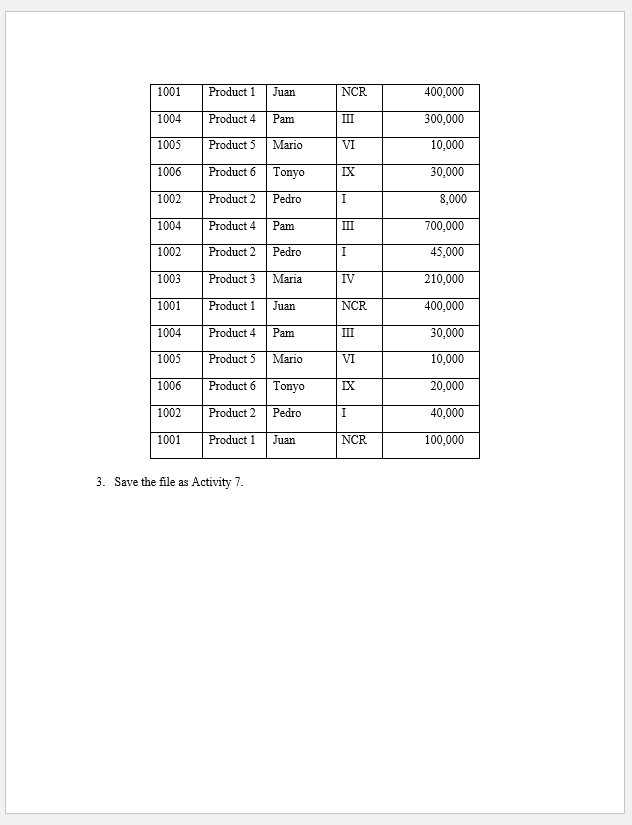
Activity 7: Conditional Formatting and Pivot Microsoft Excel 1. Insert a new worksheet and name it "Conditional Fomat. Place conditional formatting for the speed column (Icon set using 3 arrows colored. Use up arrow for numbers that are greater than or equal to 90, right arrow for numbers that greater than or equal to 80 and use down arrow for less than or equal to 67). (50 pts) Speed Car 95 B 67 80 D 90 E 80 F 80 92 95 2. Create a dashboard (insert a new worksheet) using the pivot table for the data below (Assume you need to present this data to top management. Create a dashboard based on your data appreciation. You may omit fields or columns that you think are not significant): (50 pts) (Note: Attached is the pdf file of the data. If you don't want to type the data in Excel use the pdf file. Just make sure that your excel file data will look like the format below) OrderID Product Salesperson Region Net Sales 1001 Product 1 Juan NCR 100,000 1002 Product 2 Pedro I 50,000 1001 Product 1 Juan NCR 40,000 1003 Product 3 Maria IV 20,000 1004 Product 4 Pam 90,000 1001 NCR 400,000 1004 III 300,000 Product 1 Juan Product 4 Pam Product 5 Mario Product 6 Tonyo 1005 VI 10,000 1006 LX 30,000 1002 Product 2 Pedro I 8,000 1004 Product 4 Pam III 700,000 1002 Product 2 Pedro I 45,000 1003 Product 3 Maria IV 210,000 1001 Product 1 Juan NCR 400,000 1004 Product 4 Pam III 30,000 1005 VI 10,000 Product 5 Mario Product 6 Tonyo 1006 LX 20,000 1002 Product 2 Pedro I 40,000 1001 Product 1 Juan NCR 100,000 3. Save the file as Activity 7
Step by Step Solution
There are 3 Steps involved in it
1 Expert Approved Answer
Step: 1 Unlock

Question Has Been Solved by an Expert!
Get step-by-step solutions from verified subject matter experts
Step: 2 Unlock
Step: 3 Unlock
 Study Help