







Question: Addressing Table This lab does not include an addressing table. Learning Objectives Correctly identify cables for use in the network Physically cable a peer-to-peer Verify
Addressing Table
This lab does not include an addressing table. Learning Objectives
Correctly identify cables for use in the network Physically cable a peer-to-peer Verify basic connectivity on each network Introduction:
Many network problems can be fixed at the Physical layer of a network. For this reason, it is important to have a clear understanding of which cables to use for your network connections.
At the Physical layer (Layer 1) of the OSI model, end devices must be connected by media (cables). The type of media required depends on the type of device being connected. In the basic portion of this lab, straightthrough or patchcables will be used to connect workstations and switches.
In addition, two or more devices communicate using assigned addresses. The Network layer (Layer 3) requires a unique address (also known as a logical address or IP Addresses), which allows the data to reach the appropriate destination device.
Addressing for this lab will be applied to the workstations and will be used to enable communication between the devices.
Create a Peer-to-Peer Network
Step 1. Select a Lab Partner
Step 2. Obtain equipment and resources for the lab.
Equipment needed: 2 workstations 1 Ethernet cable
Identify the Cables used in a Network
Before the devices can be cabled, you will need to identify the types of media you will be using. The cables used in this lab are crossover and straight-through.
Use a crossover cable to connect two workstations to each other through their NICs Ethernet port. This is an Ethernet cable. When you look at the plug you will notice that the orange and green wires are in opposite positions on each end of the cable.
Use a straight-through cable to connect the routers Ethernet port to a switch port or a workstation to a switch port. This is also an Ethernet cable. When you look at the plug you will notice that both ends of the cable are exactly the same in each pin position.
Step 1. Cable the Peer-to-Peer Network.
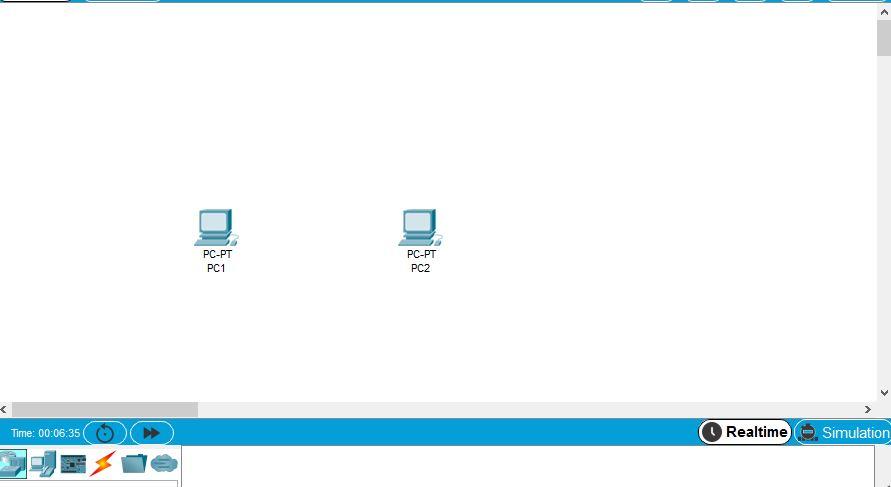
Using the correct Ethernet cable, connect two workstations together. Connect one end of the cable to the NIC port on PC1 and the other end of the cable to PC2. Which cable did you use?
Configure addresses and test
Step 1. Apply a Layer 3 address to the workstations.
To complete this task, you will need to follow the step-by-step instructions below.
Click the PC you want to assign an address to. Click the Desktop tab Click the IP Configuration tab In the IP address box, enter the IP address 192.168.1.2 for PC1. (Enter the IP address 192.168.1.3 for PC2.) Press the tab key and the Subnet mask is automatically entered. The subnet address should be 255.255.255.0. If this address is not automatically entered, enter this address manually Close the IP configuration window by clicking on the X Step 2. Verify connectivity.
To test Connectivity follow the following instructions:
Click PC1 Click the Desktop tab Click the Command Prompt tab Type ping 192.168.1.3 then press enter What is the output of the ping command?
If the ping command displays an error message or doesnt receive a reply from the other workstation, troubleshoot as necessary. Possible areas to troubleshoot include:
Verifying the correct IP addresses on both workstations Ensuring that the correct type of cable is used between the workstations What is the output of the ping command if you unplug the network cable and ping the other workstation?
PC-PT PC1 PC-PT PC2 Time: 00:06:35 Realtime Simulation
Step by Step Solution
There are 3 Steps involved in it

Get step-by-step solutions from verified subject matter experts
 Study Help