







Question: All question marks must be filled in with a formula. Typing in numbers will not work Download the Applying Excel form and enter formulas in
All question marks must be filled in with a formula. Typing in numbers will not work
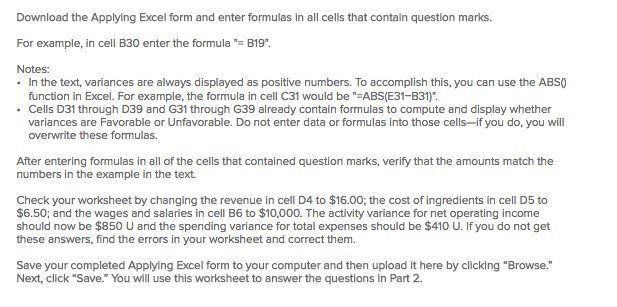
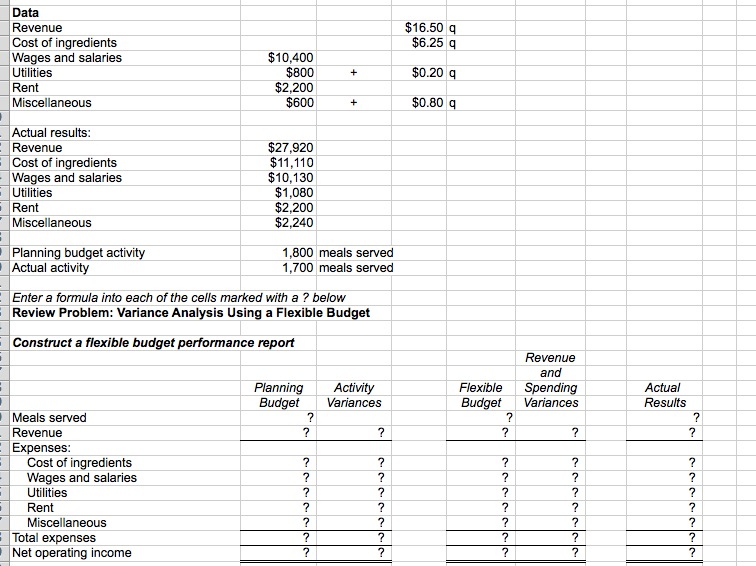
Download the Applying Excel form and enter formulas in all cells that contain question marks. For example, in cell B30 enter the formula B19" Notes: In the text, variances are always displayed as positive numbers. To accomplish this, you can use the ABSO function in Excel. For example, the formula in cell C31 would be" ABS(E31-B31) Cells D31 through D39 and G31 through G39 already contain formulas to compute and display whether variances are Favorable or Unfavorable. Do not enter data or formulas into those cells-if you do, you will overwrite these formulas. After entering formulas in all of the cells that contained question marks, verify that the amounts match the numbers in the example in the text. Check your worksheet by changing the revenue in cell D4 to $16.00; the cost of ingredients in cell D5 to $6.50; and the wages and salaries in cell B6 to $10,000. The activity variance for net operating income should now be $850 U and the spending variance for total expenses should be $410 U. If you do not get these answers, find the errors in your worksheet and correct them. Save your completed Applying Excel form to your computer and then upload It here by clicking "Browse." Next, click Save." You will use this worksheet to answer the questions in Part 2
Step by Step Solution
There are 3 Steps involved in it

Get step-by-step solutions from verified subject matter experts
 Study Help