







Question: ANDRIOD STUDIO: Instructions: Create an Android application to collect a user's name, email, a password, and a password confirmation. It also contains a Save button.
ANDRIOD STUDIO:
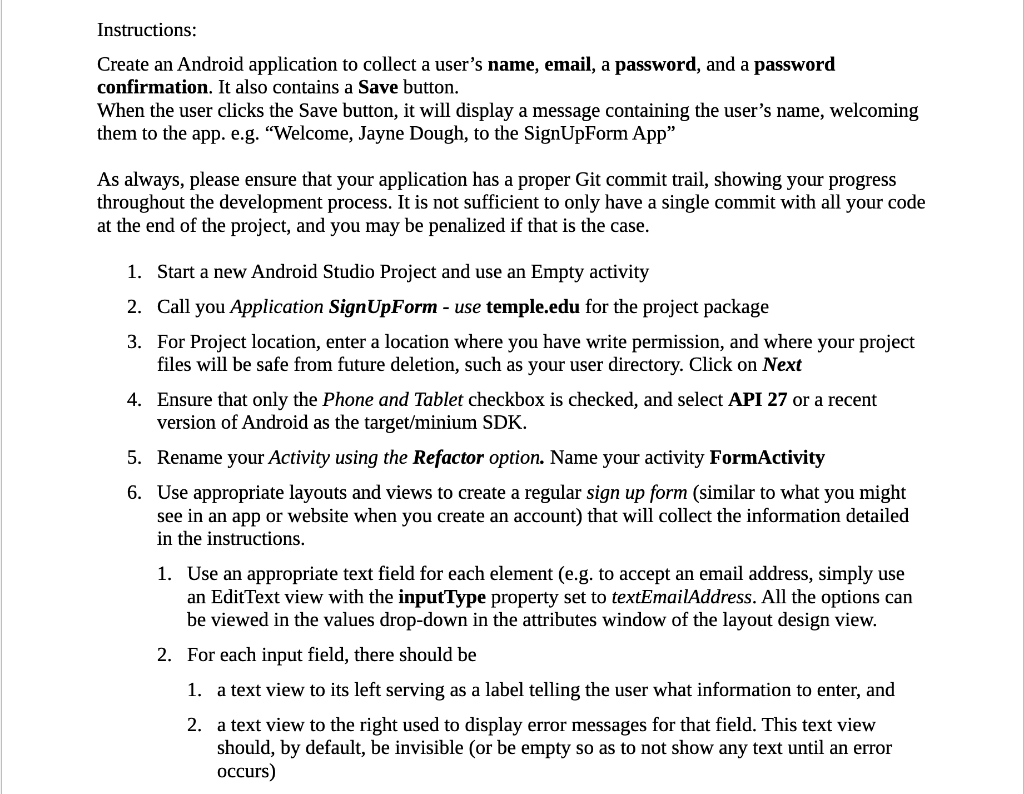
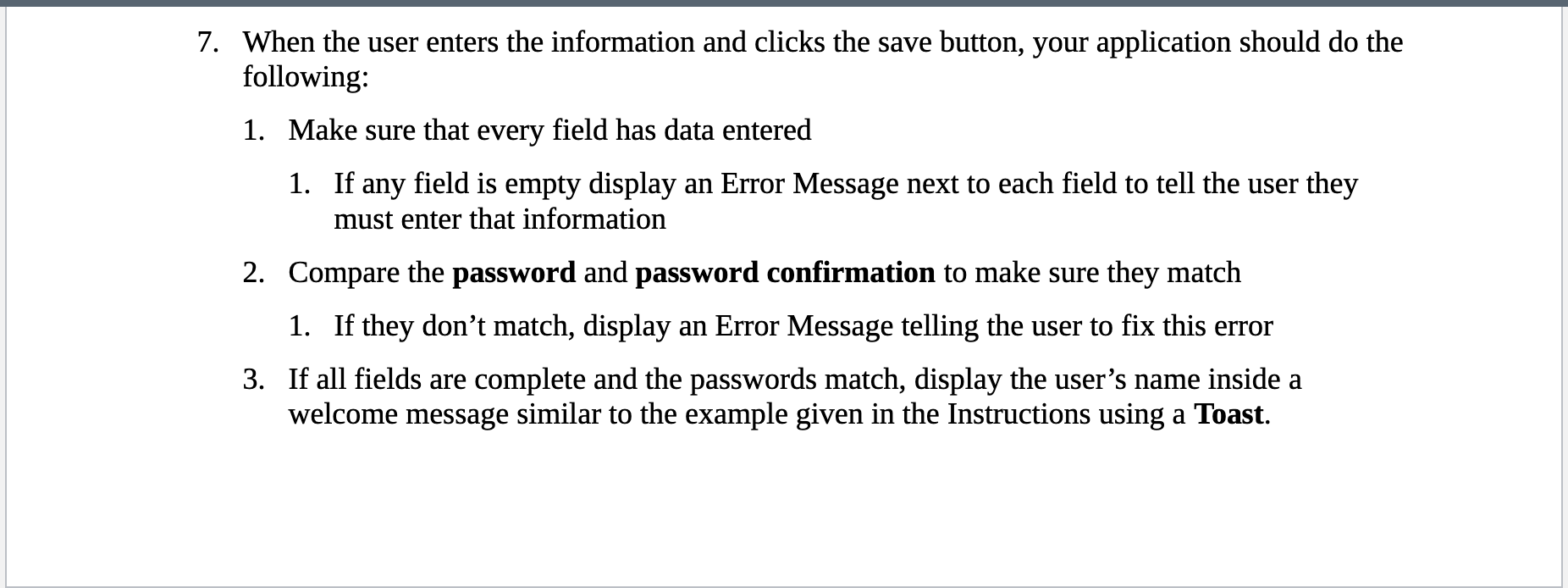
Instructions: Create an Android application to collect a user's name, email, a password, and a password confirmation. It also contains a Save button. When the user clicks the Save button, it will display a message containing the user's name, welcoming them to the app. e.g. "Welcome, Jayne Dough, to the SignUpForm App" As always, please ensure that your application has a proper Git commit trail, showing your progress throughout the development process. It is not sufficient to only have a single commit with all your code at the end of the project, and you may be penalized if that is the case. 1. Start a new Android Studio Project and use an Empty activity 2. Call you Application SignUpForm - use temple.edu for the project package 3. For Project location, enter a location where you have write permission, and where your project files will be safe from future deletion, such as your user directory. Click on Next 4. Ensure that only the phone and Tablet checkbox is checked, and select API 27 or a recent version of Android as the target/minium SDK. 5. Rename your Activity using the Refactor option. Name your activity FormActivity 6. Use appropriate layouts and views to create a regular sign up form (similar to what you might see in an app or website when you create an account) that will collect the information detailed in the instructions. 1. Use an appropriate text field for each element (e.g. to accept an email address, simply use an Edit Text view with the inputType property set to textEmailAddress. All the options can be viewed in the values drop-down in the attributes window of the layout design view. 2. For each input field, there should be 1. a text view to its left serving as a label telling the user what information to enter, and 2. a text view to the right used to display error messages for that field. This text view should, by default, be invisible (or be empty so as to not show any text until an error occurs) 7. When the user enters the information and clicks the save button, your application should do the following: 1. Make sure that every field has data entered 1. If any field is empty display an Error Message next to each field to tell the user they must enter that information 2. Compare the password and password confirmation to make sure they match 1. If they don't match, display an Error Message telling the user to fix this error 3. If all fields are complete and the passwords match, display the user's name inside a welcome message similar to the example given in the Instructions using a Toast
Step by Step Solution
There are 3 Steps involved in it

Get step-by-step solutions from verified subject matter experts
 Study Help