







Question: Android Studio-Java programming >>> Create project - - - Select File New - New Project... Choose Empty Activity template, and click Next. On New Project
Android Studio-Java programming
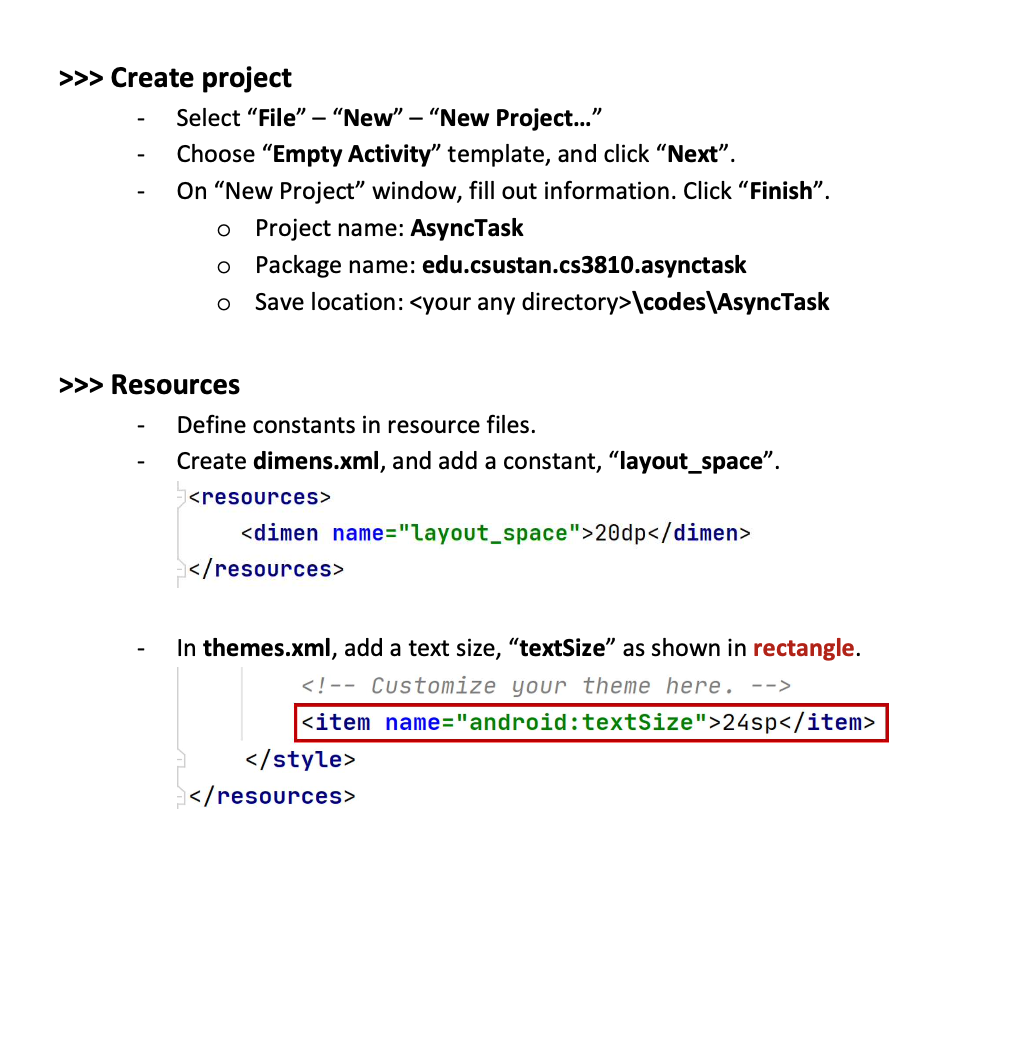
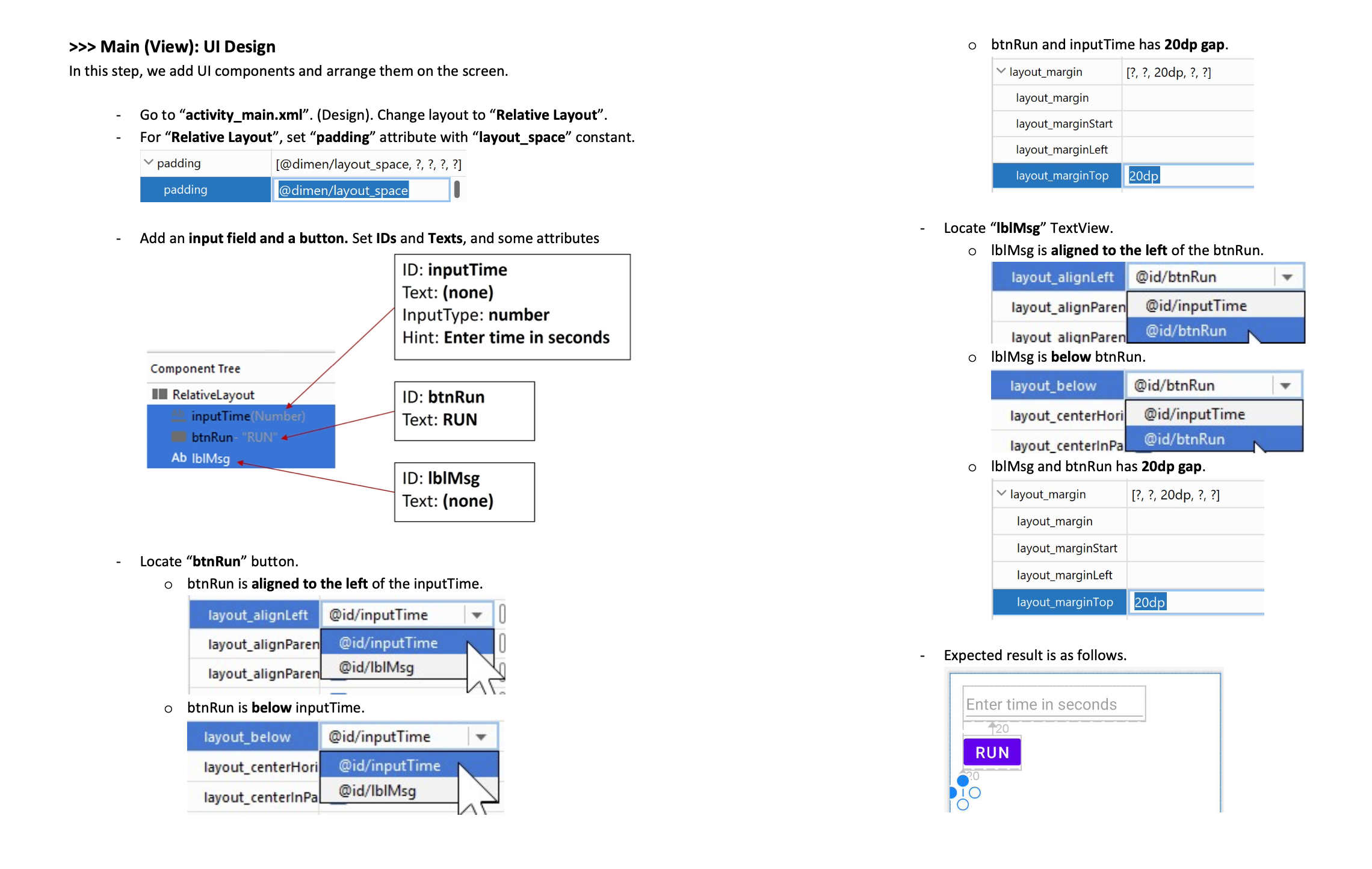
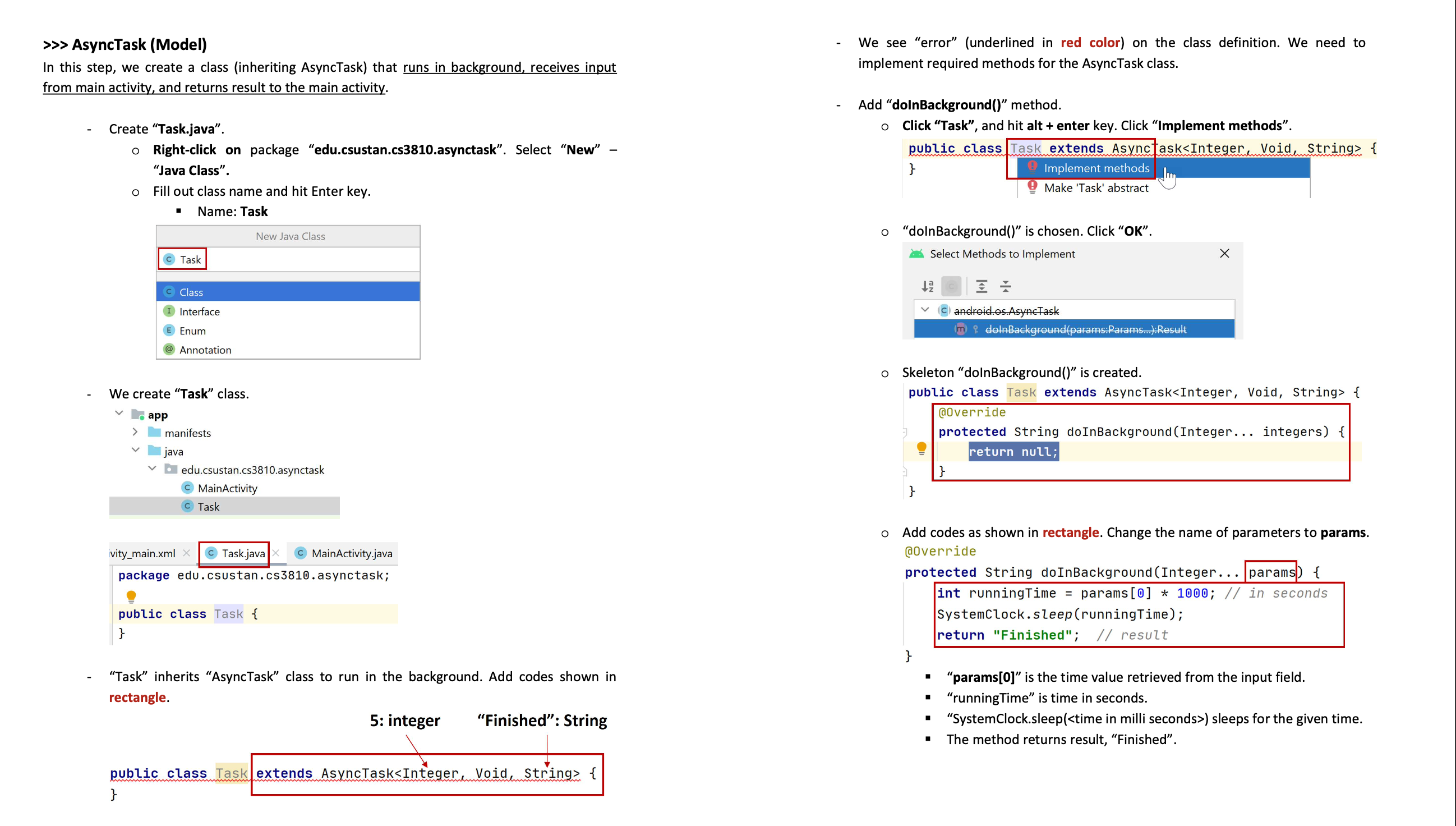
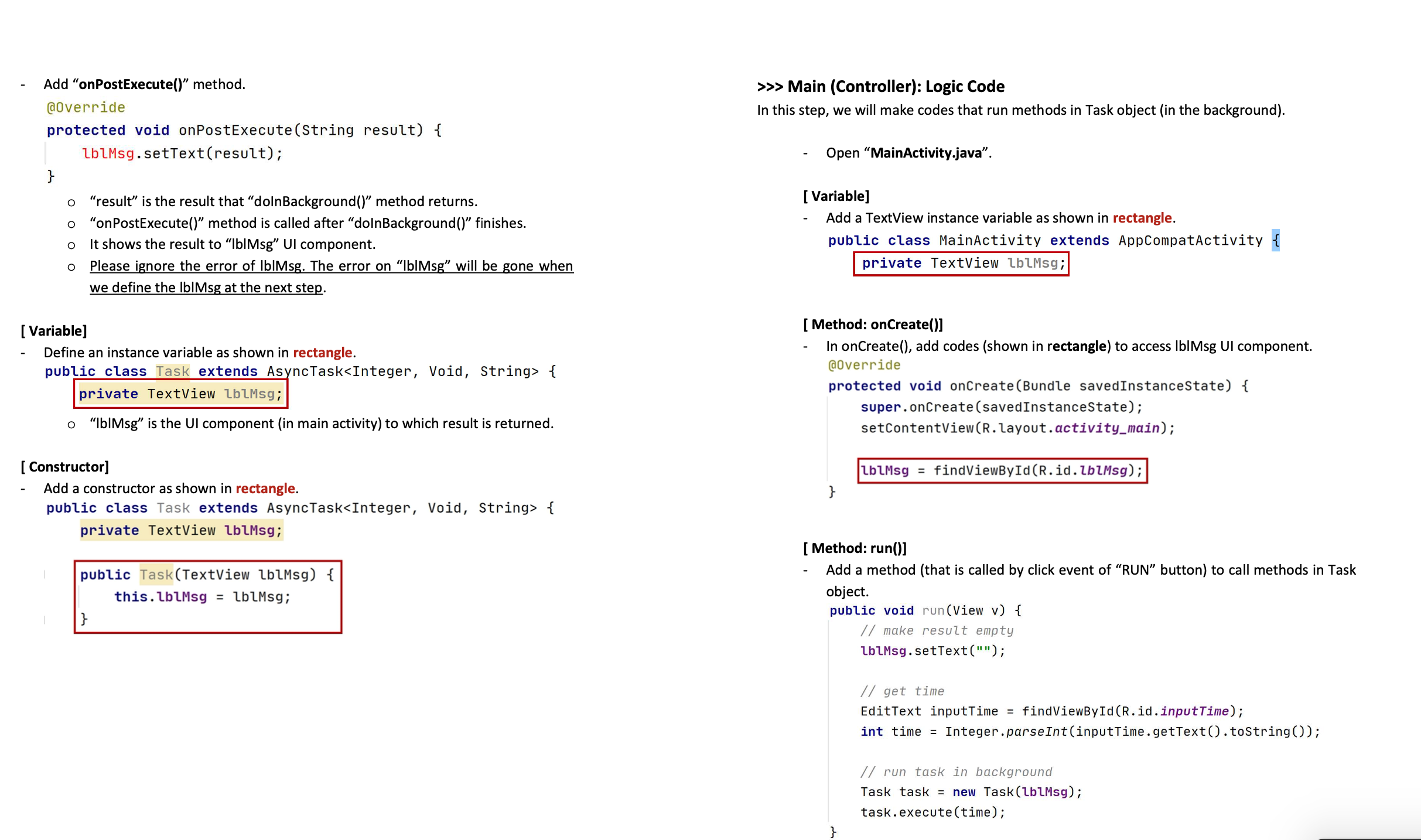
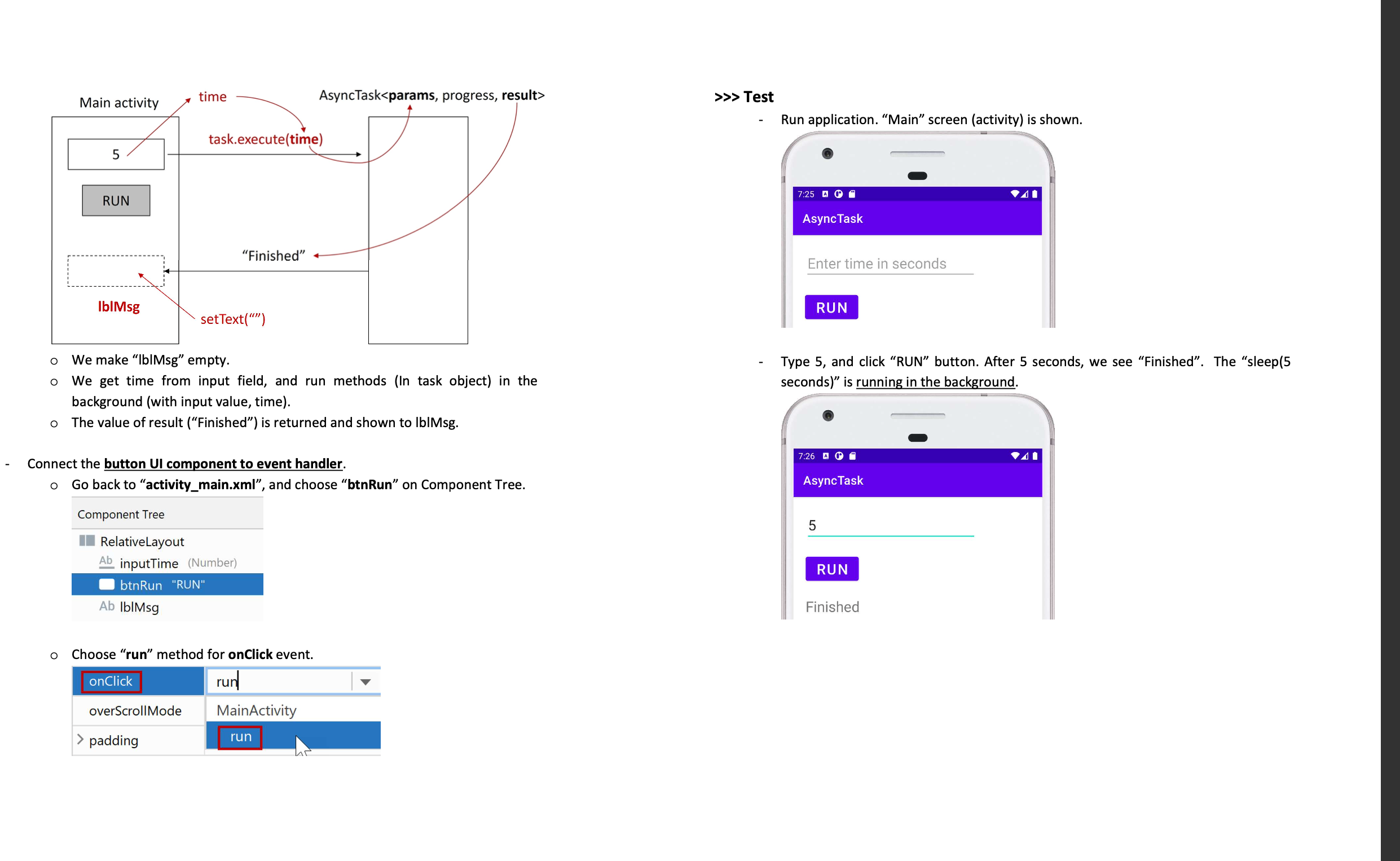
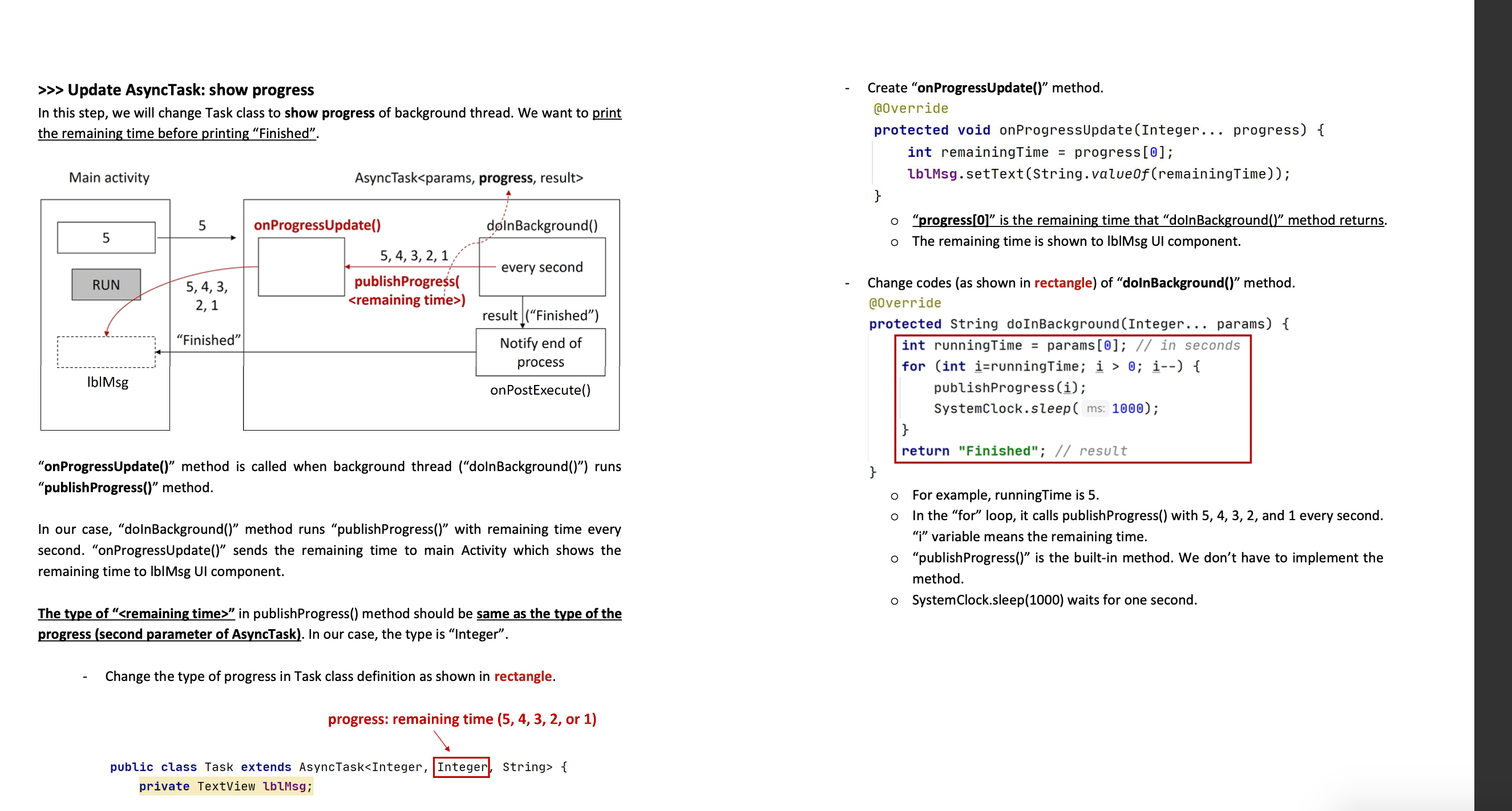
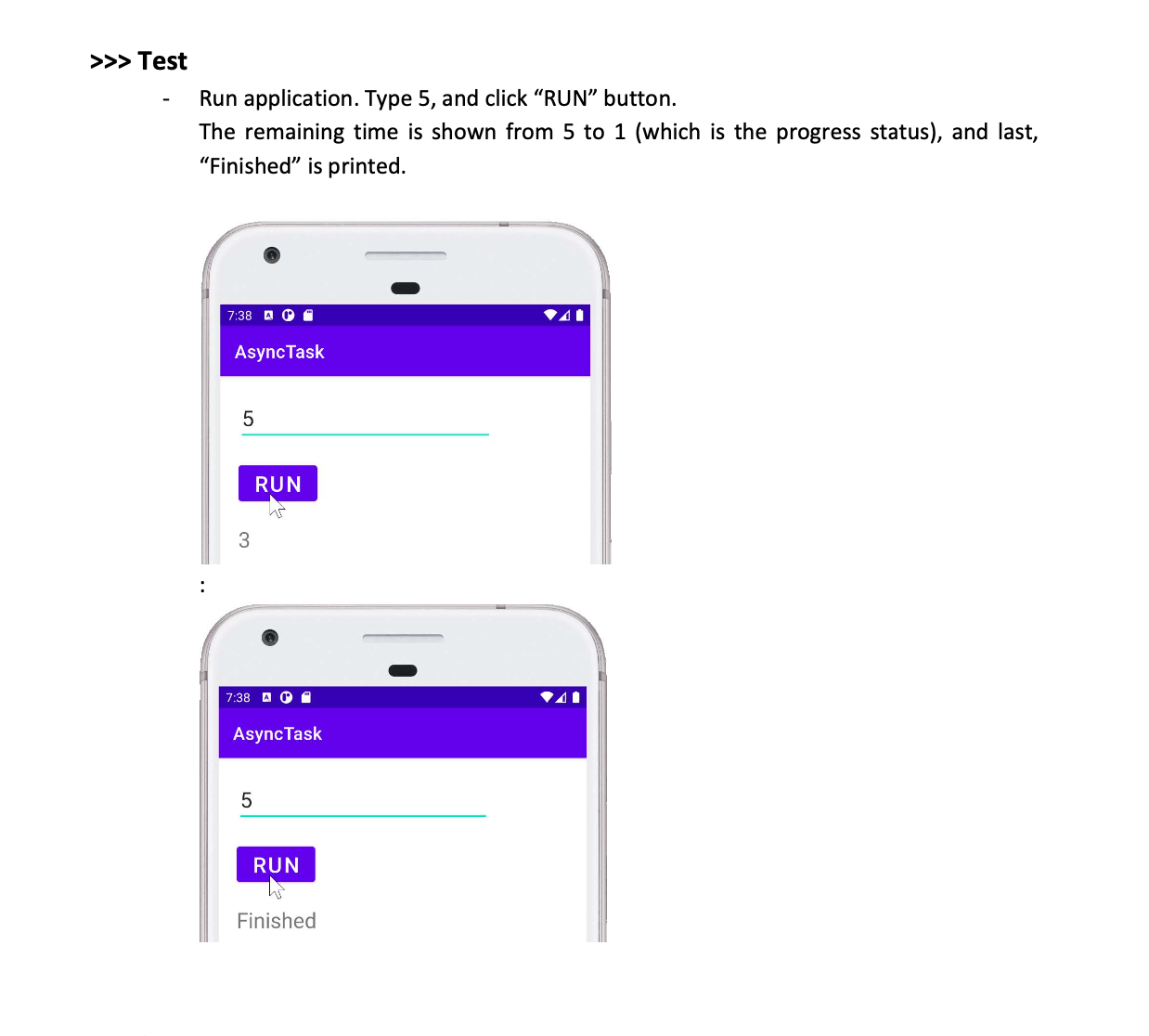
>>> Create project - - - Select "File" "New" - "New Project..." Choose "Empty Activity" template, and click "Next". On "New Project" window, fill out information. Click "Finish". o Project name: AsyncTask o Package name: edu.csustan.cs3810.asynctask Save location: \codes\AsyncTask >>> Resources - - Define constants in resource files. Create dimens.xml, and add a constant, "layout_space". 20dp - In themes.xml, add a text size, "textSize" as shown in rectangle. 24sp
Step by Step Solution
There are 3 Steps involved in it
Based on the provided instructions you need to update an AsyncTask to show the progress of a backgro... View full answer

Get step-by-step solutions from verified subject matter experts
 Study Help