







Question: ANSC 2 2 1 HWEX 1 Homework Exercise - Excel Spreadsheet for Nutritional Calculations Version 5 , Update 1 1 / 1 1 / 1
ANSC HWEX
Homework Exercise Excel Spreadsheet for Nutritional Calculations
Version Update
The purpose of this exercise is to learn some elementary things about use of Excel spreadsheets for making calculations, that can be very useful in nutrition. Many of you may already know all of these things and more and that's fine and others may have never used Excel, so this will be at a very simple level.
You are to make a spreadsheet that will make useful calculations. Print a copy of the spreadsheet to turn in so it should be arranged to nicely fit on one page
Follow these directions:
In Cell A type ANSC Homework ExcelYOUR NAME and press Enter. Of course type your own name and not literally YOUR NAME
I will show you how to make a simple ration checking program that will multiply feed amounts times the nutrient content of feeds, and add up the results. List some feeds in rows through in column Now copy those feed names to rows by doing the following. Highlight the feed names you typed in rows Hit ControlC Place your cursor in cell A and left click the mouse. Press ControlV which pastes what you copied with ControlC Let's also copy those names to cells A to A Press ESC escape to release the area you highlighted.
Let's format this so the feed names all sit in column A Move your cursor to the spot between the A and at the top of the spreadsheet cells. Left click, and when the cursor changes to a line with arrows to both sides, leftclick again and drag the Acolumn wider so that the feed names all fit within column A
Let's put labels above the columns: on row in column B enter AMOUNT, in C enter CP in D enter TDN in enter in enter Of course you could do the same thing with other and more nutrients.
From data on nutrient content from somewhere enter the percentage of CP TDN Ca and for the feeds you chose. Leave the "Amount" column blank
Next, we are going to want to multiply the feed amounts we specify by the DECIMAL values for the percentages we entered, or in other words, by those amounts divided by Let's go to Cell Cfor timothy hay on my sample page, CP column and write a formula that takes the value in cell C and divides it by Start your formula by entering the sign. So in cell C enter then click on cell C enter for divide enter and then press the enter key. To multiply it would be the asterisk symbol,
Now we could do that for every cell, but there is a much faster way. Click in cell C Notice at the bottom right the box has a dense square. Move your cursor over it until it forms a Click that square and drag right to copy the contents the formula to Cells D through F Alternatively, in Cell C we could have hit ControlC clicked in Cell D dragged right to Cell F released and pressed ControlV and it would do the same thing CTRLC copies to your clipboard, and CTRLV pastes from your clipboard.Note that to undo something you could click the circular arrow pointing left at the top, and to redo you could click the circular arrow to the right at the top of the page. Sometimes Excel is not set up with all the same icons in the same page, but that can be adjusted and they are commonly there.
Now let's copy those formulas down. Click in C and drag right to highlight CF Release the click, and then hover over that dot in the lower right corner of the line around the cells highlighted, and then drag down to include row then release. This could also be done with CTRLC CTRLV
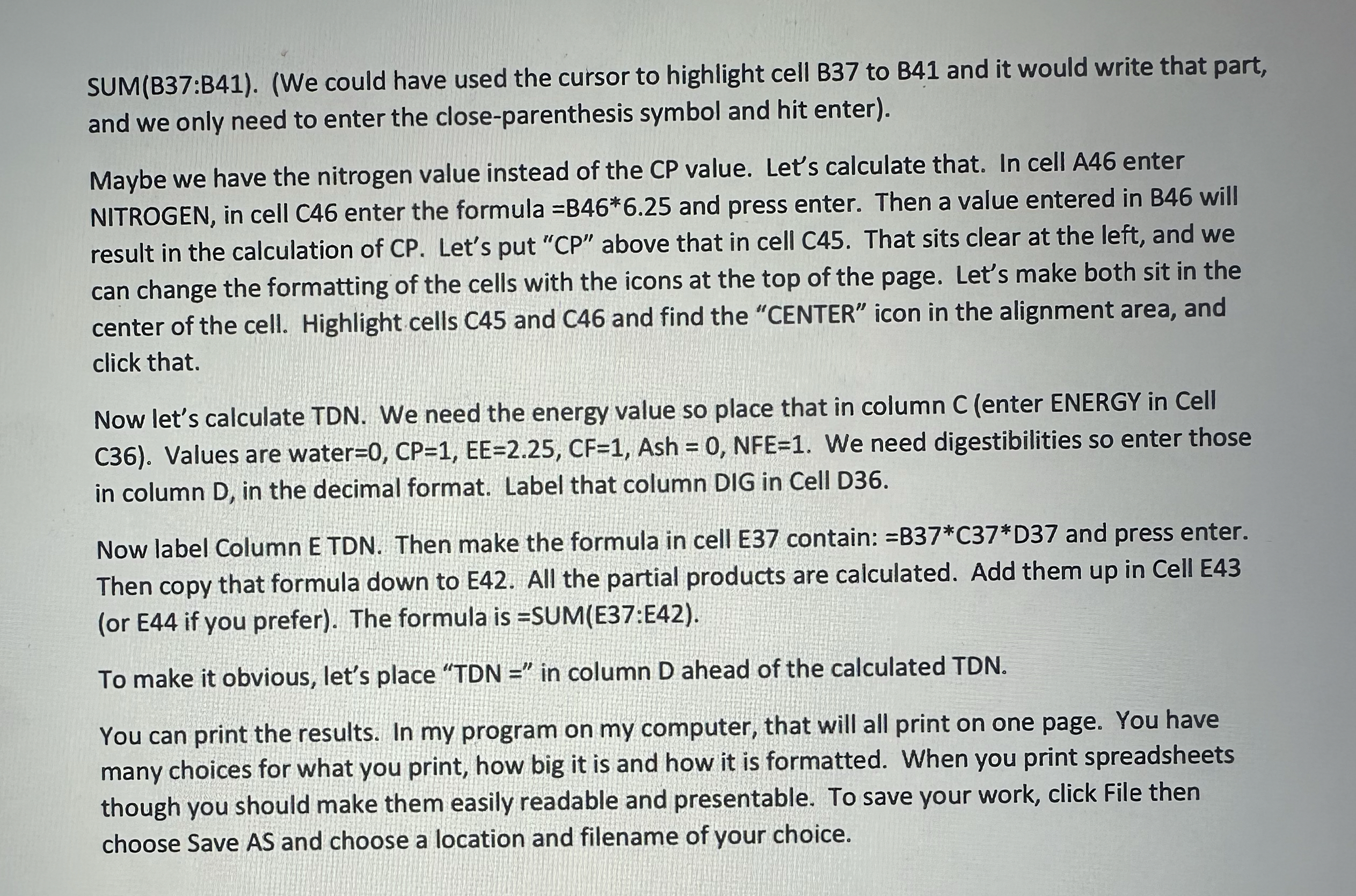
Now let's make our multiplications. First you may enter values for each feed amount in column B rows These are the values you can change to get different results, so for now it isn't important what value you enter, BUT MAKE THEM DIFFERENT FROM THE EXAMPLE PAGE so it shows your sheet makes calculations. But we want EACH value in column B multiplied by the correct value in column C If you enter a formula in cell C as we did in cell C and then copy that, the program will automatically adjust the formula. We don't want it to change the formula, we want it to always use the value in column B so we are going to enter a $ sign in front of a cell reference to "root" it so that it doesn't change. In Cell C enter: $ and press enter. The calculation is shown but the cell contains the formula Now we can copy the formula in Cell C to cells D E and FDo that with the click, click the and drag, or use the CTRLC CTRLV method Then you can highlight all cells CF and copy them down to row by either method
There is another
Step by Step Solution
There are 3 Steps involved in it
1 Expert Approved Answer
Step: 1 Unlock

Question Has Been Solved by an Expert!
Get step-by-step solutions from verified subject matter experts
Step: 2 Unlock
Step: 3 Unlock
 Study Help