







Question: Answer I Personalize Your Operating Environment 'When you purchase a new computer or mobile device. the rst task you might want to complete is to
Answer
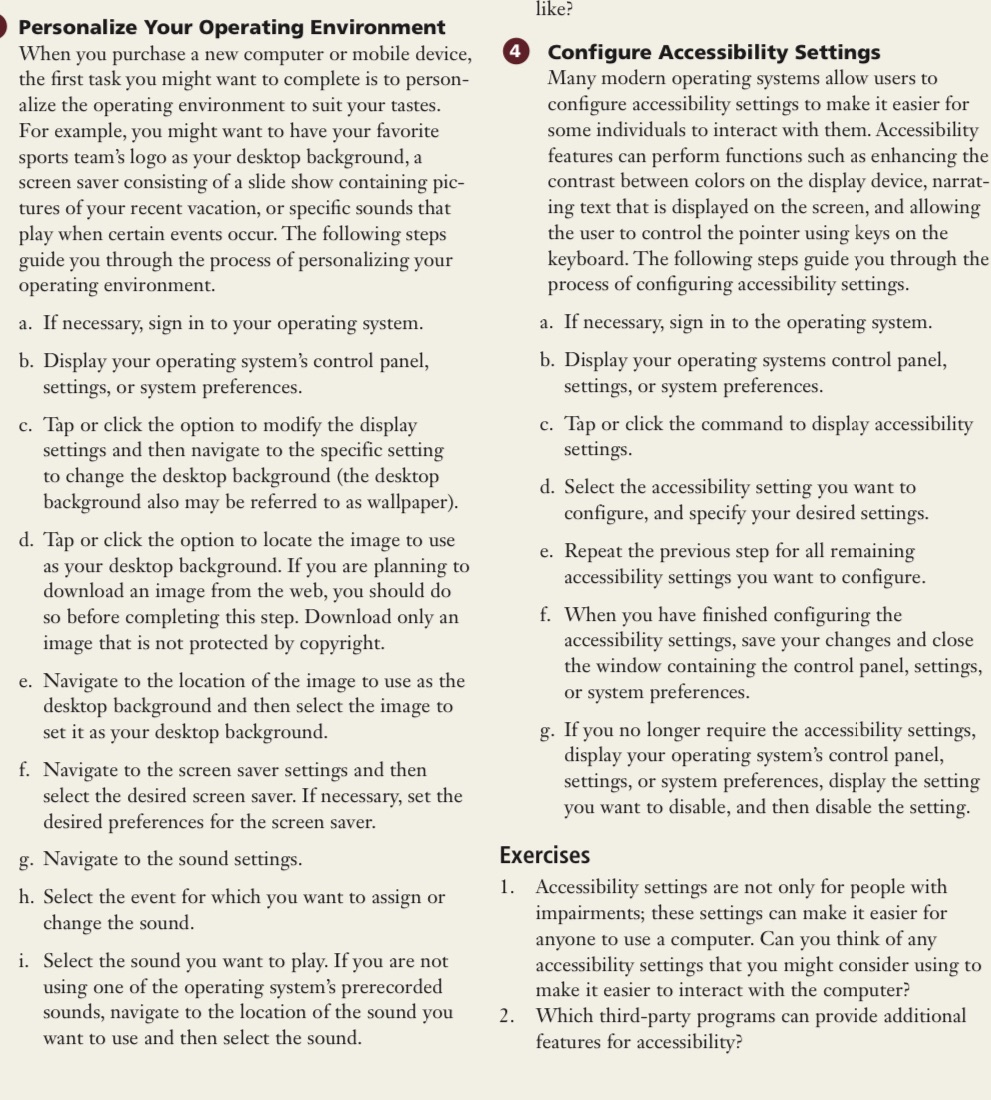
I Personalize Your Operating Environment 'When you purchase a new computer or mobile device. the rst task you might want to complete is to person alize the operating environment to suit your tastes. For example, you might want to have your favorite sports team's logo as your desktop background, a screen saver consisting of a slide show containing pic tures of your recent vacation, or specic sounds that play when certain events occur. The following steps guide you through the process of personalizing your operatmg environment. a. If necessary, sign in to your operating system. b. Display your operating system's control panel, settings, or system preferences. c. Tap or click the option to modify the display settings and then navigate to the specic setting to change the desktop backgron {the desktop background also may be referred to as wallpaper). {1. Tap or click the option to locate the image to use as your desktop background. If you are planning to download an image from the web, you should do so before completing this step. Download only an image that is not protected by copyright. e. Navigate to the location of the image to use as the desktop background and then select the image to set it as your desktop background. f. Navigate to the screen saver settings and then select the desired screen saver. If necessary, set the desired preferences for the screen saver. g. Navigate to the sound settings. h. Select the event for which you want to assign or change the sound. i. Select the sound you want to play. If you are not using one of the operating systems prerecorded sounds, navigate to the location of the sound you want to use and then select the sound. like? 0 Configure Accessibility Settings Many modern operating systems allow users to congure accessibility settings to make it easier for some individuals to interact with them. Accessibility features can perform functions such as enhancing the contrast between colors on the display device, narrat ing text that is displayed on the screen, and allowing the user to control the pointer using keys on the keyboard. The following steps guide you through the process of conguring accessibility settings. a. If necessary, sign in to the operating system. b. Display your operating systems control panel, settings, or system preferences. c. Tap or click the command to display accessibility settings. d. Select the accessibility setting you want to configure, and specify your desired settings. e. Repeat the previous step for all remaining accessibility settings you want to congure. f. 'When you have finished conguring the accessibility settings, save your changes and close the window containing the control panel, settings, or system preferences. g. If you no longer require the accessibility settings, display your operating systems control panel, settings, or system preferences, display the setting you want to disable, and then disable the setting. Exercises 1. Accessibility settings are not only for people with impairments; these settings can make it easier for anyone to use a computer. Can you think of any accessibility settings that you might consider using to make it easier to interact with the computer? 'W'hich thirdparty programs can provide additional features for accessibility
Step by Step Solution
There are 3 Steps involved in it

Get step-by-step solutions from verified subject matter experts
 Study Help