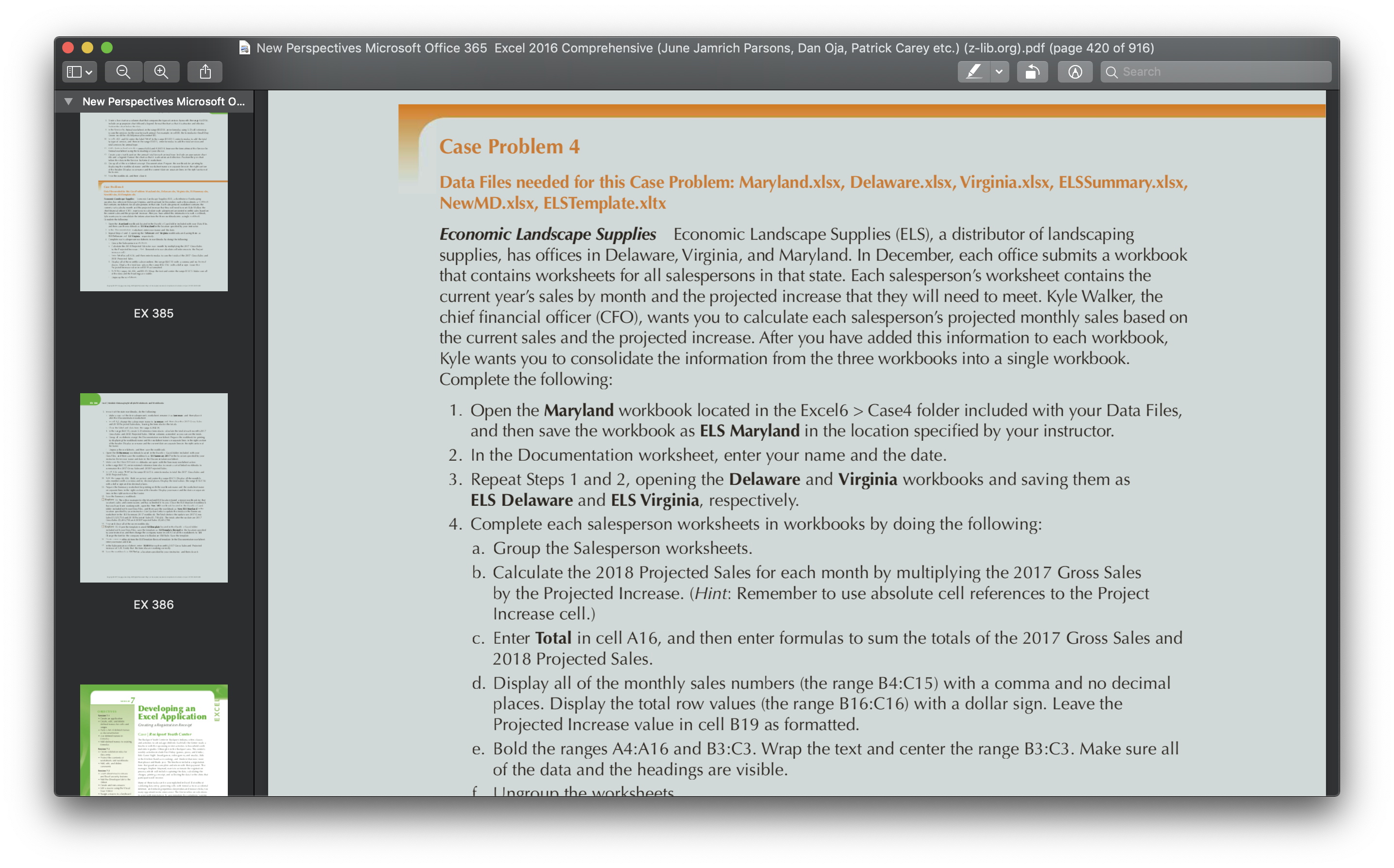
Question: Application Exam Problem #2 Be partially completing Case Problem 4 on pp. EX 385-386. Please name the workbook file Exam#2Virginia_ your initials. Complete ONLY the
Application Exam Problem #2
Be partially completing Case Problem 4 on pp. EX 385-386. Please name the workbook file Exam#2Virginia_your initials.
Complete ONLY the following steps in this Case Problem:
Step 1 -- You are working with the Virginia workbook -- name the workbook as indicated above
Step 2 -- enter the date with a Date function that returns the current date each time the workbook is opened
Step 4 -- complete for only the Virginia data you opened in Step 1.
Answer the following questions in the Documentation Sheet starting in cell A8 -- How did you group the worksheets? Answer this question in cell A9 --What type of cell reference did you use in creating the formula for calculating 2018 projected sales?
Add a Total row, Average row, Minimum row, and Maximum row in each worksheet for both the 2017 Sales and 2018 Projected Sales Columns for each salesperson.
Answer the following question in the J. Berry worksheet starting in Cell A22 -- How did you enter the above functions only once and they were entered into each of the salesperson's workbooks.
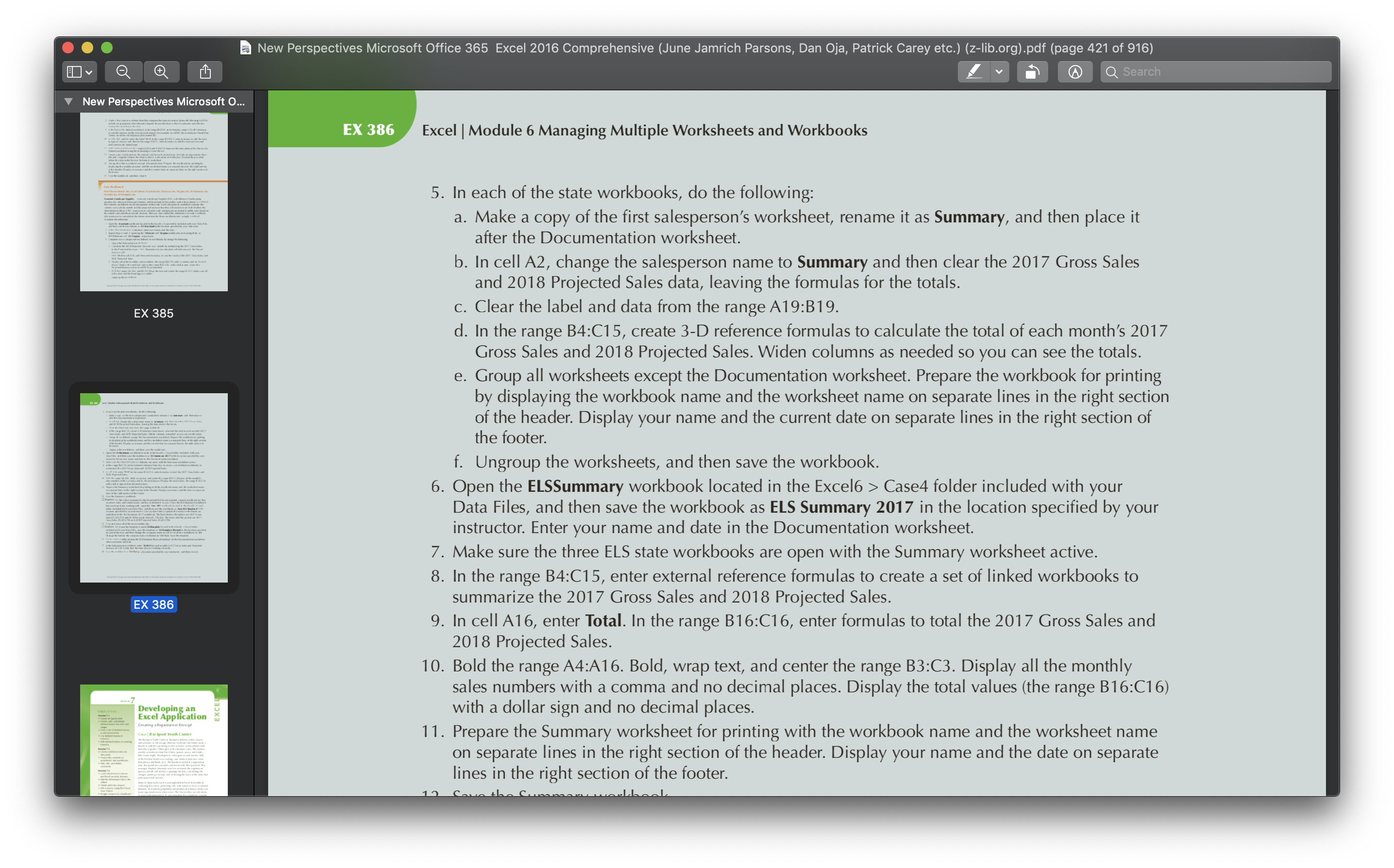
Step 5 -- complete for only the Virginia data. ONLY complete steps a, b, c, and d
Format the four salespersons' worksheets professionally.
Step 11 -- Prepare only the salespersons' worksheet for printing based on these instructions.
Answer the following question in the J. Berry worksheet starting in Cell A23 -- How did you format and set up print options for the salespersons' worksheets and only apply the features one time rather than four sets of instructions?
Save your workbook file.
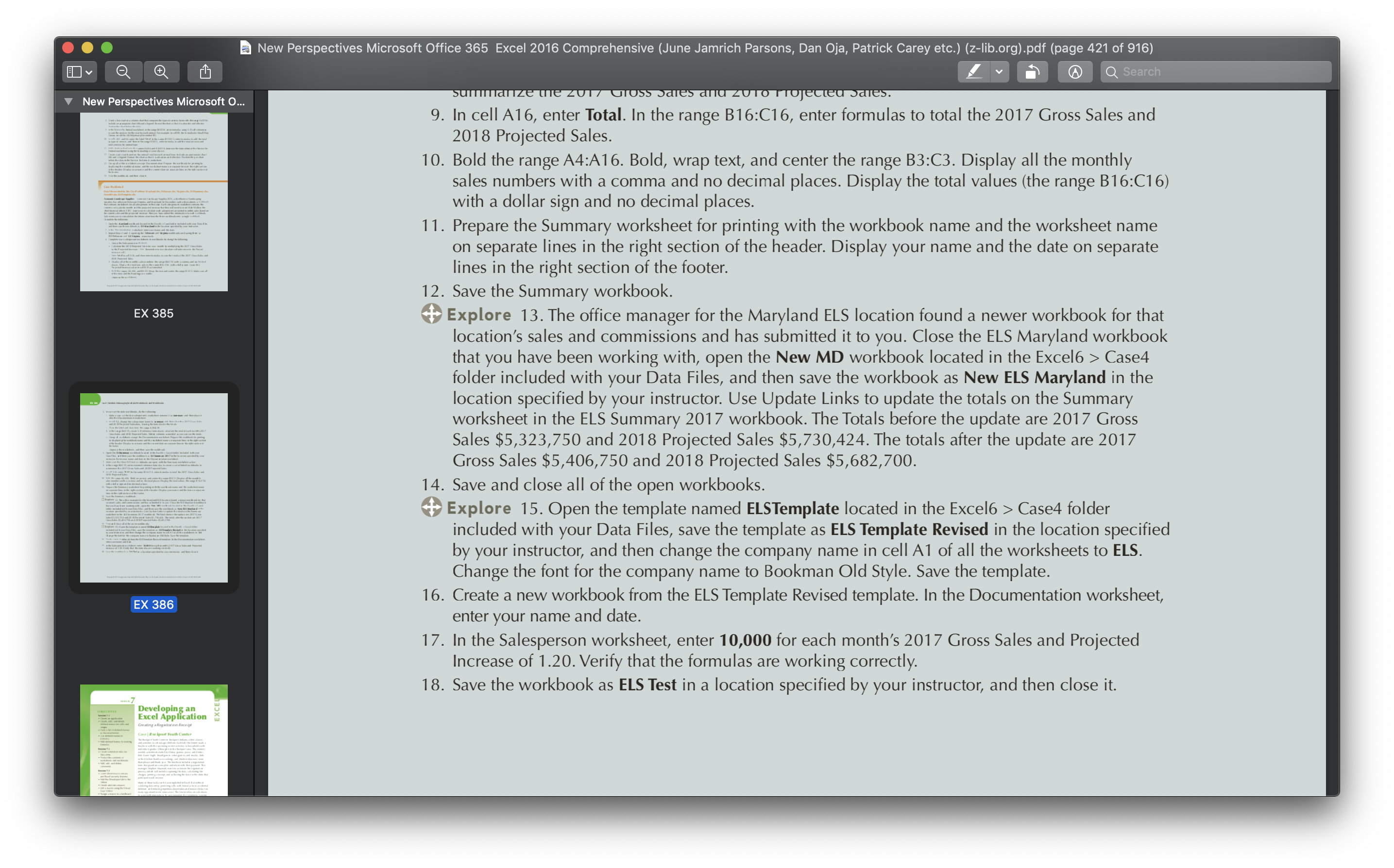
O C New Perspectives Microsoft Office 365 Excel 2016 Comprehensive (June Jamrich Parsons, Dan Oja, Patrick Carey etc.) (z-Iib.org).pdf (page 421 of 916) made .zveoqaw V New Perspectives Microsoft 0... Excel | Module 6 Managing Multiple Worksheets and Workbooks . In each of the state workbooks, do the following: a. Make a copy of the first salesperson's worksheet, rename it as Summary, and then place it after the Documentation worksheet. . In cell A2, change the salesperson name to Summary and then clear the 2017 Gross Sales and 2018 Projected Sales data, leaving the formulas for the totals. . Clear the label and data from the range A19:B19. . In the range B4:C15, create 3D reference formulas to calculate the total of each month's 2017 Gross Sales and 2018 Projected Sales. Widen columns as needed so you can see the totals. . Group all worksheets except the Documentation worksheet. Prepare the workbook for printing by displaying the workbook name and the worksheet name on separate lines in the right section of the header. Display your name and the current date on separate lines in the right section of the footer. f. Ungroup the worksheets, and then save the workbook. . Open the ELSSummary workbook located in the Excel6 > Case4 folder included with your Data Files, and then save the workbook as ELS Summary 2017 in the location specified by your instructor. Enter your name and date in the Documentation worksheet. . Make sure the three ELS state workbooks are open with the Summary worksheet active. . In the range B4:C15, enter external reference formulas to create a set of linked workbooks to summarize the 2017 Gross Sales and 2018 Projected Sales. . In cell A16, enter Total. In the range Bl6:C1 6, enter formulas to total the 2017 Gross Sales and 2018 Projected Sales. . Bold the range A42A16. Bold, wrap text, and center the range B32C3. Display all the monthly sales numbers with a comma and no decimal places. Display the total values (the range B162C16) with a dollar sign and no decimal places. . Prepare the Summary worksheet for printing with the workbook name and the worksheet name on separate lines in the right section of the header. Display your name and the date on separate lines in the right section of the footer. O C New Perspectives Microsoft Office 365 Excel 2016 Comprehensive (June Jamrich Parsons, Dan Oja, Patrick Carey etc.) (Z-lib.org).pdf (page 421 of 916) 133v a a m .1 v a on was; I l I I l I I ' I U I I . 9. In cell A16, enter Total. In the range B16:C16, enter formulas to total the 2017 Gross Sales and 2018 Projected Sales. 10. Bold the range A4:A16. Bold, wrap text, and center the range B3ZC3. Display all the monthly sales numbers with a comma and no decimal places. Display the total values (the range B16:C16) with a dollar sign and no decimal places. . Prepare the Summary worksheet for printing with the workbook name and the worksheet name on separate lines in the right section of the header. Display your name and the date on separate lines in the right section of the footer. 12. Save the Summary workbook. 4} Explore 13. The office manager for the Maryland ELS location found a newer workbook for that location's sales and commissions and has submitted it to you. Close the ELS Maryland workbook that you have been working with, open the New MD workbook located in the Excel6 > Case4 folder included with your Data Files, and then save the workbook as New ELS Maryland in the location specified by your instructor. Use Update Links to update the totals on the Summary worksheet in the ELS Summary 2017 workbook. The Totals before the update are 2017 Gross Sales $5,323,750 and 2018 Projected Sales $5,730,424. The totals after the update are 2017 Gross Sales $5,406,750 and 2018 Projected Sales $5,682,700. 14. Save and close all of the open workbooks. 4} Explore 15. Open the template named ELSTempIate located in the Excel6 > Case4 folder included with your Data Files, save the template as ELS Template Revised in the location specified by your instructor, and then change the company name in cell A1 of all the worksheets to ELS. Change the font for the company name to Bookman Old Style. Save the template. 16. Create a new workbook from the ELS Template Revised template. In the Documentation worksheet, enter your name and date. 17. In the Salesperson worksheet, enter 10,000 for each month's 2017 Gross Sales and Projected Increase of 1.20. Verify that the formulas are working correctly. 18. Save the workbook as ELS Test in a location specified by your instructor, and then close it. V New Perspectives Microsoft 0... \"Hum...\" m imi \\Wmmm O 0 New Perspectives Microsoft Office 365 Excel 2016 Comprehensive (June Jamrich Parsons, Dan Oja, Patrick Carey etc.) (z-Iib.org).pdf (page 420 of 916) El] V Q Q [11 ,1 v E Q Search ' New \"mm\" Mi''""' Case Problem 4 Data Files needed for this Case Problem: Marylandxlsx, Delaware.xlsx, Virginia.xlsx, ELSSummary.xlsx, NewMD.xlsx, ELSTemplate.xllx Economic landscape Supplies Economic Landscape Supplies (ELS), a distributor of landscaping supplies, has offices in Delaware, Virginia, and Maryland. In December, each office submits a workbook that contains worksheets for all salespersons in that state. Each salesperson's worksheet contains the current year's sales by month and the projected increase that they will need to meet. Kyle Walker, the chief financial officer (CFO), wants you to calculate each salesperson's projected monthly sales based on the current sales and the projected increase. After you have added this information to each workbook, Kyle wants you to consolidate the information from the three workbooks into a single workbook. Complete the following: 1. Open the Maryland workbook located in the Excel6 > Case4 folder included with your Data Files, and then save the workbook as ELS Maryland in the location specified by your instructor. . In the Documentation worksheet, enter your name and the date. . Repeat Steps 1 and 2, opening the Delaware and Virginia workbooks and saving them as ELS Delaware and ELS Virginia, respectively. . Complete each salesperson worksheets in workbooks by doing the following: a. Group the Salesperson worksheets. b. Calculate the 2018 Projected Sales for each month by multiplying the 2017 Gross Sales by the Projected increase. (Hint: Remember to use absolute cell references to the Project Increase cell.) . Enter Total in cell A16, and then enter formulas to sum the totals of the 2017 Gross Sales and 2018 Projected Sales. . Display all of the monthly sales numbers (the range B4:C15) with a comma and no decimal mm...\" places. Display the total row values (the range B16:C16) with a dollar sign. Leave the "m WWW" Projected Increase value in cell 319 as formatted. . Bold the ranges A4:A16 and B32C3. Wrap the text and center the range B32C3. Make sure all of the data and the headings are visible
Step by Step Solution
There are 3 Steps involved in it
1 Expert Approved Answer
Step: 1 Unlock
Question Has Been Solved by an Expert!
Get step-by-step solutions from verified subject matter experts
Step: 2 Unlock
Step: 3 Unlock
Students Have Also Explored These Related Accounting Questions!









 Study Help