







Question: Applying Power BI Analytics 03-01 (Static) Part 2 Upload your visualizations to PDF Go to File -> Export as PDF. Save your new PDF file.
Applying Power BI Analytics 03-01 (Static) Part 2
Upload your visualizations to PDF
- Go to File -> Export as PDF. Save your new PDF file.
- Upload your PDF file where shown below.
| Amount | Cost Flows | Account |
|
|
| $ 10,000 | 1. Beginning Balance | 1. RM |
|
|
| $ 45,000 | 2. Additions | 1. RM |
|
|
| $ 22,500 | 3. Ending Balance | 1. RM |
|
|
| $ (32,500) | 4. Transferred Out | 1. RM |
|
|
| $ 35,000 | 1. Beginning Balance | 2. WIP |
|
|
| $ 32,500 | 2. Additions | 2. WIP |
|
|
| $ 121,000 | 2. Additions | 2. WIP |
|
|
| $ 69,000 | 3. Ending Balance | 2. WIP |
|
|
| $ (119,500) | 4. Transferred Out | 2. WIP |
|
|
| $ - | 1. Beginning Balance | 3. FG |
|
|
| $ 119,500 | 2. Additions | 3. FG |
|
|
| $ 39,500 | 3. Ending Balance | 3. FG |
|
|
| $ (80,000) | 4. Transferred Out | 3. FG |
|
|
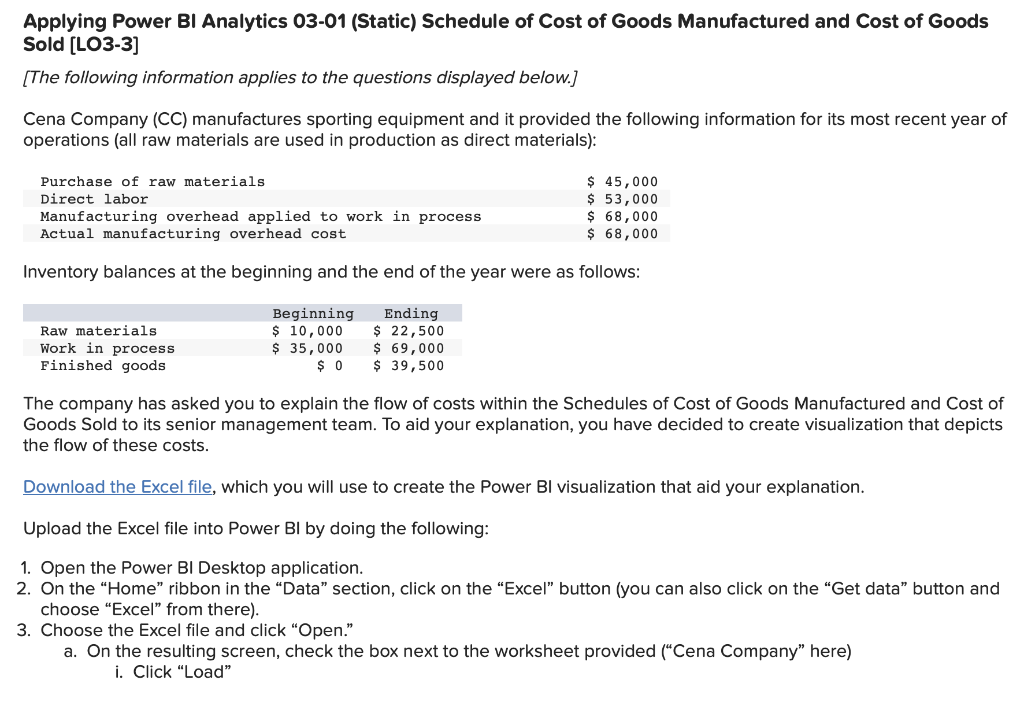
Applying Power BI Analytics 03-01 (Static) Schedule of Cost of Goods Manufactured and Cost of Goods Sold [LO3-3] [The following information applies to the questions displayed below.] Cena Company (CC) manufactures sporting equipment and it provided the following information for its most recent year of operations (all raw materials are used in production as direct materials): Inventory balances at the beginning and the end of the year were as follows: The company has asked you to explain the flow of costs within the Schedules of Cost of Goods Manufactured and Cost of Goods Sold to its senior management team. To aid your explanation, you have decided to create visualization that depicts the flow of these costs. Download the Excel file, which you will use to create the Power BI visualization that aid your explanation. Upload the Excel file into Power BI by doing the following: 1. Open the Power BI Desktop application. 2. On the "Home" ribbon in the "Data" section, click on the "Excel" button (you can also click on the "Get data" button and choose "Excel" from there). 3. Choose the Excel file and click "Open." a. On the resulting screen, check the box next to the worksheet provided ("Cena Company" here) i. Click "Load
Step by Step Solution
There are 3 Steps involved in it

Get step-by-step solutions from verified subject matter experts
 Study Help