







Question: As the text for the Chart Title element, type Summary of Annual Expenses and then change the Font Size to 2 8 . Remove the
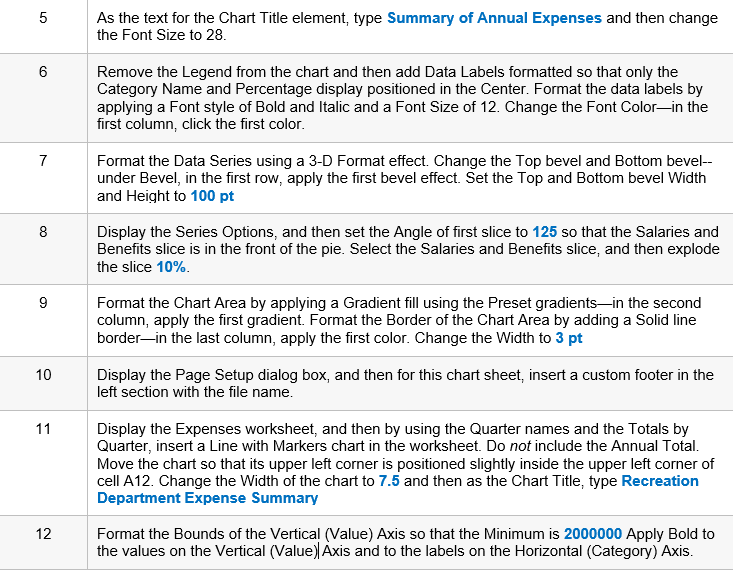
As the text for the Chart Title element, type Summary of Annual Expenses and then change
the Font Size to
Remove the Legend from the chart and then add Data Labels formatted so that only the
Category Name and Percentage display positioned in the Center. Format the data labels by
applying a Font style of Bold and Italic and a Font Size of Change the Font Colorin the
first column, click the first color.
Format the Data Series using a D Format effect. Change the Top bevel and Bottom bevel
under Bevel, in the first row, apply the first bevel effect. Set the Top and Bottom bevel Width
and Height to
Display the Series Options, and then set the Angle of first slice to so that the Salaries and
Benefits slice is in the front of the pie. Select the Salaries and Benefits slice, and then explode
the slice
Format the Chart Area by applying a Gradient fill using the Preset gradientsin the second
column, apply the first gradient. Format the Border of the Chart Area by adding a Solid line
borderin the last column, apply the first color. Change the Width to
Display the Page Setup dialog box, and then for this chart sheet, insert a custom footer in the
left section with the file name.
Display the Expenses worksheet, and then by using the Quarter names and the Totals by
Quarter, insert a Line with Markers chart in the worksheet. Do not include the Annual Total.
Move the chart so that its upper left corner is positioned slightly inside the upper left corner of
cell A Change the Width of the chart to and then as the Chart Title, type Recreation
Department Expense Summary
the values on the Vertical ValueAxis and to the labels on the Horizontal Category Axis.
Step by Step Solution
There are 3 Steps involved in it
1 Expert Approved Answer
Step: 1 Unlock

Question Has Been Solved by an Expert!
Get step-by-step solutions from verified subject matter experts
Step: 2 Unlock
Step: 3 Unlock
 Study Help