







Question: ASSESS YOUR COMPUTER HARDWARE Computer performance is affected by many things. In this exercise, you'll learn a little bit about your own computer and how
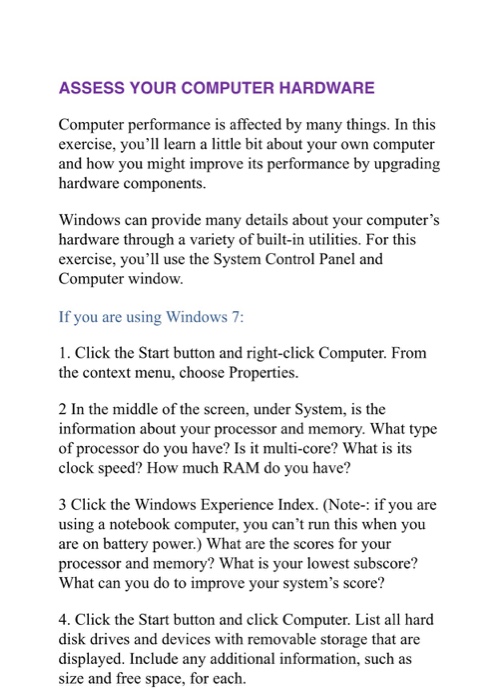
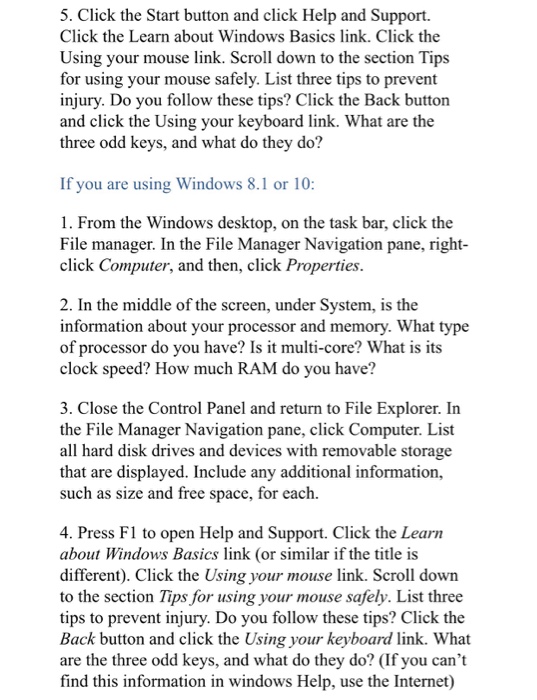
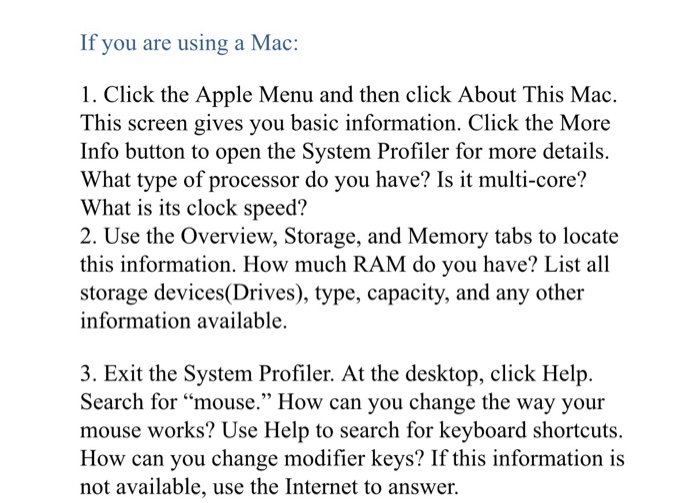

ASSESS YOUR COMPUTER HARDWARE Computer performance is affected by many things. In this exercise, you'll learn a little bit about your own computer and how you might improve its performance by upgrading hardware components. Windows can provide many details about your computer's hardware through a variety of built-in utilities. For this exercise, you'll use the System Control Panel and Computer window If you are using Windows 7 1. Click the Start button and right-click Computer. From the context menu, choose Properties. 2 In the middle of the screen, under System, is the information about your processor and memory. What type of processor do you have? Is it multi-core? What is its clock speed? How much RAM do you have? 3 Click the Windows Experience Index. (Note- if you are using a notebook computer, you can't run this when you are on battery power.) What are the scores for your processor and memory? What is your low What can you do to improve your system's score? est subscore? 4. Click the Start button and click Computer. List all hard disk drives and devices with removable storage that are displayed. Include any additional information, such as size and free space, for each
Step by Step Solution
There are 3 Steps involved in it

Get step-by-step solutions from verified subject matter experts
 Study Help